
WhatsApp Number Onboarding
Connect your WhatsApp Business Account (WABA) and phone number to indigitall directly from the indigitall console. The process uses Meta's embedded signup flow, so you register and verify your number, create or select your WhatsApp Business Account, and grant indigitall access, all without leaving the console.
When you finish, your number is ready to send and receive WhatsApp messages through indigitall.
Before you begin
Make sure you have the following:
- A Facebook account with admin access to your company's Meta business portfolio (Meta Business Manager).
- A valid phone number that can receive international text messages (SMS) or voice calls to verify it.
- A phone number that isn't registered with any other WhatsApp app, such as WhatsApp or WhatsApp Business. If it is, delete that WhatsApp account first. See the FAQ below for details.
- The Chat v2 service enabled in your indigitall project.
- Pop-ups allowed in your browser for the indigitall console. The Meta signup flow opens in a new window.
Step 1. Start the registration from the indigitall console
-
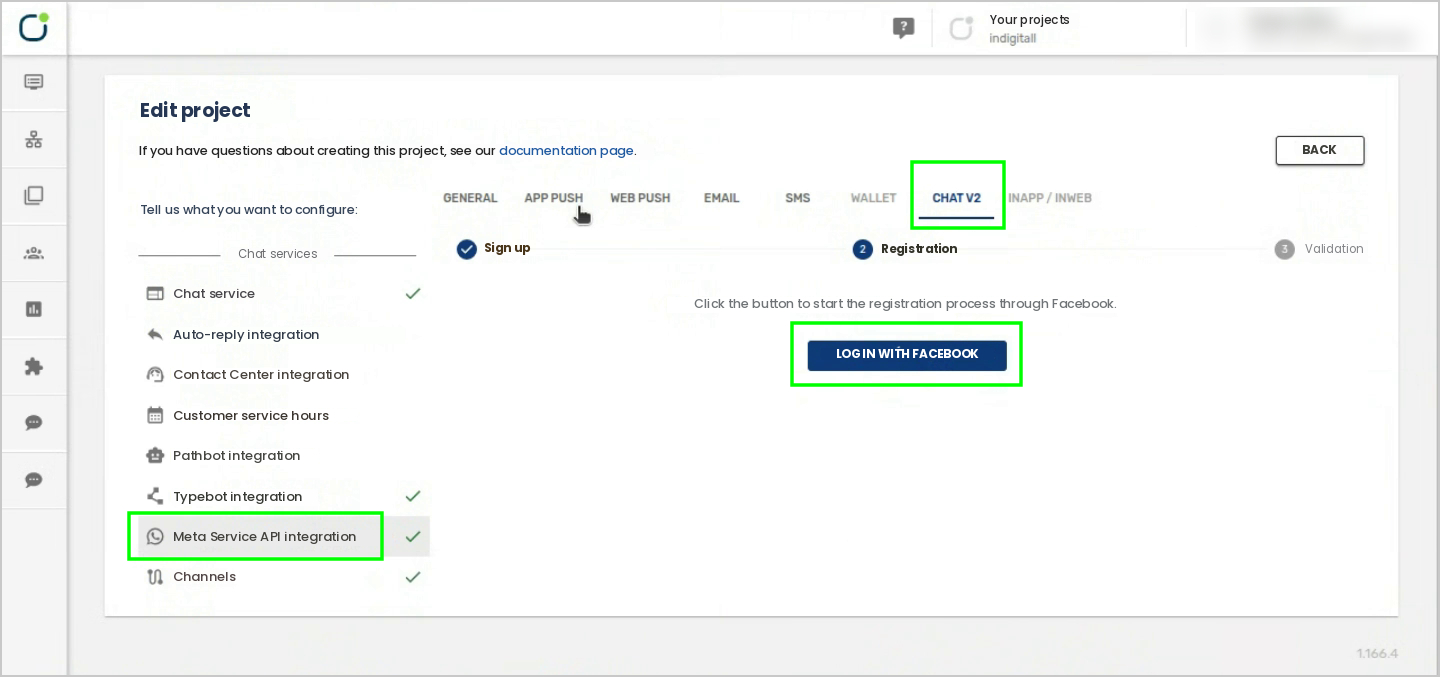
Sign in to the indigitall console and open your project settings.
-
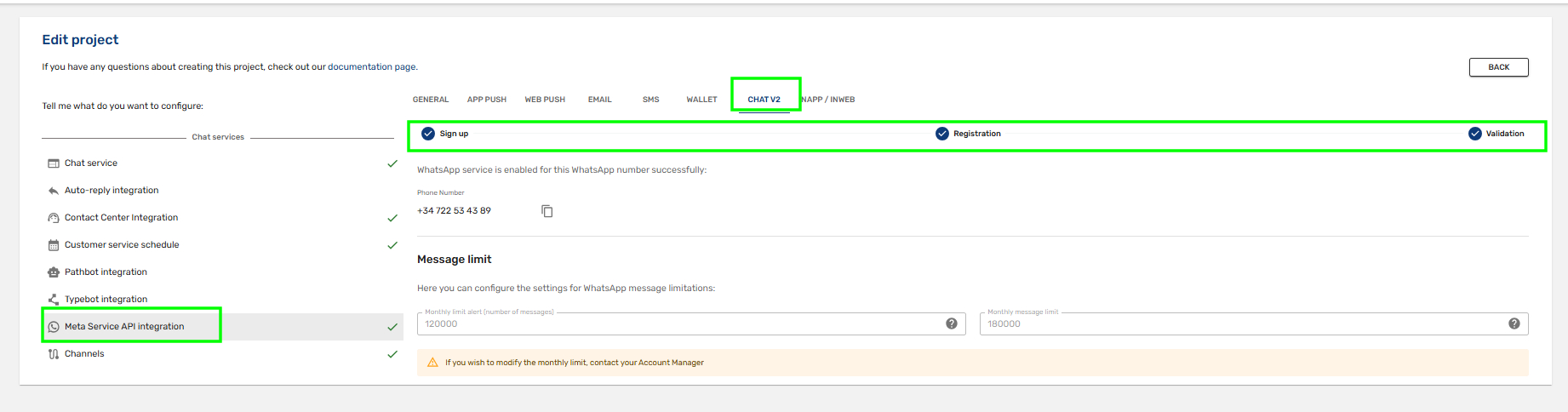
Go to the Chat v2 tab.
-
In the left menu, under Chat services, select Meta Service API integration.
-
In the Registration step, click Log in with Facebook.
Step 2. Log in to Facebook and start the onboarding
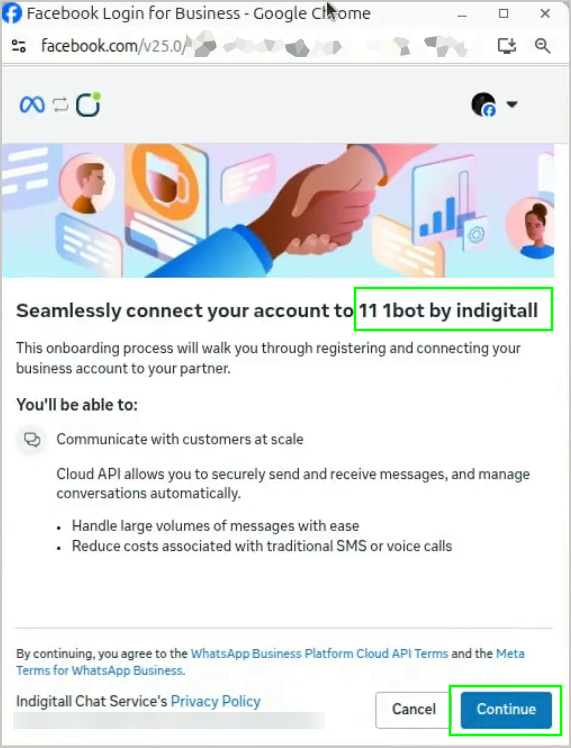
A Facebook Login for Business window opens. During the Meta setup, indigitall's chat service appears as "11 1bot by indigitall" or "indigitall Chat Service." Log in with the Facebook account that manages your business portfolio, review what the onboarding includes, and click Continue.
By continuing, you agree to the WhatsApp Business Platform Cloud API Terms and the Meta Terms for WhatsApp Business.
Step 3. Add your WhatsApp phone number
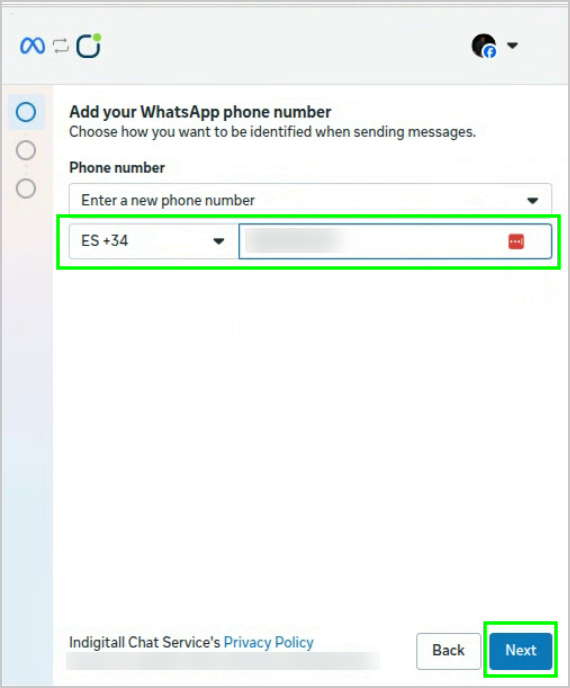
Choose the number your customers will see when you send them messages.
- In Phone number, keep Enter a new phone number selected to register a new number.
- Select the country code.
- Enter the phone number without the country code.
- Click Next.
If the number format isn't correct, you'll see the message "The number you entered is not a valid phone number." Check the country code and the number, and try again.
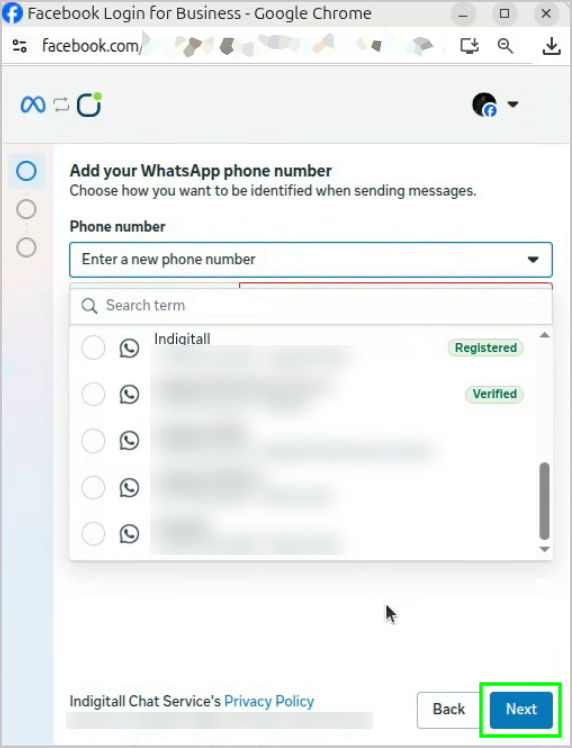
Tip: If your business portfolio already has phone numbers, you can open the Phone number drop-down list and select one of them instead. Each number shows its current status, such as Registered or Verified.
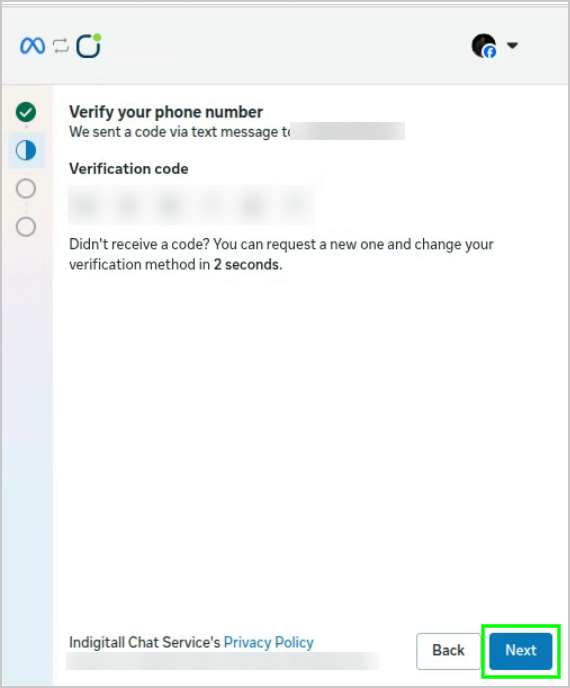
Step 4. Verify your phone number
Meta sends a 6-digit verification code to the number you entered.
- Enter the code in Verification code.
- Click Next.
Didn't receive the code? After the countdown ends, you can request a new code and choose how to receive it: Text message or Phone call.
Step 5. Select your business assets
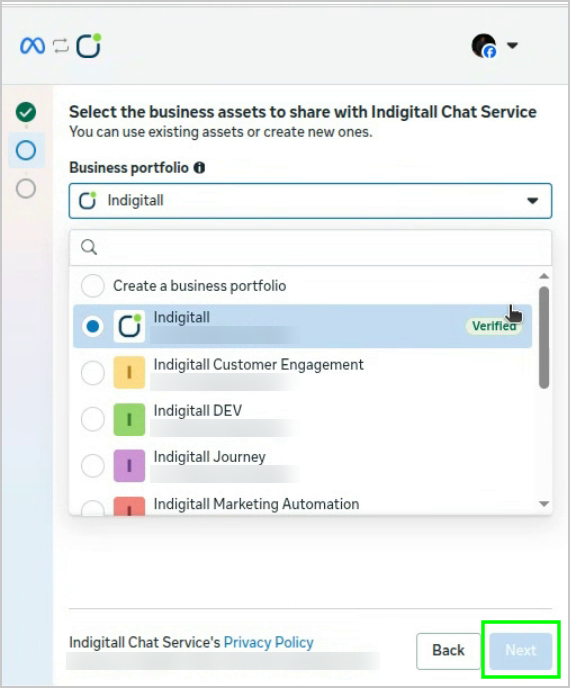
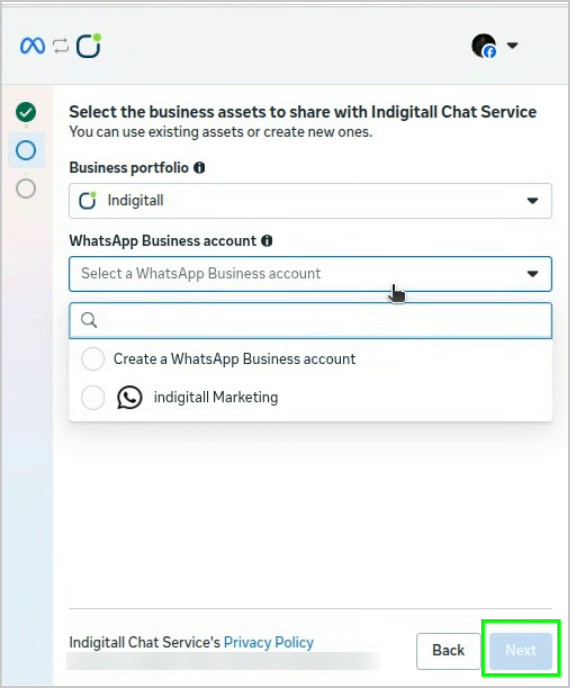
Choose the Meta assets you want to share with indigitall Chat Service. You can use existing assets or create new ones.
-
In Business portfolio, select your company's business portfolio, or select Create a business portfolio.
-
In WhatsApp Business account, select an existing account, or select Create a WhatsApp Business account.
-
Click Next.
Step 6. Enter the business information for new assets
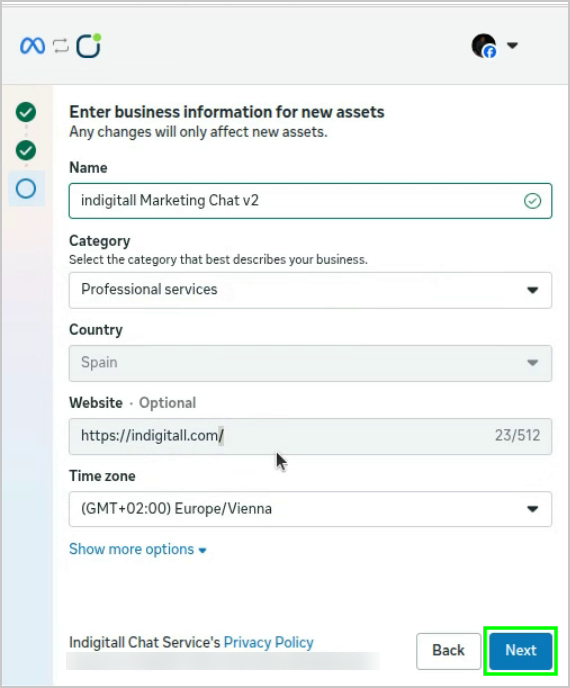
If you're creating a new WhatsApp Business Account, complete the business details. These changes only affect the new assets.
- Name: the name of your WhatsApp Business Account.
- Category: the category that best describes your business.
- Country: your business country.
- Website (optional): your company's website.
- Time zone: the time zone for your account.
- Show more options: add an optional business description.
Click Next.
Important noticeIn the name field, use the exact name that will be shown to end users. Otherwise, the setup won't work.
Step 7. Review and confirm the access
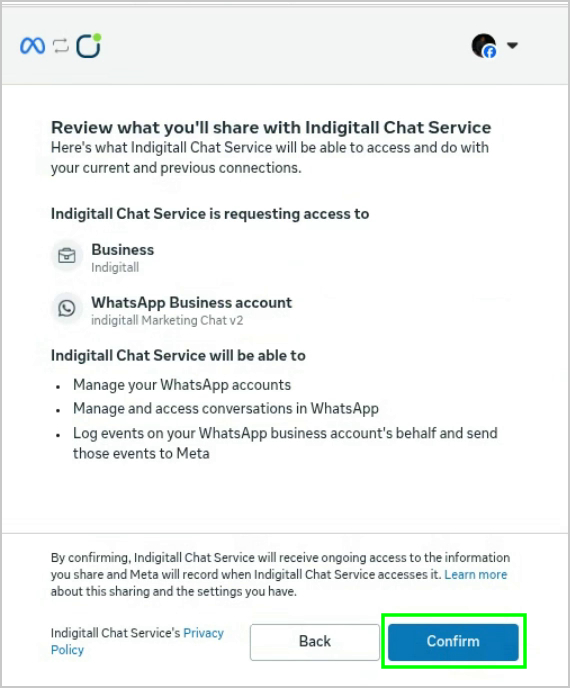
Review the assets and permissions indigitall Chat Service is requesting. indigitall Chat Service will be able to:
- Manage your WhatsApp accounts.
- Manage and access conversations in WhatsApp.
- Log events on your WhatsApp Business Account's behalf and send those events to Meta.
Click Confirm.
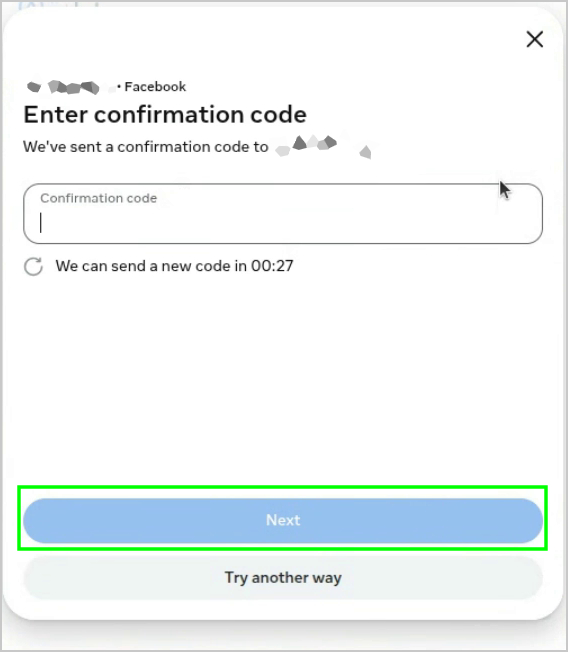
If Facebook asks you to confirm your identity, enter the confirmation code sent to your Facebook account's phone number and click Next.
Step 8. Finish the connection
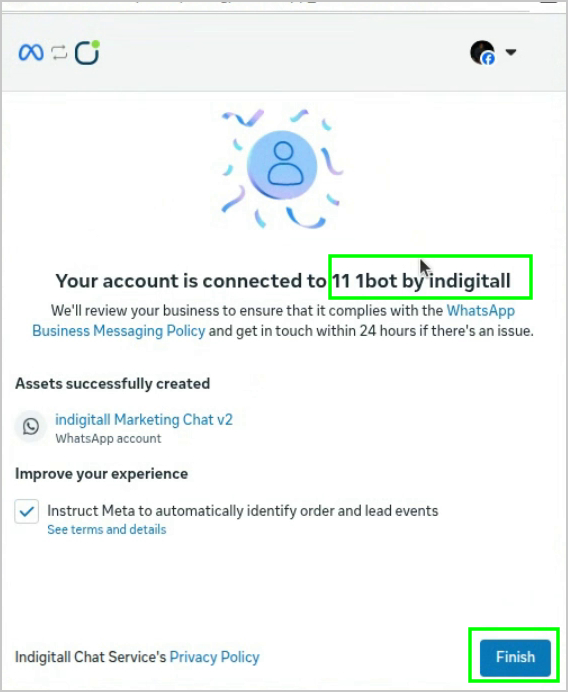
When the process completes, you'll see the message "Your account is connected," along with the assets that were created. Click Finish.
Meta reviews your business to make sure it complies with the WhatsApp Business Messaging Policy and will contact you within 24 hours if there's an issue.
Step 9. Check the phone number status in Meta Business Suite
- Open Meta Business Suite and go to Settings.
- Under Accounts, select WhatsApp accounts.
- Select your WhatsApp Business Account and open the Phone numbers tab.
Right after the onboarding, the number status is Pending.
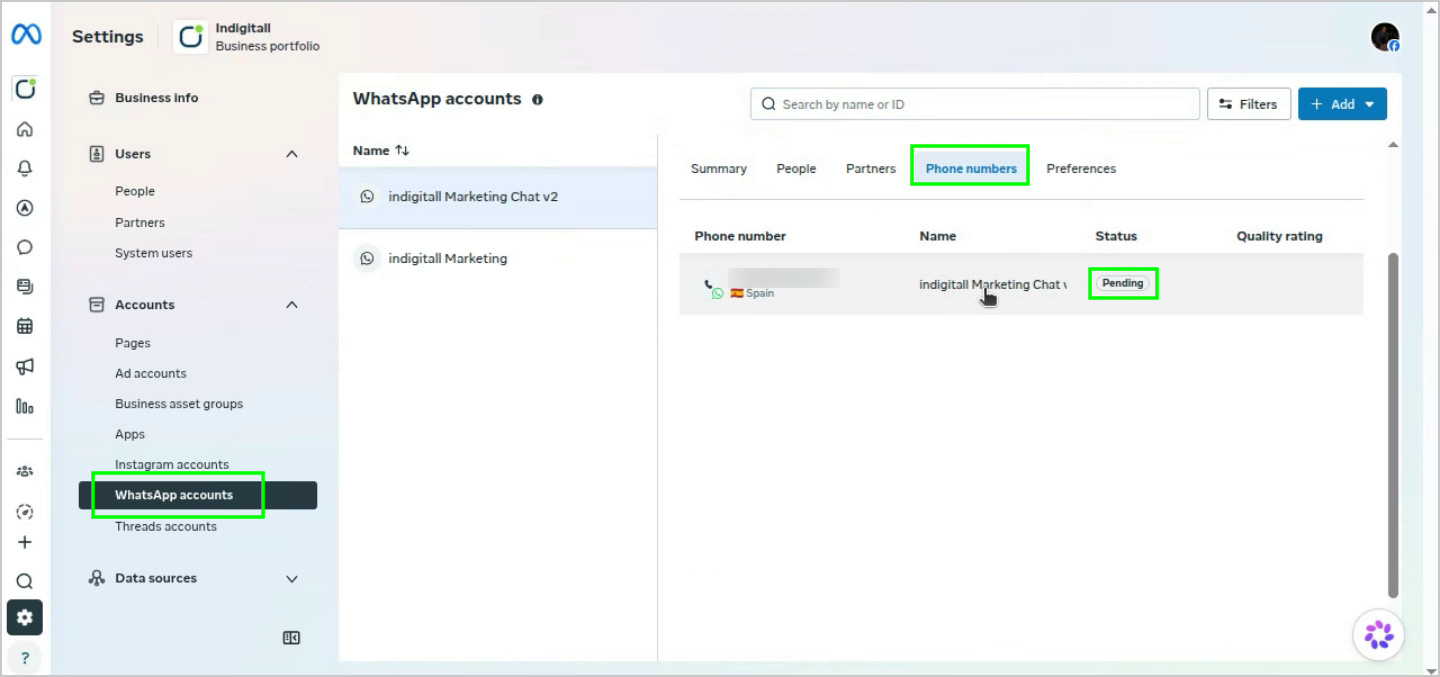
Once our Support team processes it, you'll see that the number is ready to use.
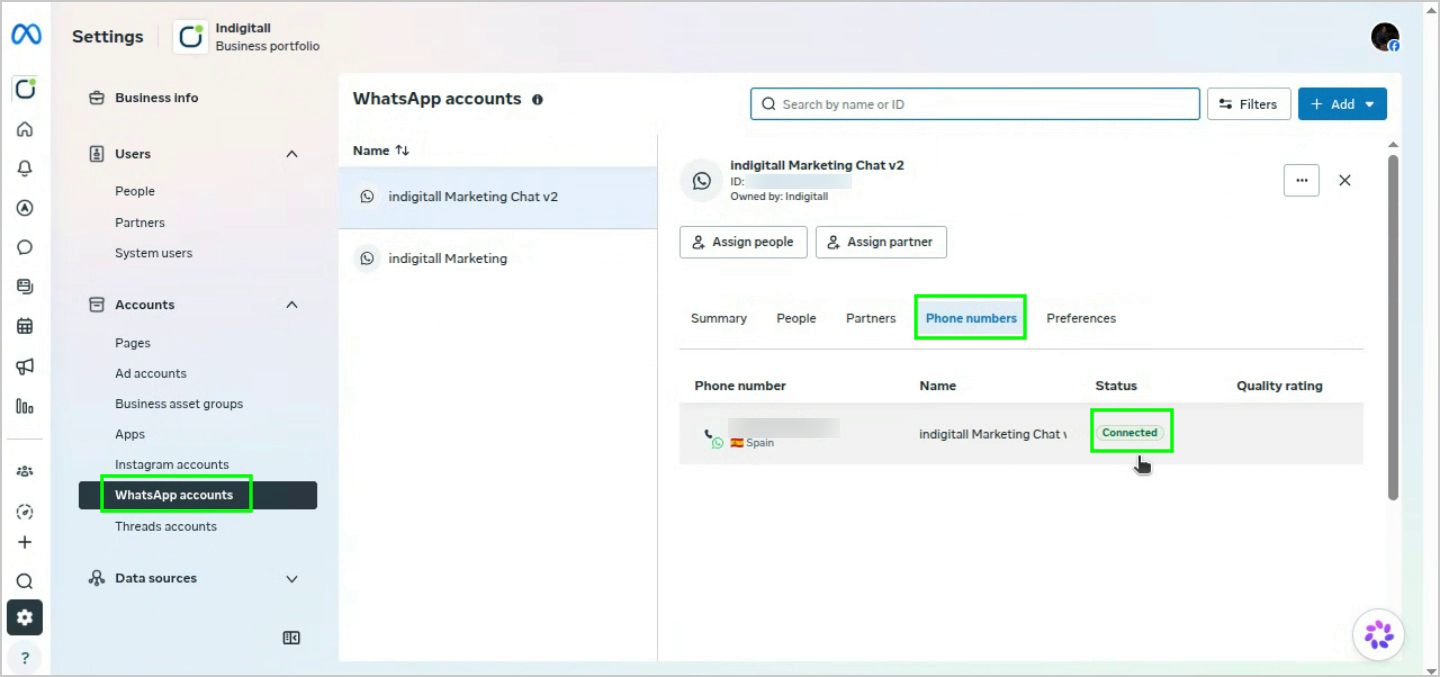
Tip: To update your account details, such as the time zone, currency, or payment method, click the ... menu next to the account name and select Edit business information. To add a payment method, select Payment settings.
Step 10. Set up your phone profile (optional)
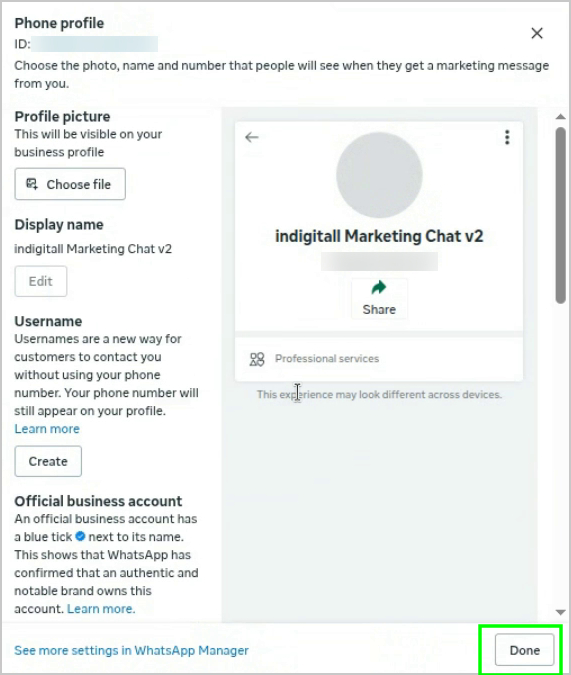
Customize how your business appears to customers in WhatsApp. In the Phone numbers tab, select your number to open the Phone profile panel. From there, you can:
- Profile picture: upload the image that appears on your business profile.
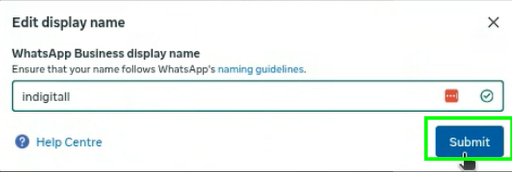
- Display name: click Edit to change the name customers see. Make sure your name follows the WhatsApp display name guidelines, and then click Submit.
- Username: create a username so customers can contact you without using your phone number.
- Official business account: submit a request to get a blue check mark next to your name.
- Business information: add your business category and other details.
Click Done to save your changes.
Step 11. Confirm the setup in the indigitall console
Go back to the Chat v2 tab in the indigitall console. When the Validation step is complete, the console confirms that the WhatsApp service is enabled for your phone number.
In Message limits, you can see your monthly message limit alert and your monthly message limit. To change your monthly limit, contact your Account Manager.
Messaging limits for unverified businesses
Unverified businesses have a messaging limit. You can only send business-initiated messages to 250 unique customers in a rolling 24-hour period. Complete Meta's Business Verification to lift this restriction and unlock higher messaging tiers.
WhatsApp display name guidelines
Your display name must follow Meta's formatting rules:
- Match your brand: use your company's legal name, trading name, or a brand or department you own.
- Use standard capitalization: don't use ALL CAPS, except for acronyms. Use grammatically correct formatting.
- Keep it clean: don't use emojis, symbols (such as ® or ™), unnecessary punctuation, or extra spaces.
- Don't include URLs: don't use extensions such as .com, .org, or .net.
- Avoid generic terms: don't use only generic words or geographic locations without your brand name.
- Meet the minimum length: use at least 3 characters.
FAQ
How many messages can I send before my business is verified?
Unverified accounts can typically send business-initiated conversations to 250 customers in a rolling 24-hour period. After Business Verification, you can move up to tiers of 1,000, 10,000, 100,000, or unlimited daily recipients, based on your messaging quality.
How should I format my business name?
Use Title Case or Sentence case. Meta restricts the use of ALL CAPS unless your official, registered legal entity or trademark is a recognized acronym.
Can I use a number that's already registered with WhatsApp?
Yes, but you must delete the existing account first from the WhatsApp app (Settings > Account > Delete my account). Uninstalling the app or changing the SIM card isn't enough. The number is released as soon as you confirm the deletion.
Can I switch providers later?
Yes. Your phone number is 100% portable between WhatsApp Business Solution Providers. You keep your number, display name, verified status, messaging limits, and template catalog. Active chat threads and message history don't migrate automatically.
Next steps
Your WhatsApp number is ready. Now you can create your WhatsApp templates from Utilities > Chat > WhatsApp templates in the indigitall console and submit them to Meta for approval.
Updated 20 days ago