
Creating a Chat Campaign
Chat campaigns let you send messages to your audience through conversational channels. This page walks you through creating a campaign, from choosing the message type to saving or sending it.
Step 1: Start a new campaign
- Go to Campaigns and select the Chat tab.
- Click New chat campaign in the top-right corner.
- Enter a title for your campaign. Choose a descriptive name so you can easily find the campaign later in the Chat Campaigns list.
Step 2: Choose the message type
- Simple message: A standard text-only communication.
- Multimedia message: Enhance your engagement by including images, videos, or files.
- WhatsApp template: Use pre-approved WhatsApp templates for official business notifications.
Simple message
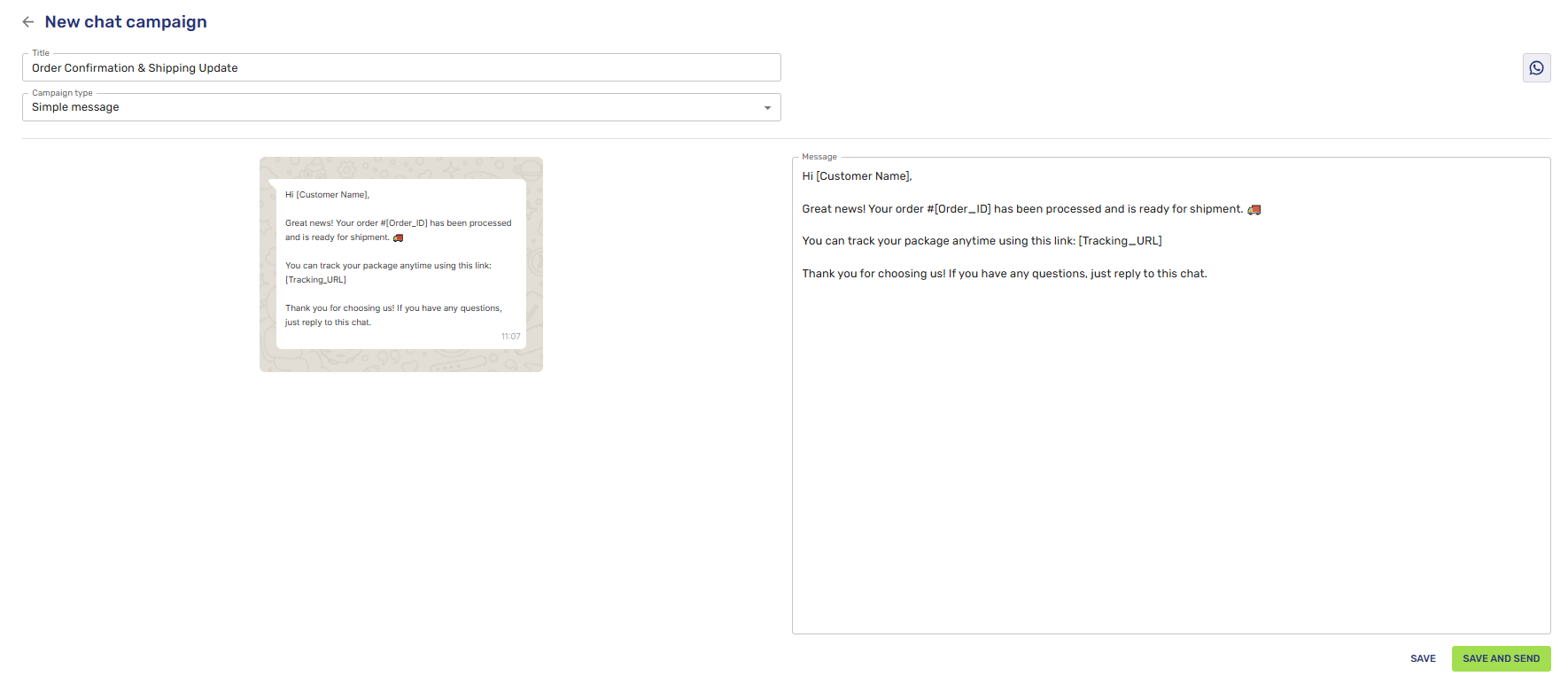
In the Simple message creation interface, the workspace is designed for real-time accuracy and ease of use:
- Content Composition: On the right side of the screen, you will find the Message input field where you can compose your text directly.
- Live Preview: As you type, the left side of the interface displays a real-time visualization, showing exactly how the message will appear to the end-user on their device.
- Channel Identification: In the upper right corner, a dedicated channel icon provides a quick visual confirmation of the platform currently being used (e.g., WhatsApp).
- Final Actions. Once your message is ready, use the primary buttons at the bottom right to proceed:
- Save: Secure your progress and store the campaign as a draft.
- Save and Send: Immediately finalize the campaign and initiate the delivery process.
Multimedia message
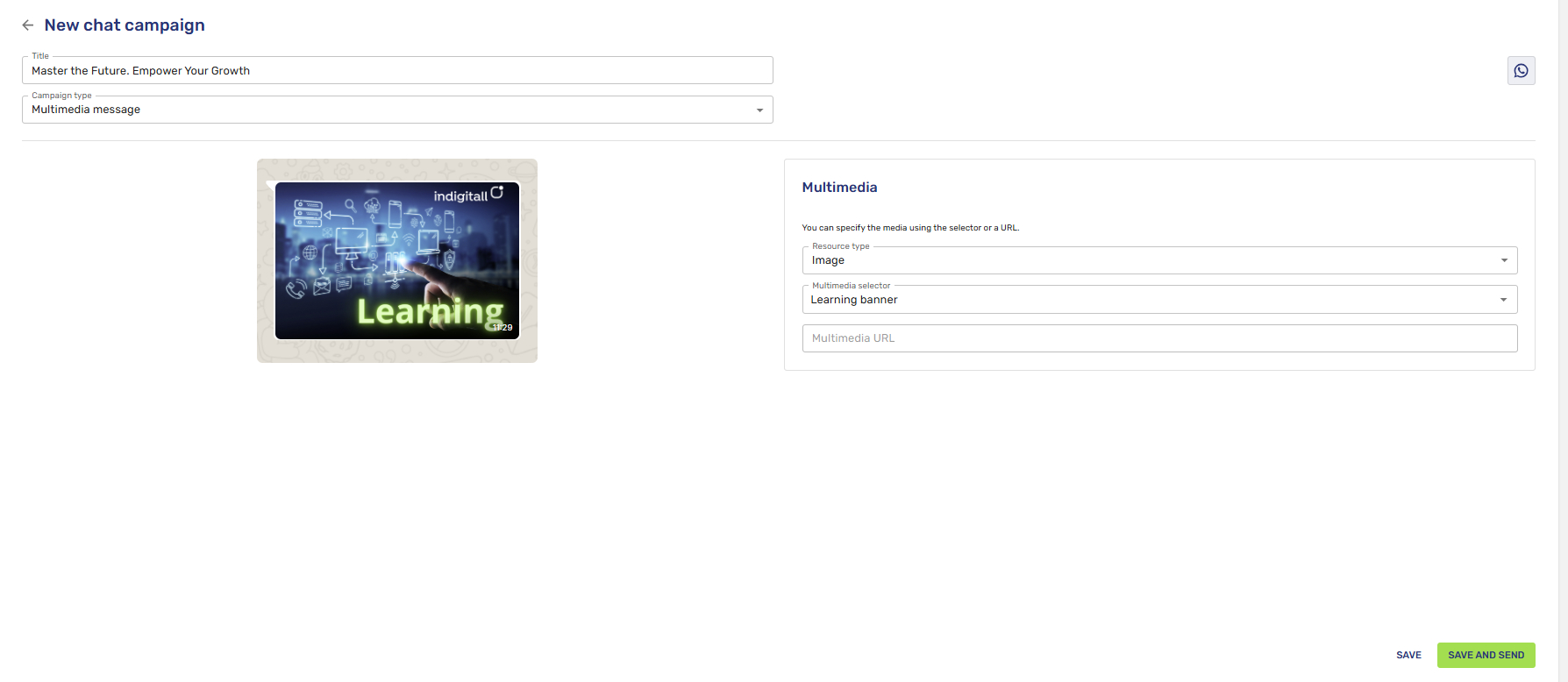
When creating a Multimedia message within the indigitall console, the interface allows for dynamic content integration with real-time feedback:
- Resource Type Selection: Begin by selecting the Resource type from the dropdown menu, which includes Document, Image, Audio, and Video.
- Media Selection:
- Once the type is selected, the Multimedia selector will populate with all pre-existing assets managed under the Tools / Multimedia section.
- If the desired asset is not already in your library, you can directly input a link in the Multimedia URL field.
- Live Visualization: As you configure the media, a preview appears on the left side of the screen, allowing you to verify exactly how the multimedia content will look on the user's device.
- Channel Indicator: A dedicated channel icon (e.g., WhatsApp) is displayed in the upper right corner to confirm which platform is being utilized for the campaign.
- Finalizing the Campaign Located at the bottom right of the screen, you have two primary options:
- Save: Click this to store the campaign as a draft for future use.
- Save and Send: Click this to immediately finalize the configuration and initiate the message delivery.
WhatsApp template
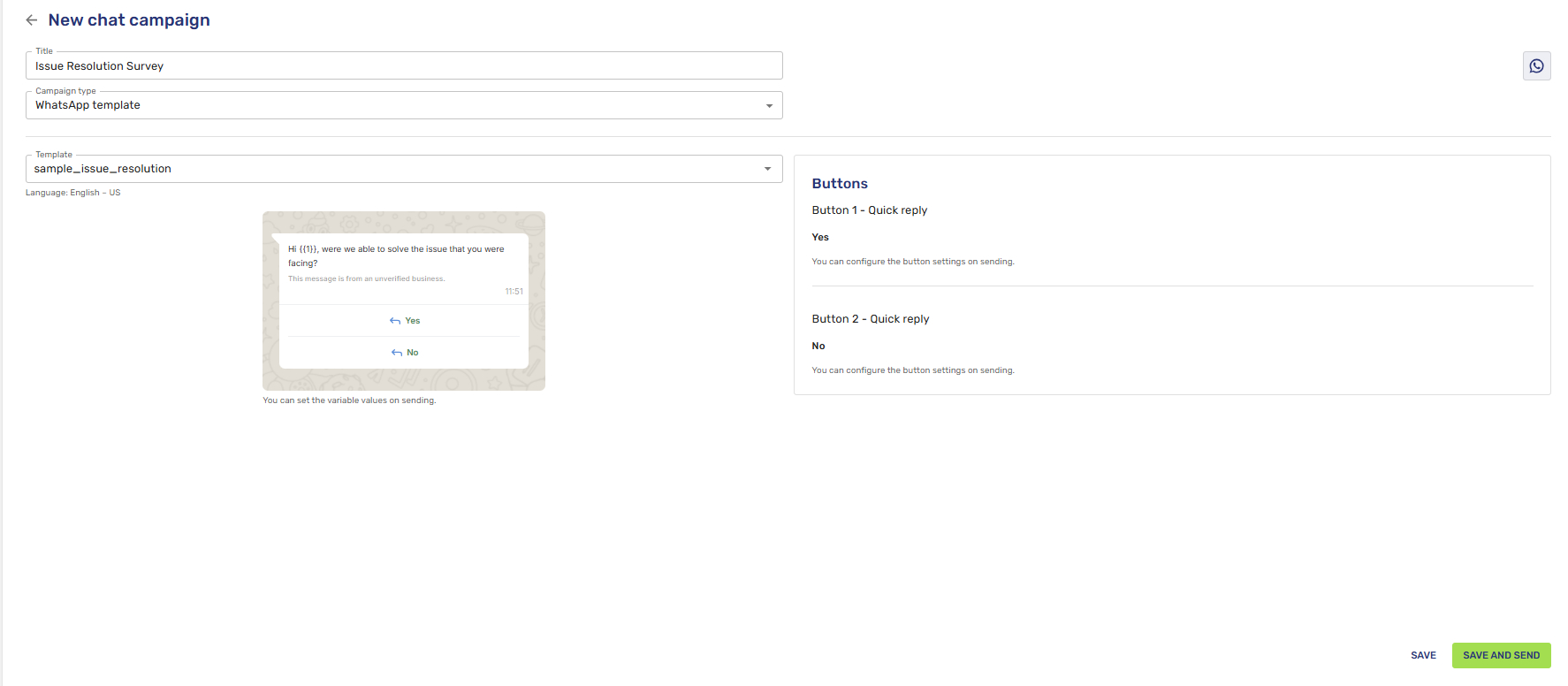
Enhance your communication strategy by utilizing WhatsApp templates, a more advanced option than standard simple or multimedia messages that allows for structured, pre-approved content and interactive elements:
- Template Selection: Use the Template dropdown menu to choose a pre-approved message. These templates must be previously created and managed in the Campaign / WhatsApp template section of the console.
- Interactive Buttons: On the right side of the interface, the Buttons section will automatically display the specific options (such as Quick Replies) associated with your chosen template. You can review and configure these button settings before the campaign is finalized.
- Live Preview & Variables: The left side provides a real-time visualization of the template. If your template includes dynamic placeholders, you can set these variable values during the sending process.
- Execution: Use the Save button to keep the campaign as a draft, or Save and Send to trigger the delivery immediately.
Standard Unsubscribe Button
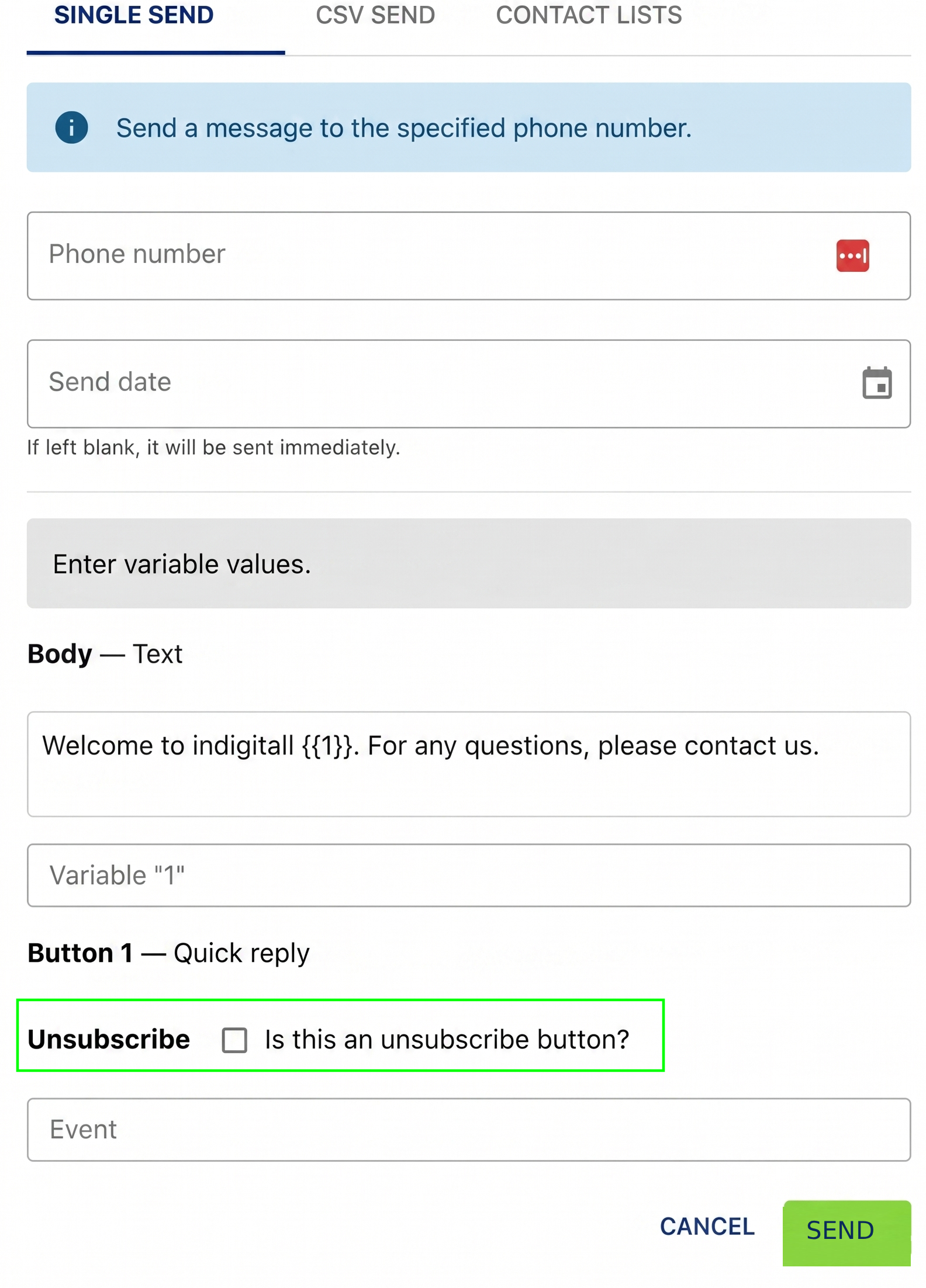
This feature inserts a standardized unsubscribe button into your messages, allowing recipients to easily opt out of future communications. It can be enabled instantly simply by checking a box.
- Key Benefit: This ensures your outbound campaigns quickly and efficiently comply with legal regulations (such as GDPR) without requiring manual technical setups.
Updated 24 days ago