
Messaging Limits
Messaging limits refer to the maximum number of business-initiated conversations (conversations started by sending a marketing, utility, or authentication template to a WhatsApp user) that a business phone number can initiate within a 24-hour rolling period.
Initially, business phone numbers are capped at 250 business-initiated conversations within a 24-hour rolling period, but this limit can be raised. Messaging limits can be increased to the following:
- 1K business-initiated conversations
- 10K business-initiated conversations
- 100K business-initiated conversations
- An unlimited number of business-initiated conversations
You can increase your messaging limit to 1K on your own using the following methods. Higher limits, however, can only be achieved through automatic scaling, which happens after your limit has been increased to 1K.
Note that in order for your business phone number to be eligible for an increase, it must have a connected status(how to know Phone Number Status), and if your business phone number has a low quality rating, it may continue to be limited to 250 business-initiated conversations until its quality rating improves.
Initiate 1K Conversations Within 30 Days
Start 1,000 or more business-initiated conversations within a rolling 30-day period using templates with a high-quality rating. Once this threshold is met, Meta will review your messaging quality to assess whether your activity justifies an increase to your messaging limit. Following this evaluation, Meta will either approve or deny the limit increase.
Deliver High-Quality Messages
If your business or identity verification is denied, focus on sending high-quality messages. Meta will periodically reassess your messaging activity and quality, and based on this review, an increase to your messaging limit may be granted.
Tips for Sending High-Quality Messages:
- Ensure all messages comply with the WhatsApp Business Messaging Policy.
- Only message users who have explicitly opted in to receive communications from your business.
- Craft highly personalized and valuable messages. Avoid generic welcome or introductory messages.
- Monitor your messaging frequency carefully. Limit the number of messages sent to customers each day, and prioritize concise, informative content.
Requesting a Limit Increase
If you have completed business or identity verification or reached the threshold of 1,000 conversations within 30 days but are still restricted to 250 business-initiated conversations, you can request a messaging tier upgrade by submitting a direct support ticket. Navigate to Ask a Question > WABiz: Phone Number & Registration > Request Type > Request a Messaging Tier Upgrade.
Based on the details of your request and the quality of your messaging , Meta will determine whether to approve or deny the upgrade.
Increase Approvals
If a messaging limit increase is approved, your business phone number’s limit will be raised to 1K, and you will be notified via email and a developer alert. Additionally, a business_capability_update webhook will be triggered (see examples), with the max_daily_conversation_per_phone property reflecting the new limit.
After approval, your business phone number becomes eligible for automatic scaling.
Increase Denials
If a messaging limit increase is denied, your business phone number’s limit will remain at its current level. You will be notified via email and a developer alert. Furthermore, an _accountalerts webhook will be triggered (see examples), including the alert_type and alert_description properties with information on alternative actions to take for increasing your limit.
| alert_type / Value | Action you can take |
|---|---|
| INCREASED_CAPABILITIES_ELIGIBILITY_DEFERRED | Send high-quality messages or open 1K conversations in 30 days. |
| INCREASED_CAPABILITIES_ELIGIBILITY_FAILED | Request an increase or open 1K conversations in 30 days. |
| INCREASED_CAPABILITIES_ELIGIBILITY_NEED_MORE_INFO | Complete identity verification or open 1K conversations in 30 days. |
Automatic Scaling
Once your business phone number’s messaging limit is raised to 1K business-initiated conversations, Meta will evaluate whether to increase the limit further each time it is used to initiate a new conversation. This evaluation is based on the following criteria:
- Your business phone number is active and connected.
- The quality rating of your business phone number is either Medium or High.
- Over the past 7 days, your business phone number has been used to initiate at least X business conversations, where X is half of its current messaging limit.
If all these conditions are met, the messaging limit will be increased by one level within 24 hours. However, if the quality rating has been set to Flagged for the last 7 days, the limit will immediately be reduced by one level.
Examples:
A messaging limit can increase from 1K to 10K within 2 days:
| Day 1 | Day 2 | |
|---|---|---|
| Business-initiated conversations opened | 500 | 500 |
| Business-initiated conversations opened in last 7 days | 500* | 1,000 |
| Messaging limit | 1K | 10K |
*****If the 500th conversation is opened at 3pm (for example), the messaging limit is increased at 3pm the following day (i.e. 24 hours later).
Messaging limit increased from 1K to 10K in 4 days:
| Day 1 | Day 2 | Day 3 | Day 4 | |
|---|---|---|---|---|
| Business-initiated conversations opened | 100 | 200 | 200 | 300 |
| Business-initiated conversations opened in last 7 days | 100 | 300 | 500* | 800 |
| Messaging limit | 1K | 1K | 1K | 10K |
*****If the 500th conversation is initiated at 7pm (for example), the messaging limit is increased at 7pm the following day (i.e. 24 hours later).
Hitting Your Messaging Limit
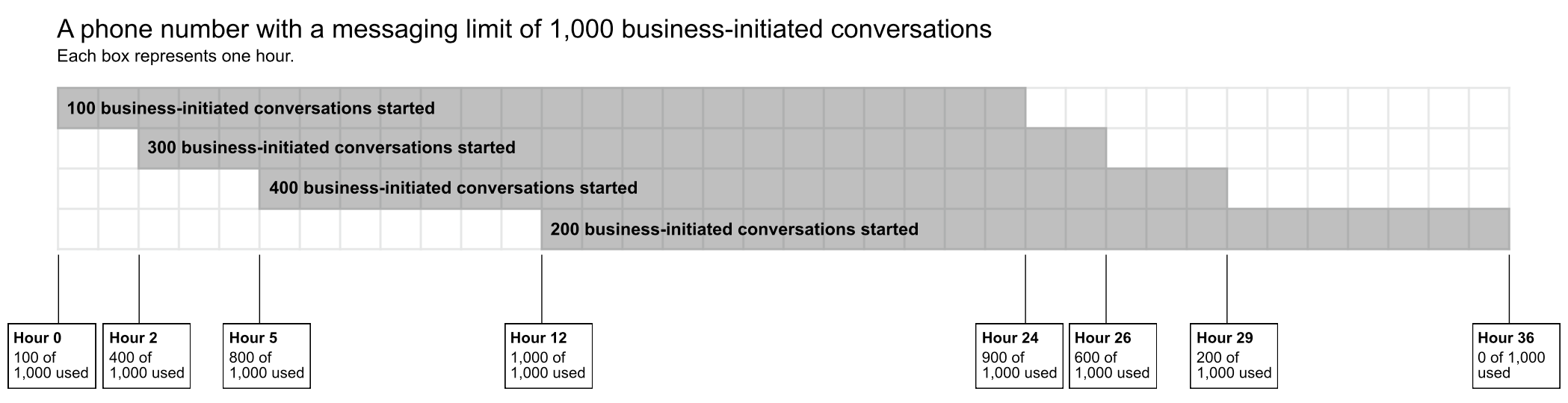
When you reach your messaging limit, you can start new conversations as soon as one or more active conversations come to an end. As the image below shows:
Reviewing Your Limit
Before your business phone number's messaging limit is raised to 1K business-initiated conversations, the WhatsApp Manager > Overview > Limits panel provides valuable insights and guidance on steps you can take to request a limit increase.
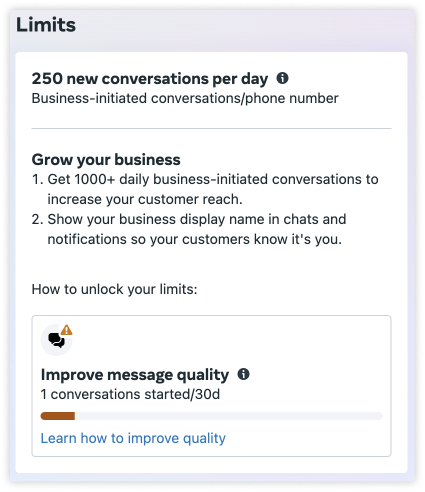
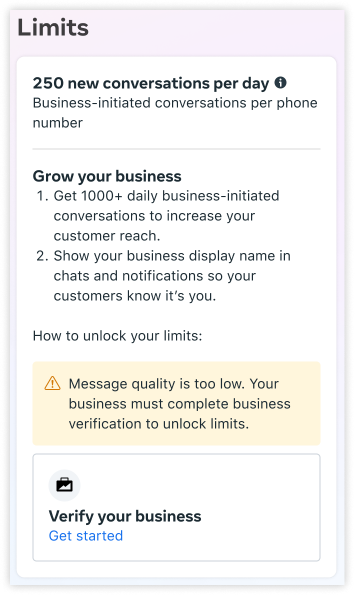
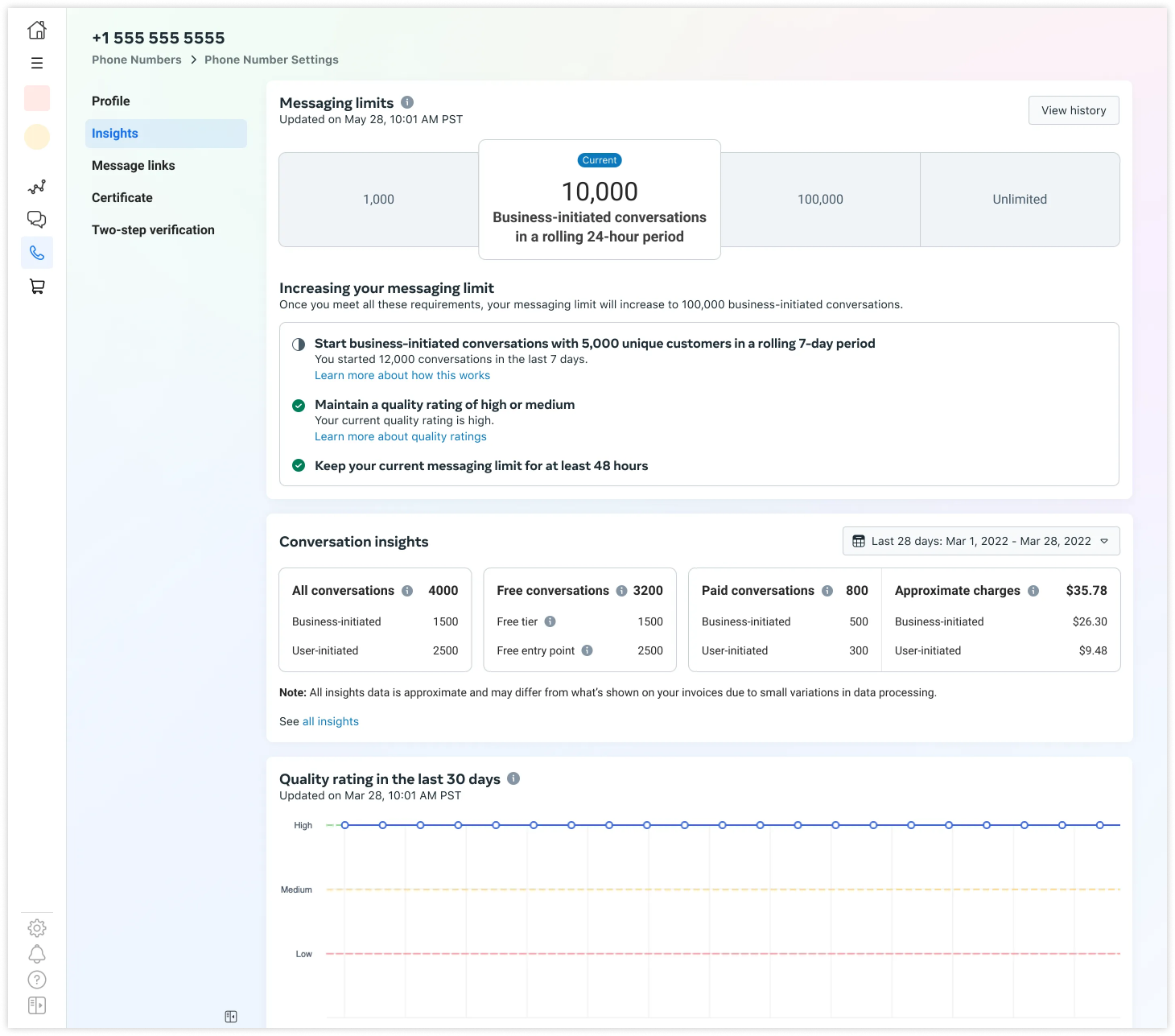
Once your business phone number's messaging limit is increased, the WhatsApp Manager > Account Tools > Insights panel will show your new messaging limit, including any adjustments made through automatic scaling.
Messaging Limits: Portfolio-Based Management
Meta has updated how messaging limits are calculated and applied to offer you greater flexibility and efficiency across your entire brand.
Current Policy: Portfolio-Level LimitsPreviously, messaging limits were determined and assigned per individual phone number. However, as of October 7, 2025, this structure has changed. Messaging limits are now calculated and set at the business portfolio level and are shared across all business phone numbers within that portfolio.
How Existing Portfolios Will Be Affected
For existing business portfolios, your new portfolio-wide messaging limit will be set to the highest limit of any individual phone number currently in your portfolio.
Example: If your portfolio includes a phone number with a limit of 100K messages and other numbers with lower limits, your entire portfolio's shared limit will be set at 100K.
Key Benefits
This update is designed to improve your operational workflow and capacity:
- Faster Access to Higher Limits: Limit upgrades will now take place within 6 hours (a significant reduction from the current 24-hour waiting period). Additionally, any newly registered phone numbers will gain immediate access to the portfolio’s existing limit.
- Enhanced Flexibility: You can now utilize as many phone numbers as your business requires without needing to register extra numbers simply to reach a higher messaging tier. All phone numbers will automatically share the portfolio's unified limit.
- Reduced Administrative and Operational Costs: By streamlining the limit assignment process and removing the need for extraneous phone numbers, you can significantly minimize administrative overhead and associated operational costs.
| Changes | Before Oct 7th, 2025 | Starting Oct 7th, 2025 |
|---|---|---|
| Where are limits set? | On individual business phone numbers. For example, phone number A could have a limit of 10K but phone number B could have a limit of 100K. | On individual business portfolios. For example, a portfolio with two business phone numbers could have a limit of 100K, and both phone numbers share the 100K limit. |
| Starting limit for newly created business portfolios | Not applicable. | 250 |
| Starting limit for a newly registered number | 250 | Shares the messaging limit set on the business portfolio. |
| Limit upon becoming eligible for automatic scaling | 1,000 | 2,000 |
| Time to increase limit via automatic scaling | Limit increased 24 hours after meeting criteria. | Limit increased 6 hours after meeting criteria. |
| Phone number quality states | The Flagged phone number quality state is possible. If your business phone number quality rating has been set to Flagged for the last 7 days, we will decrease its limit by one level, immediately. | The Flagged phone number quality state is no longer possible. If your business phone number quality rating drops, its messaging limit will not be downgraded. |
| Automatic scaling criteria |
|
|
| Throughput eligibility requirements | For a business phone number to become eligible for 1,000 messages per second:
| Your business phone number will be automatically upgraded to the 1,000 messages per second (mps) limit within 12 hours, provided it meets the necessary eligibility requirements. The criteria for a number to become eligible are as follows:
|
Messaging Quality
Your messaging quality is assessed based on how recipients have interacted with your messages over the last seven days, with more recent interactions having a greater impact. This evaluation uses various quality signals from your conversations with WhatsApp users. Examples of these signals include user feedback such as blocks, reports, and the reasons users provide when they block a business.
You can view your business phone number’s status, quality rating, and messaging limits in the WhatsApp Manager > Account Tools > Phone Numbers panel.
Keep in mind that it’s common for phone numbers with high messaging activity to experience fluctuations in quality over short periods (sometimes within minutes).
For more details about your WhatsApp Business phone number’s quality rating, refer to About your WhatsApp Business phone number’s quality rating.
User preferences for marketing messages
To enhance user experience and improve engagement, WhatsApp has implemented user-facing controls for marketing messages and established a policy on message delivery limits. These systems empower users to manage the promotional content they receive and help businesses send more effective, relevant communications.
User Preference Controls: "Offers and announcements"
WhatsApp provides a setting called "Offers and announcements," which gives users direct control over the marketing messages they receive from your business in two key ways:
- Feedback (Interested / Not Interested): Users can provide feedback on your marketing messages. A "Not interested" signal can influence the per-user delivery limits between you and that specific user.
- Delivery Control (Stop / Resume): Users can completely opt-out of receiving all marketing messages from your business. They can also use this same setting to opt back in at any time.
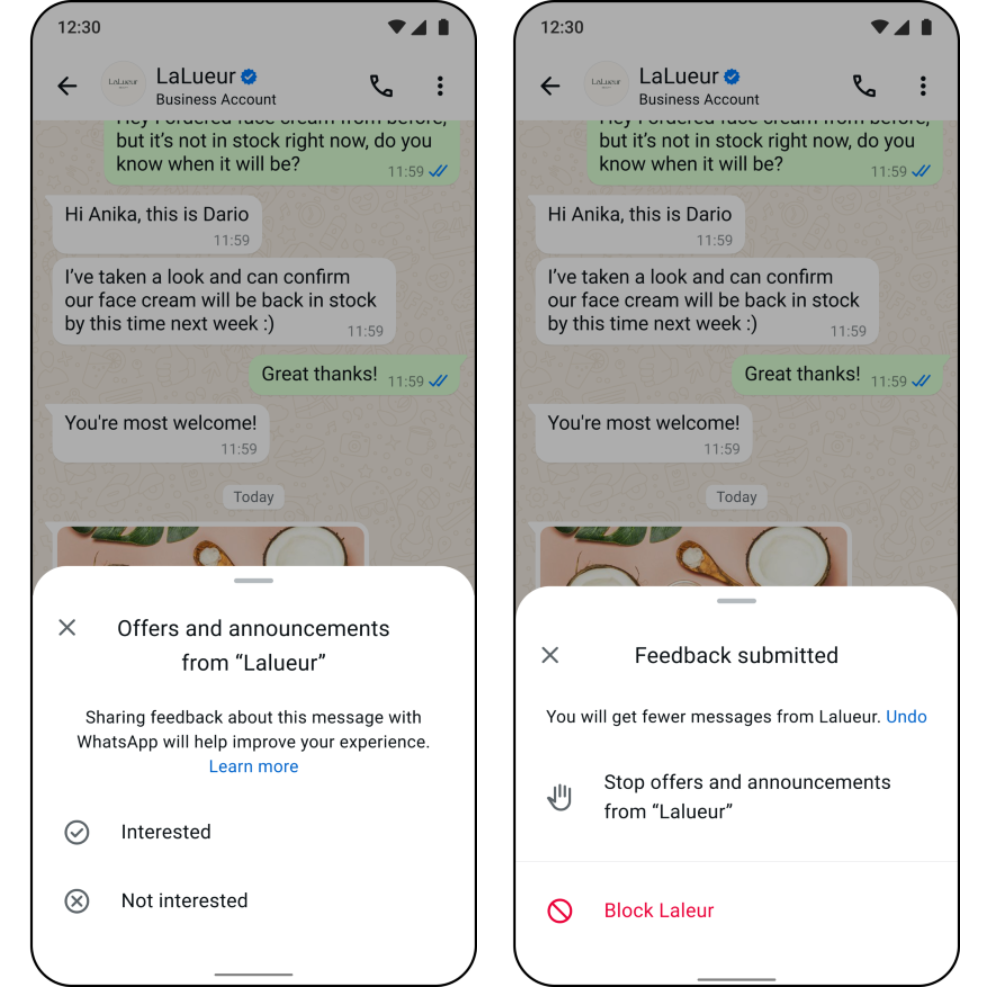
If a message fails to deliver for this reason, the delivery status column in the .CSV report will display: code 131050
Understanding Per-User Marketing Message Limits
WhatsApp dynamically limits the number of marketing messages a user can receive from all businesses over a certain period. This is not a fixed number; it's calculated based on factors like:
- The user's recent read rate for marketing messages.
- The user's overall inbox activity, including messages from friends and family. This was incorporated into the logic in March 2025 to better gauge user receptiveness.
The goal of this limit is to prevent inbox fatigue, which leads to higher read rates and a better overall experience for users.
Marketing Template Limits (Error 131049)
To maintain a high-quality user experience, Meta enforces per-user limits on marketing template messages. If a message is blocked due to these limits, it will appear in your indigitall reporting with the following status:
- Status: failed
- Error Code: 131049
How to Handle This Error
If you encounter error code 131049, Meta recommends the following actions:
- Wait at least 24 hours: Do not attempt to resend the template immediately.
- Avoid immediate retries: Because the limit duration varies, retrying too soon will likely result in another failed delivery and a repeat of the error.
Meta continues to refine these limits to optimize the WhatsApp experience for both businesses and their customers.
Unrecognized error? Check the WhatsApp Error Codes Guide for troubleshooting steps.
Updated 9 months ago