
Pathbot Statistics Report
The Pathbot statistics report is a monthly report that shows how your AI agent performed during the month: how much it was used, what your customers asked about, how its tools behaved, and when it couldn't give an answer. You receive a new report every month, and all the KPIs and charts in it refer to that month.
The report is organized into five tabs:
- General: How much is the agent used, by how many people, and in which languages?
- Exploration: What topics are your customers asking about, as detected by AI?
- Predefined categories: How are conversations distributed across the categories defined for your agent
- Tools: How often does the agent call each tool, how fast does each tool respond, and how often does it fail?
- Fallbacks: When and why did the agent fail to answer, and what can you do to fix it?
General
The General tab gives you a snapshot of your agent's overall activity: volume, audience, engagement and languages.
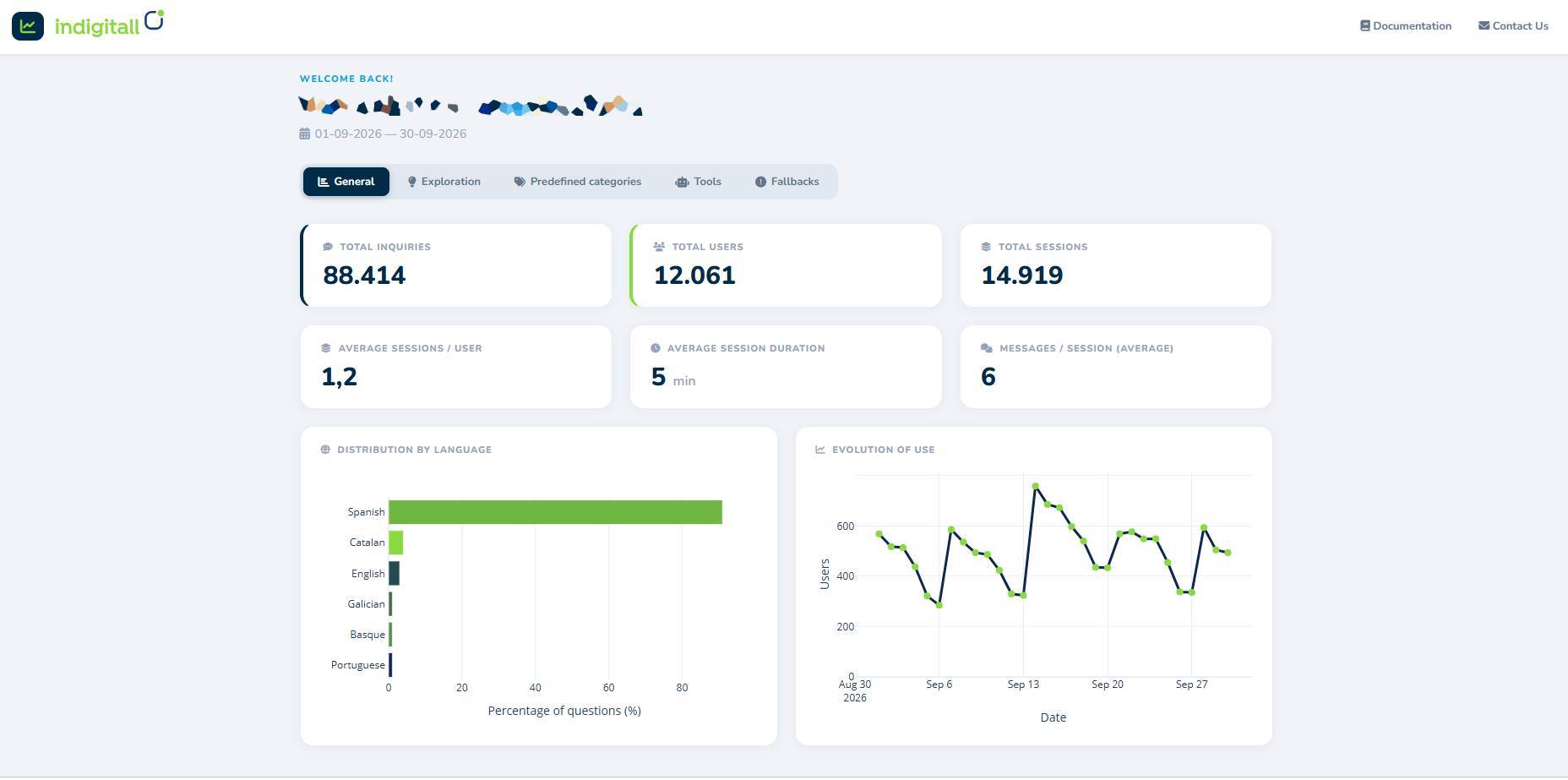
KPIs
| KPI | What it measures | How to read it |
|---|---|---|
| Total queries | Total number of messages your users sent to the agent during the period. | Your overall volume of demand. Compare it period over period to spot growth or seasonal peaks. |
| Total users | Number of unique users who talked to the agent. | The size of the audience the agent served. |
| Total sessions | Number of conversation sessions opened with the agent. | A user can open more than one session in the same period. |
| Avg. sessions / user | Total sessions divided by total users. | Values close to 1 mean most users contact the agent once. Higher values mean users come back, either because they find the agent useful or because their issue was not solved the first time. |
| Avg. session duration | Average length of a session, in minutes. | Read it together with messages per session. Long sessions with many messages may indicate that users need several attempts to get an answer. |
| Messages / session (avg.) | Average number of user messages in each session. | Low values usually mean quick, direct answers. High values mean longer or more complex conversations. |
Charts
- Language distribution: the percentage of questions asked in each language. Use it to check that your agent's knowledge base covers the languages your customers actually use.
- Usage over time: the number of users who talked to the agent each day. Peaks usually match campaigns, promotions or incidents, so use it to relate agent activity to what happened in your business.
Exploration
The Exploration tab shows what your customers are asking about. Topics are detected automatically by AI from the content of the conversations, so you don't need to configure them in advance. This makes the tab useful for discovering needs you didn't anticipate.
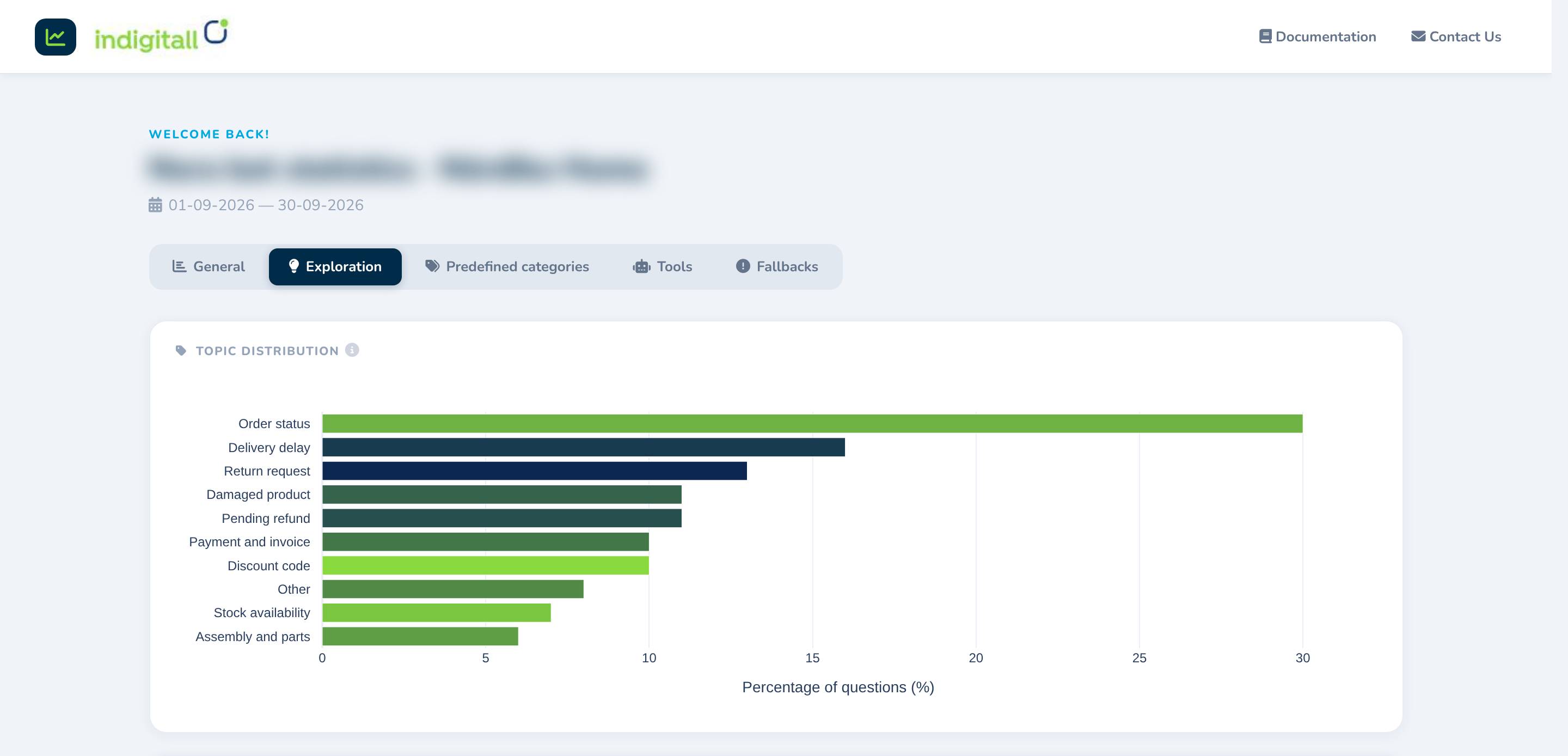
Topic Distribution
A bar chart with the percentage of questions related to each detected topic, sorted from most to least frequent. The topics at the top are the main reasons your customers contact the agent.
Topics are calculated independently, so the percentages may not add up to exactly 100%. Messages that don't fit a clear pattern are grouped under Other.
Topic Summary
A list of all detected topics. Click a topic to expand it and see:
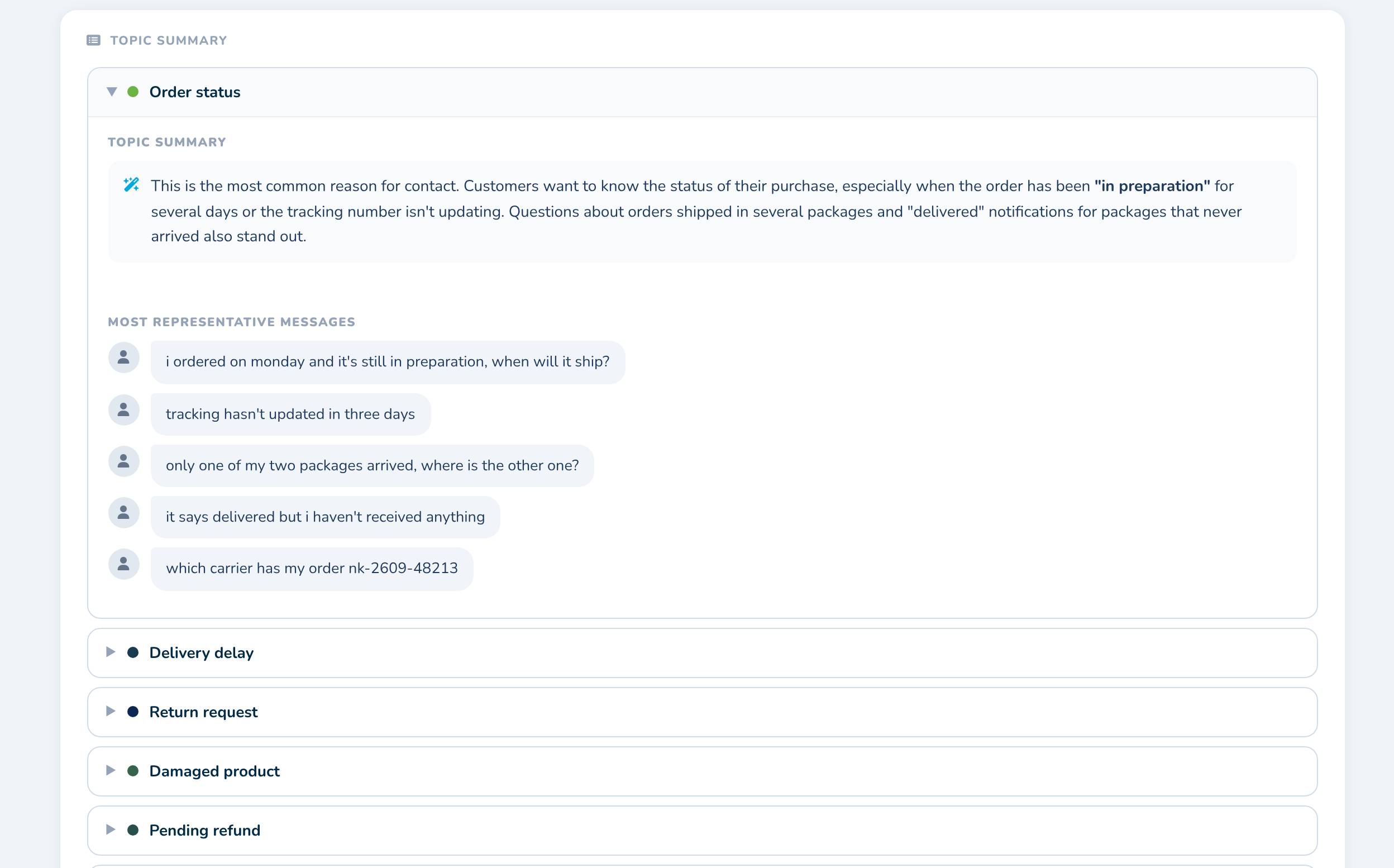
- Topic summary: an AI-generated description of what users ask about in this topic, including recurring reasons, dates or products that stand out.
- Most representative messages: real examples of user messages that belong to the topic.
Use the summaries to understand the context behind each topic and to decide where to act first: improving the agent's knowledge base, adding a new tool, or fixing a process in your business.
Predefined categories
The Predefined categories tab classifies conversations into a fixed set of categories configured for your agent. Unlike Exploration, the categories don't change from one report to the next, so this is the tab to use when you want to compare periods or track the same KPIs over time.
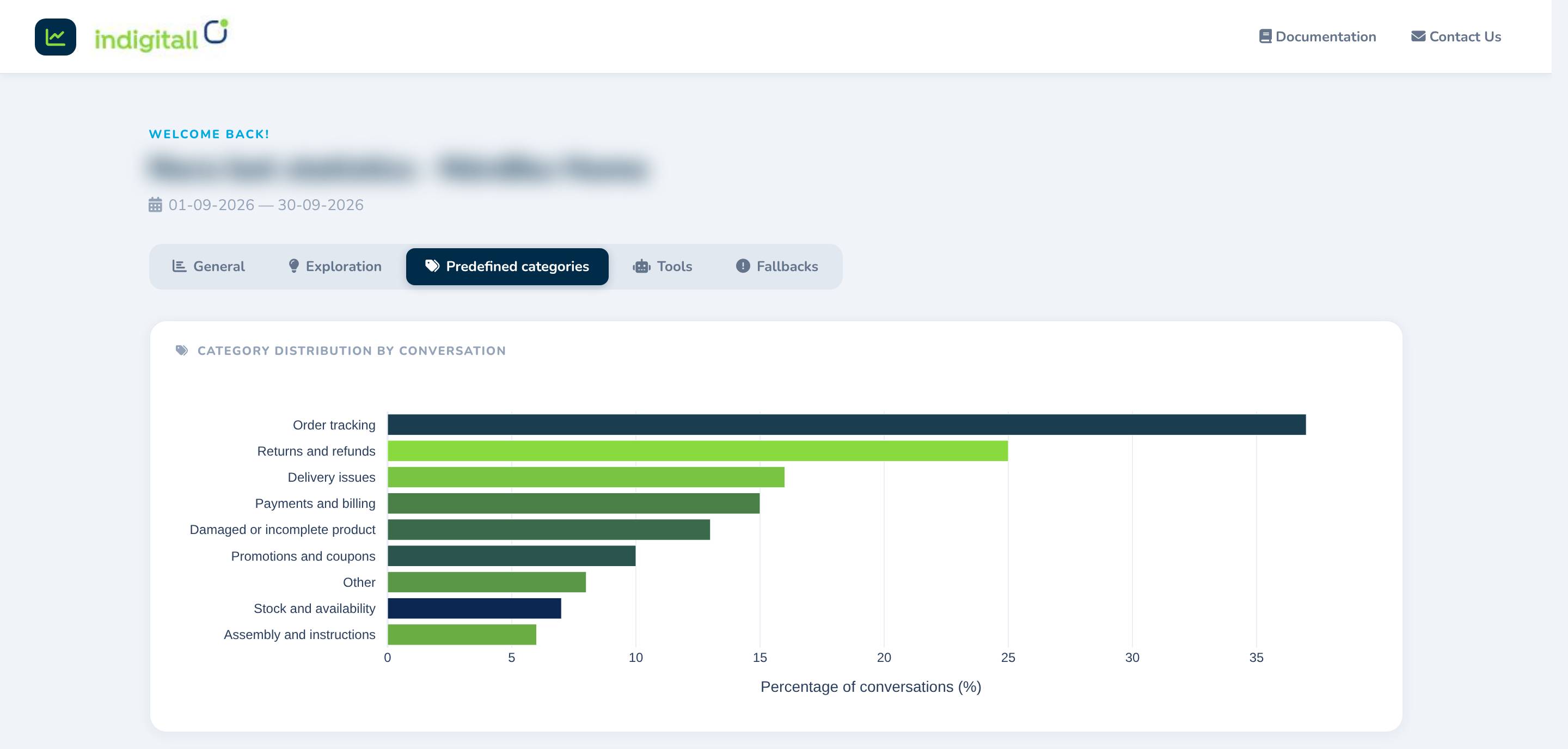
Category distribution by conversation
A bar chart with the percentage of conversations that belong to each category. The percentage is calculated over conversations, not individual messages.
A single conversation can cover more than one category, so the percentages can add up to more than 100%.
Category summary
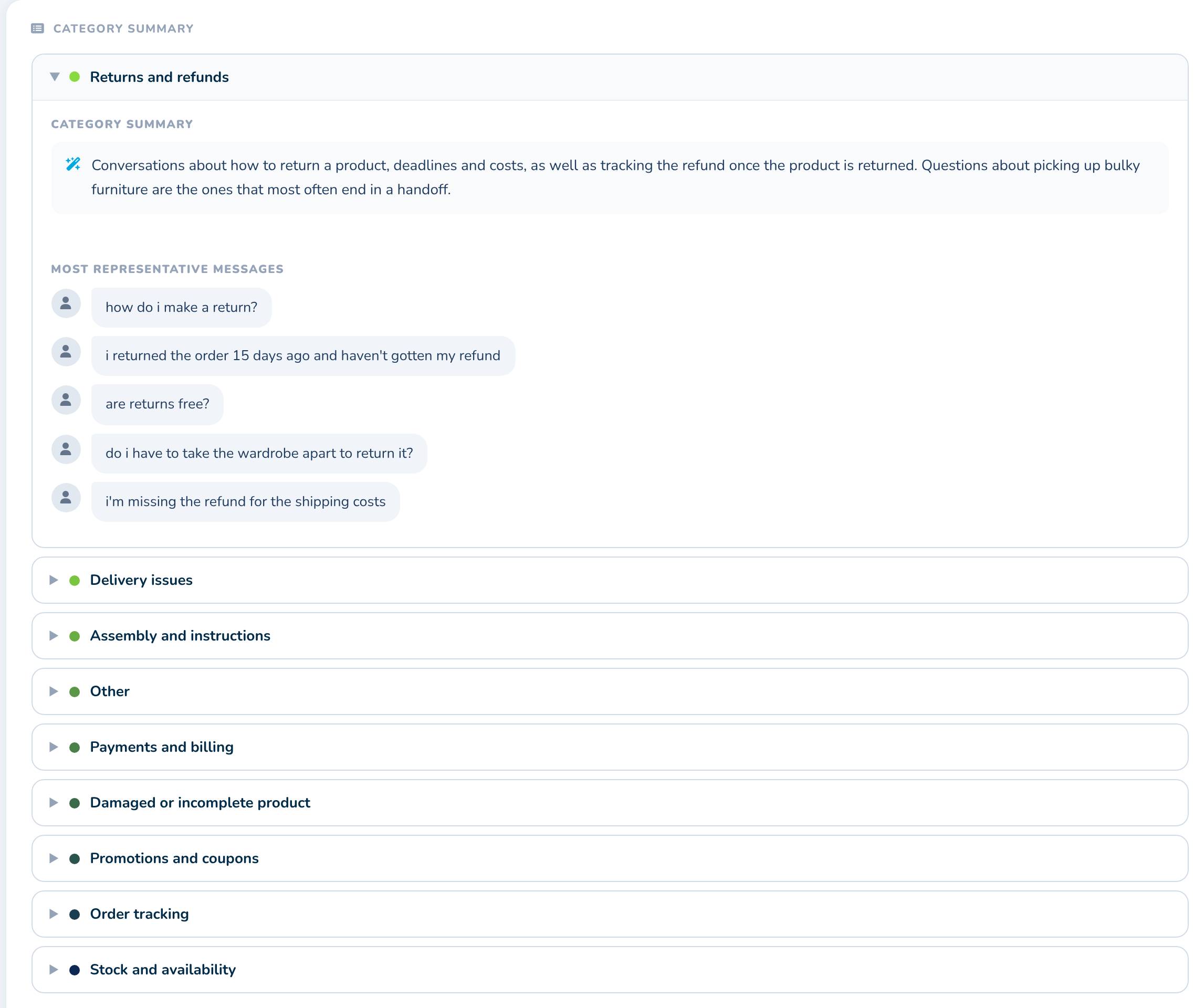
A list of all categories. Click a category to expand it and see:
- Category summary: an AI-generated description of the conversations in this category, including the questions that most often end in a handoff to a human agent.
- Most representative messages: real examples of user messages classified in the category.
Exploration vs. Predefined categories
| Field | Exploration | Predefined categories |
|---|---|---|
| Groups | Topics detected by AI in each report | Fixed categories configured for your agent |
| Unit | Percentage of questions | Percentage of conversations |
| Best for | Discovering new or unexpected needs | Comparing periods and tracking trends |
Tools
The Tools tab shows the usage, latency and error rate of each tool your agent uses. Tools are the actions the agent runs to answer a request with real data, such as querying your systems or handing the conversation off to a human agent. The tool names you see depend on how your agent is configured.
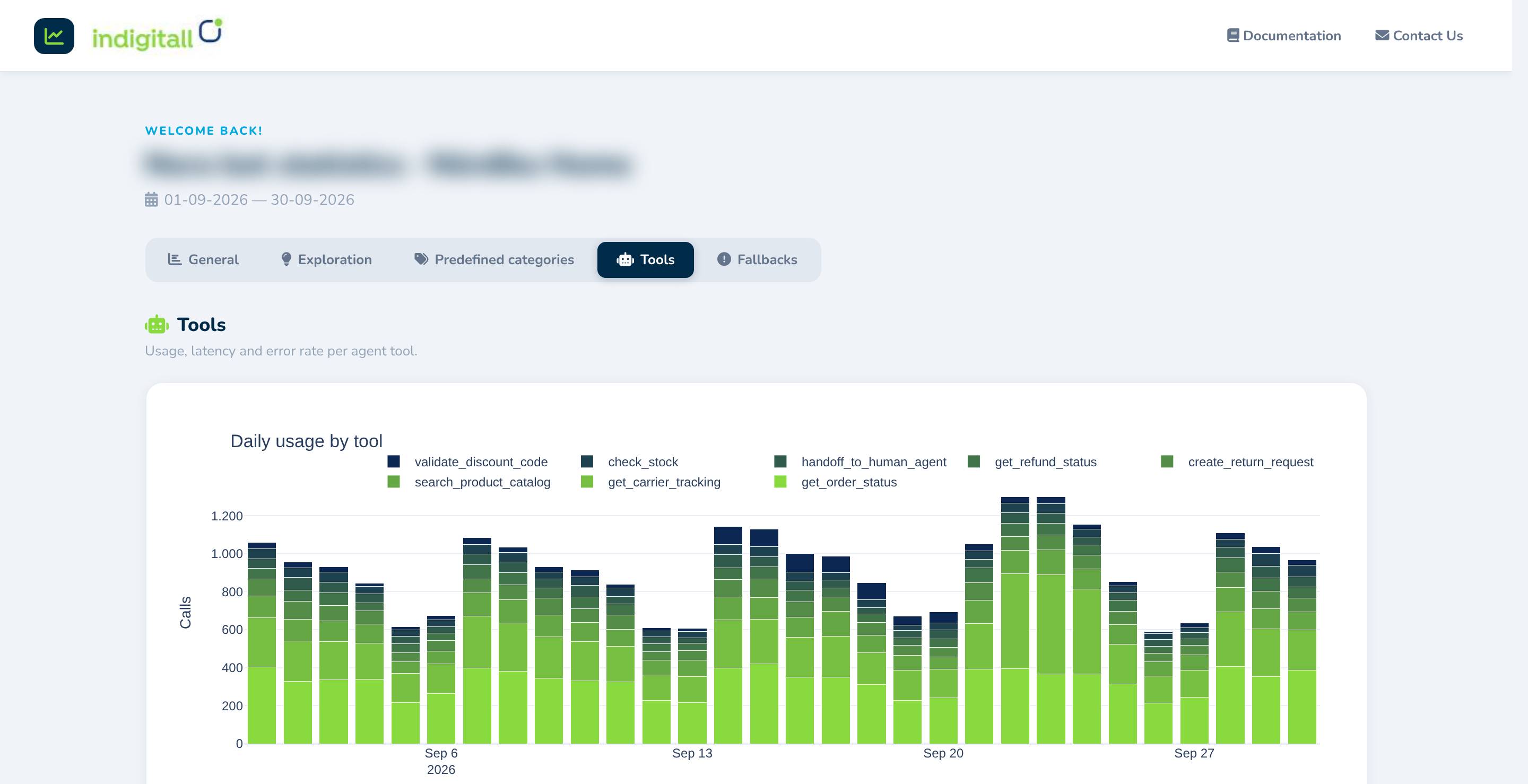
Daily usage by tool
A stacked bar chart with the number of calls to each tool per day. Use it to see which actions your customers need most and how demand changes over the period.
Tool summary table
| Column | What it measures | How to read it |
|---|---|---|
| Tool | Name of the tool. | |
| Total calls | Number of times the agent called the tool during the period. | Tools with the most calls are the ones that most affect your customers' experience. |
| % of total | Share of this tool's calls out of all tool calls. | Shows how the agent's work is distributed across tools. |
| Avg. latency (ms) | Average time, in milliseconds, the tool takes to respond (1,000 ms = 1 second). | High latency makes the user wait for the answer. It usually depends on the external system the tool connects to. |
| Error rate (%) | Percentage of the tool's calls that ended with an error. | Any error means the agent couldn't get the data it needed. Prioritize tools that combine high volume and a high error rate. |
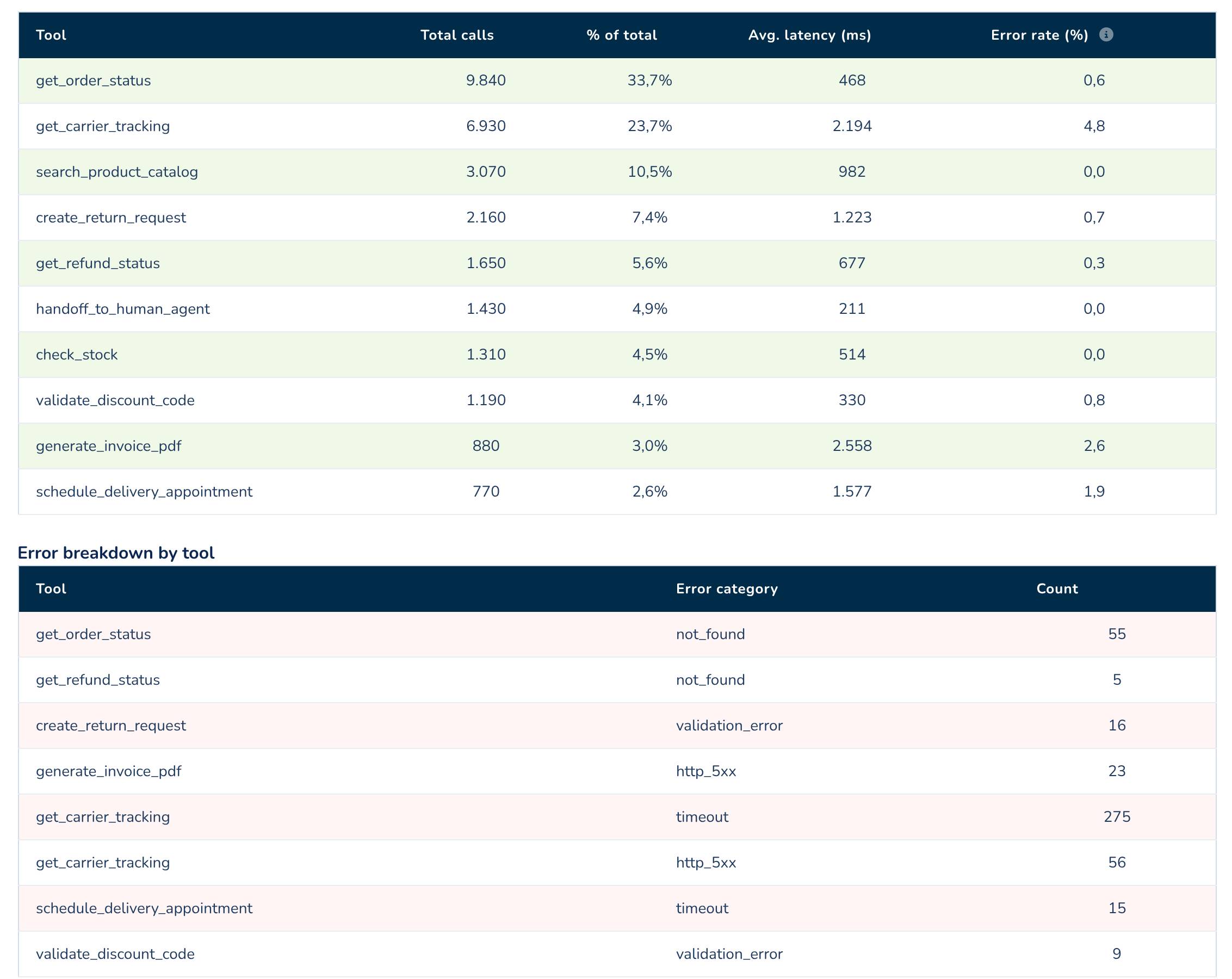
Error breakdown by tool
A table that lists, for each tool, the type of error and how many times it occurred:
| Error category | Meaning | Typical action |
|---|---|---|
| timeout | The external system took too long to respond and the call was cancelled. | Review the performance of the connected system or service. |
| http_5xx | The external system returned a server error. | Check the availability of the connected system or service. |
| not_found | The requested record doesn't exist in the connected system. | Usually caused by incorrect data entered by the user. Consider asking the user to confirm the data. |
| validation_error | The data sent to the tool was not valid (for example, a malformed code or a missing field). | Review the format the tool expects and how the agent collects that data. |
Only tools with at least one error appear in this table.
Fallbacks
The Fallbacks tab shows when and why your agent couldn't answer. A fallback is the response the agent gives when it can't help with a request, such as asking the user to rephrase the question or offering to transfer them to a human agent. This is the most actionable tab in the report: each fallback topic points to a specific gap you can close.
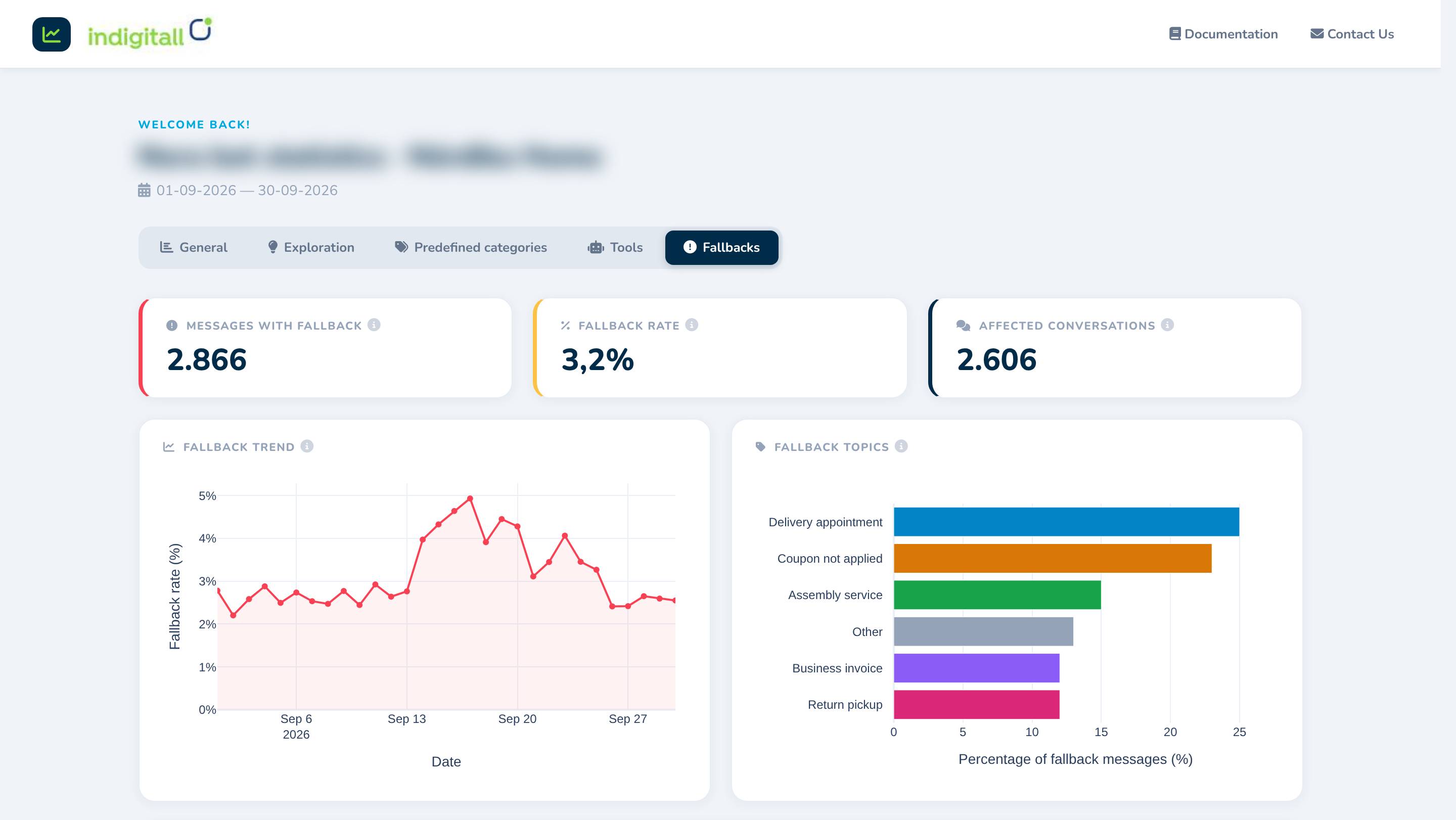
KPIs
| KPI | What it measures | How to read it |
|---|---|---|
| Messages with fallback | Total number of messages in which the agent used a fallback response. | The absolute volume of unanswered requests. |
| Fallback rate | Percentage of the agent's messages that were fallbacks. | The main quality indicator of the agent. The lower, the better. Track it after every change to the knowledge base or tools. |
| Affected conversations | Number of conversations with at least one fallback message. | Shows how many customers ran into at least one unanswered request. |
Fallback trend
A line chart with the fallback rate per day. Hover over a point to see the rate and the number of fallback messages out of the total messages for that day. Spikes usually point to a campaign, an incident or a change in the agent, so check what happened on those dates.
Fallback topics
A bar chart that groups fallback messages by topic and shows the percentage of fallback messages in each one. It tells you what is causing the agent to fail, so you can prioritize the topics with the highest share.
Fallback topic explorer
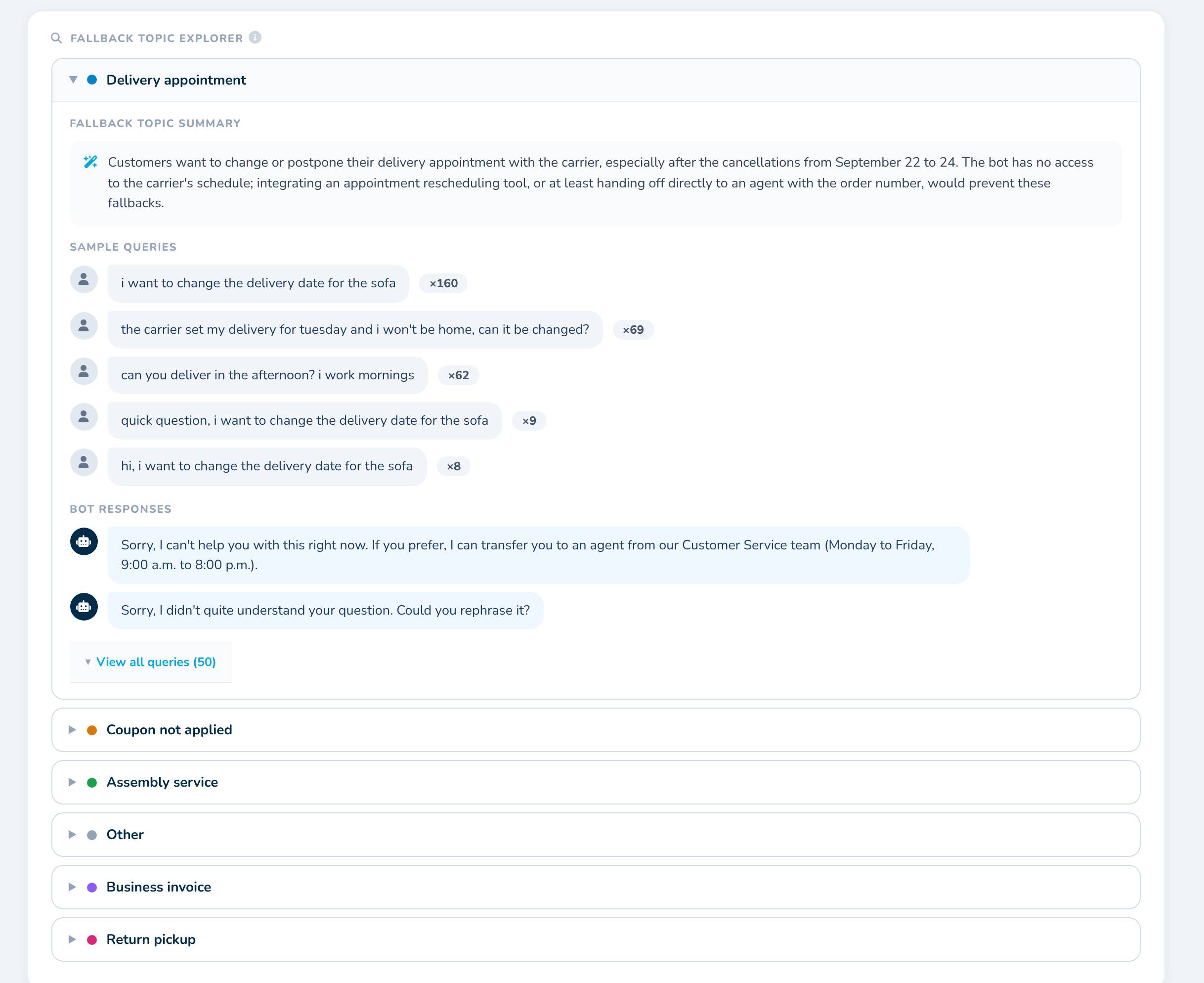
A list of fallback topics sorted by frequency. Click a topic to expand it and see:
- Fallback topic summary: an AI-generated explanation of what users were trying to do and why the agent couldn't help, together with a suggested improvement (for example, adding missing information to the knowledge base, or integrating a new tool).
- Sample queries: the most frequent user messages in the topic. The number next to each message shows how many times that exact message was sent. Variations of the same question (for example, with a greeting added) are listed separately.
- Bot responses: the fallback responses the agent gave for this topic.
- View all queries: expands the list to show up to the first 50 queries in the topic.
Using the report to improve your agent
- Start with the Fallback rate in the Fallbacks tab to measure the agent's overall quality.
- Open the Fallback topic explorer and work through the topics with the highest share. Apply the suggested improvement: add the missing information to the knowledge base, or integrate a tool for actions the agent can't perform yet.
- Check the Tools tab for tools with a high error rate or high latency, and review the connected systems with your technical team.
- Use Exploration and Predefined categories to understand what your customers need most and to detect issues in your business, that generate recurring questions.
- Compare the next report with this one to confirm that the fallback rate goes down and that the changes had the expected effect.
Updated about 1 hour ago