
Closing form
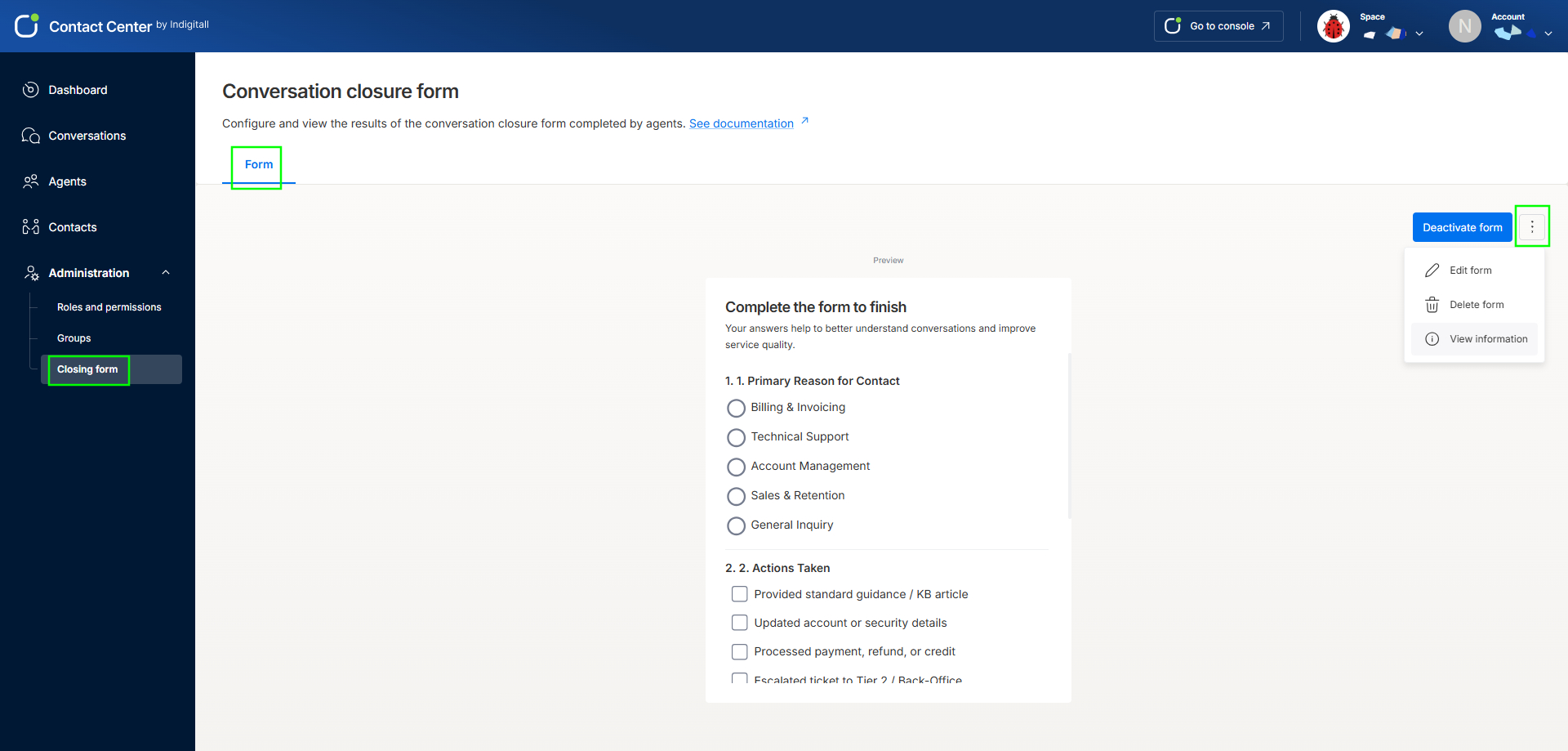
The conversation closure form is a short questionnaire that agents fill out when they finish a conversation in Contact Center. Their answers show you why customers get in touch, what agents did, and how each case ended. You can use this to understand your conversations and improve service quality.
Note: To turn the closure form on or off, or to edit it, you need access to the Administration section in Contact Center.
Where to find it
- In Contact Center, open Administration in the left menu.
- Click Closing form.
The Conversation closure form page opens. The Form tab shows a Preview of the form exactly as agents will see it, under the heading "Complete the form to finish."
From actions
At the top right of the page you'll find:
- Activate / Deactivate: This button switches between the two states. Its label shows the action available at that moment:
- Activate form: Turns the form on. From then on, agents are asked to complete it when they close a conversation.
- Deactivate form: Stops showing the form to agents when they close conversations. Your form setup is kept, so you can turn it back on at any time with Activate form.
- More options (⋮ menu)
- Edit form: Opens the form editor so you can change questions and answers.
- Delete form: Permanently removes the form.
- View information: Shows the form's details; when it was created (Created at), when it was last changed (Updated at), and its ID. You can copy the ID with the copy icon.
Building and editing the form
When you click Edit form, the editor opens. You set up the questions on the left, and the Preview on the right updates in real time as you type.
In this video, we'll show you how to edit and activate your form in just a few simple steps.
Each question has these settings:
- Question: The text the agent will see, for example "Primary Reason for Contact."
- Response type: How the agent answers.
- Single choice: The agent picks one option (shown as round buttons). Good for questions with one answer, like resolution status.
- Multiple choice: The agent can pick several options (shown as checkboxes). Good for questions like "Actions taken," where an agent may have done more than one thing.
- Free text: The agent writes an open answer. Good for case notes, ticket references, or next steps. This type has no options to set up.
Agent View
To give you the full picture, let's look at the exact form we created in the last video through the agent's eyes.
Organizing questions
Next to each question number you'll find:
- Down arrow / Up arrow: Move the question down or up in the form.
- Trash icon: Delete the question.
To add a new question, click Add another question at the bottom of the editor.
Saving your changes
- Save as draft: Saves your changes. You'll see the message "Form updated successfully," and you'll return to the form page, where the preview shows the updated version.
- Activate form/Deactivate form: Turns the form on or off for agents, the same as on the main form page.
- Back arrow (top left): Leaves the editor.
TipKeep the form short and the options clear, so agents can finish it quickly after each conversation.
Updated 20 days ago