
Contacts
The Chat Contacts section provides a centralized interface to manage your audience effectively. This module allows you to maintain an organized database of users, ensuring personalized and compliant communication across your chat channels. This section is accessible by navigating to Audiences / Chat / Contacts.
The main dashboard offers a comprehensive view of your contact list:
- Search and Identification: Use the search bar to quickly locate contacts by Name or Contact ID.
- Detailed Information: View key data at a glance, including External Code, Channel, and Language.
- Permission Control. Monitor and toggle communication statuses directly from the table:
- Proactive messages: Actively manage outbound communication permissions (e.g., Activo or Bloqueado).
- Reactive messages: Control the system's ability to respond to incoming user queries.

Adding or Editing a Contact
To maintain your database, you can either create a new entry by clicking the blue Add chat contact button or modify an existing one by clicking the pencil (Edit) icon.
The fields for adding or editing contacts are as follows:
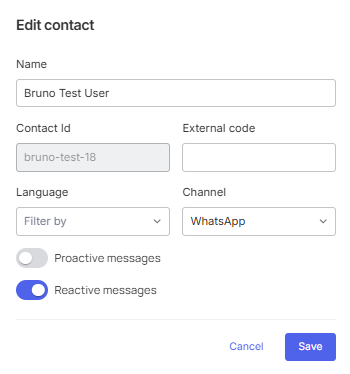
- Name: Assign a recognizable name to the user for better personalization.
- Contact Id: A unique identifier for the user within the platform. This is a mandatory field during contact creation; however, once the contact is saved, this ID is permanent and cannot be changed.
- External code: An optional field to link the contact with your external CRM or database systems.
- Language: Set the preferred language for the user to ensure they receive communications in their native tongue.
- Channel: Select the specific messaging platform, such as WhatsApp, for this contact.
Communication Switches:
- Proactive messages: Toggle to enable or disable scheduled outbound messages.
- Reactive messages: Toggle to allow or restrict automated responses to the user's messages.
Once all information is updated, click Save to apply the changes or Cancel to exit without saving.
Download contacts

'Download contacts' button has been added to the top menu so you can export them as a .CSV file at any time.
Updated about 2 months ago