
SFMC Client Secret Rotation
Administrators must rotate OAuth 2.0 client secrets for their API integrations before they expire. Starting March 23, 2026, all client secrets are configured to expire every 180 days, with the first expiration date set for September 30, 2026.
Prerequisites
Before starting the rotation process, please ensure you have the appropriate access levels in both platforms:
- Salesforce Marketing Cloud (SFMC): You must be an Administrator or the person who originally performed the connector integration to make changes to the Installed Packages.
- indigitall Console: Your user account must have Admin permissions to edit active integrations.
Step 1: Generate the new secret in Staged status
-
1.1 In SFMC, navigate to Setup → Platform Tools → Apps → Installed Packages. Select the package you wish to update.
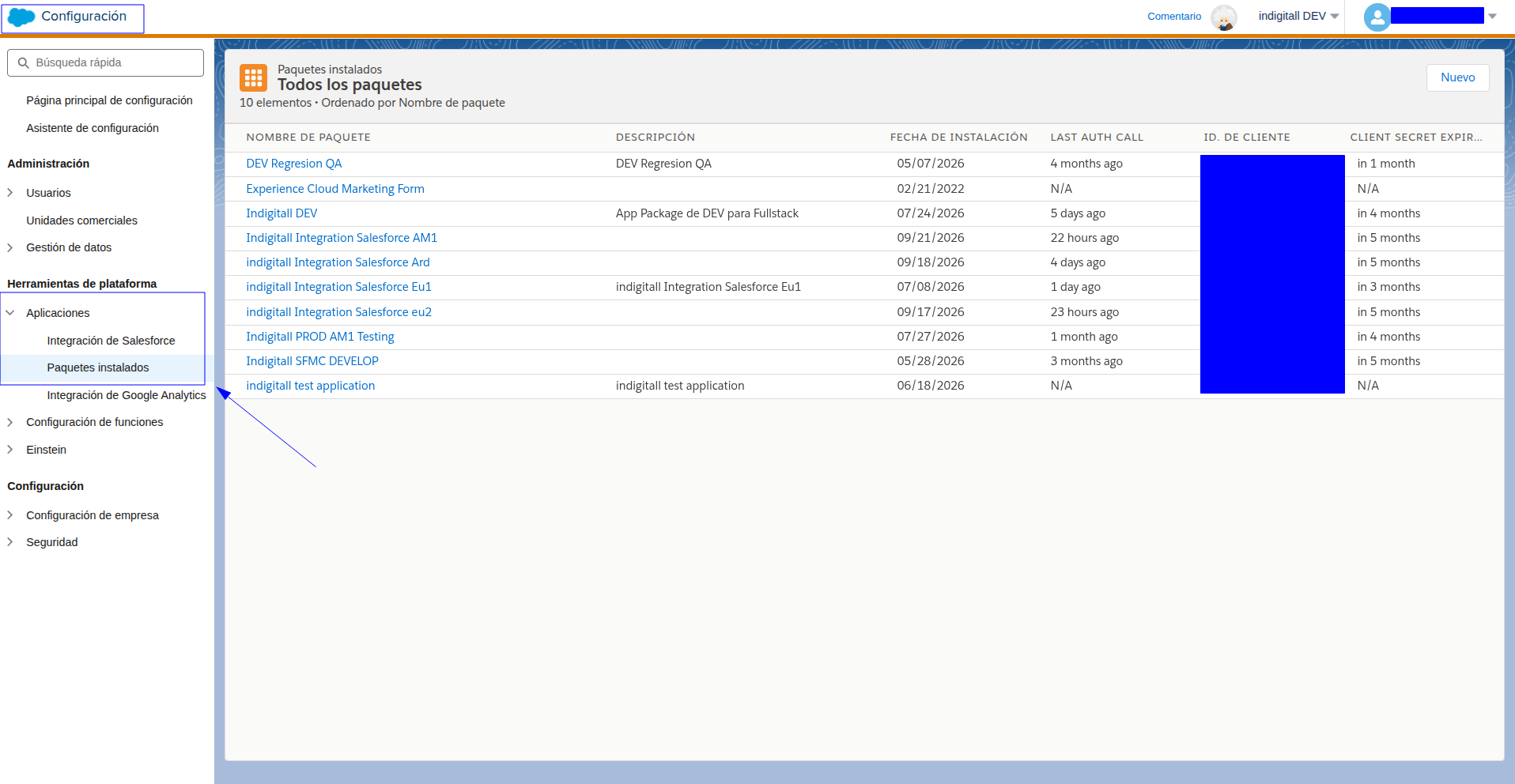
-
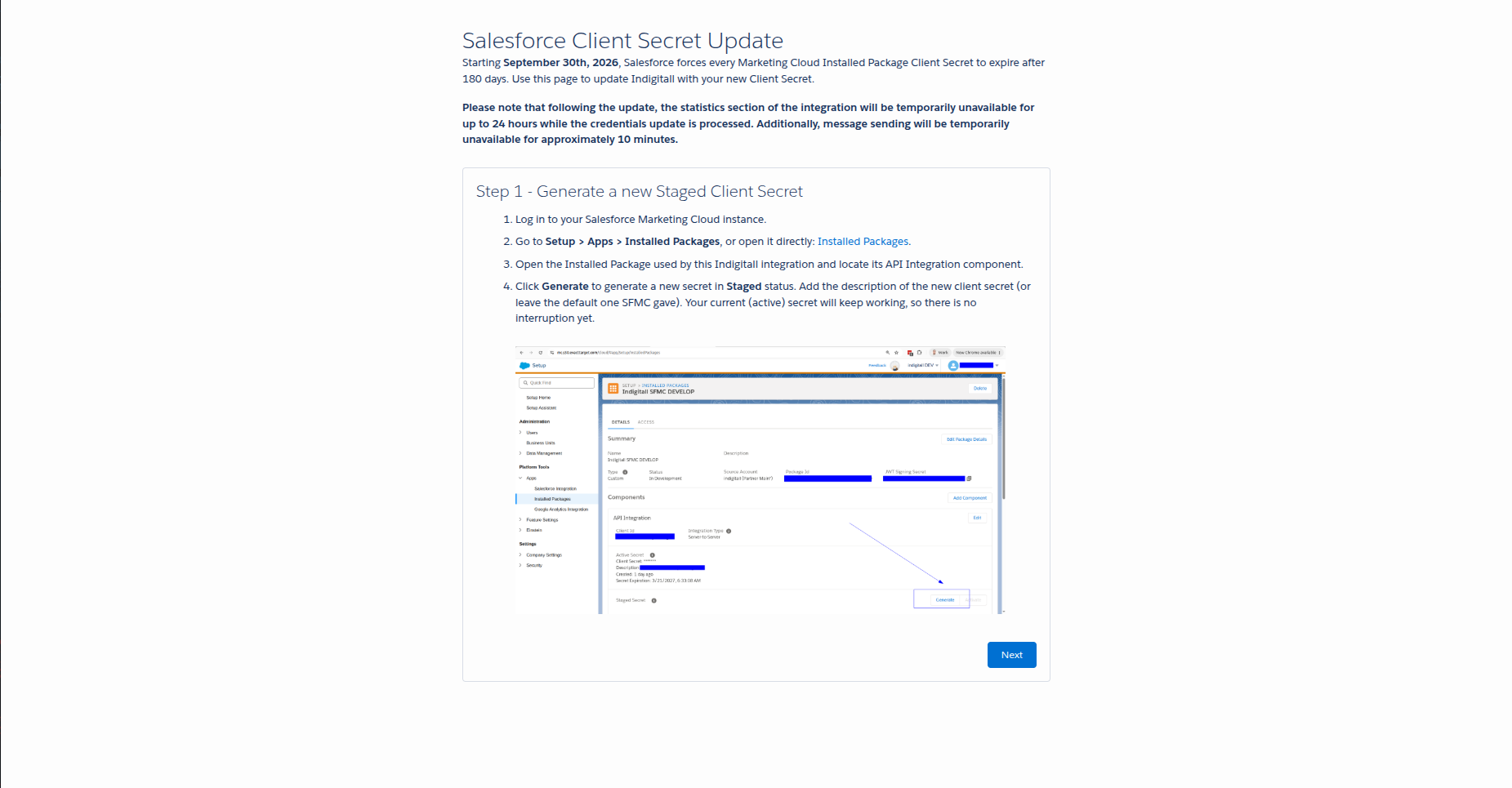
1.2 Once inside the selected package's page, locate the "Staged Secrets" section and click the "Generate" button.
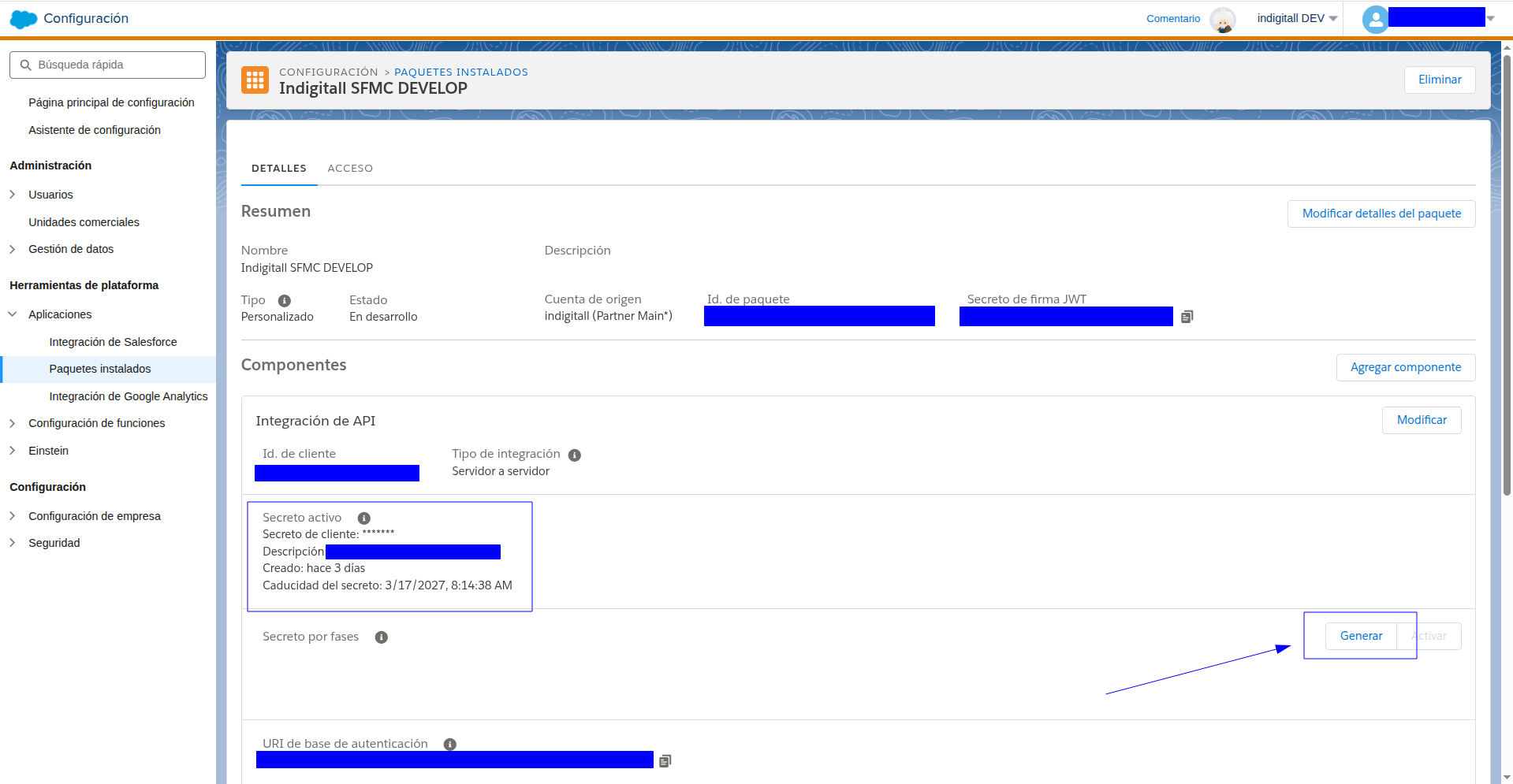
-
1.3 A modal will appear asking for a description of the new client secret (you can leave the default value). Click "Next".
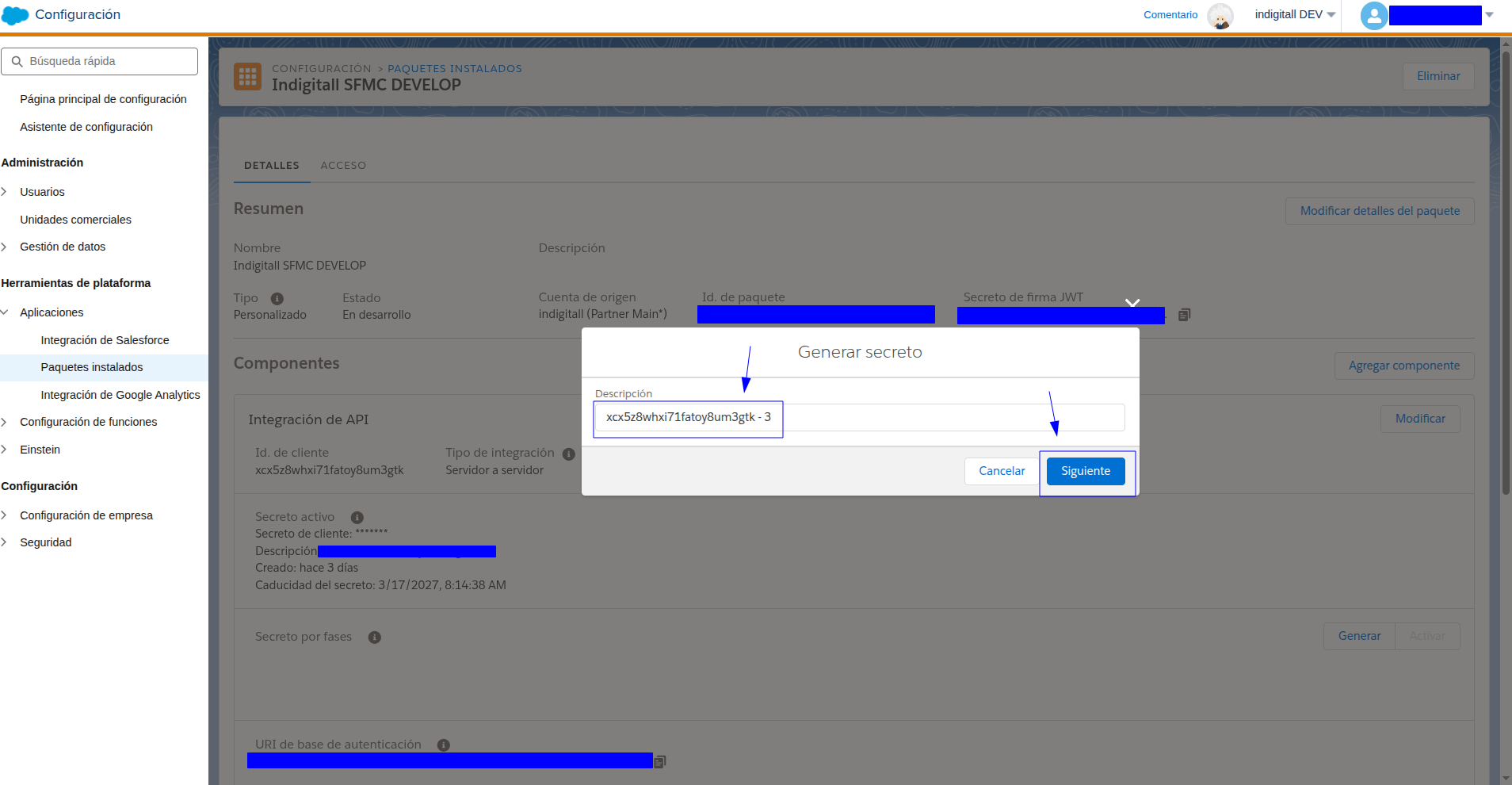
-
1.4 The new client secret will be created. Copy the newly created client secret immediately.
IMPORTANTOnce this modal is closed, you will not be able to view or copy the secret again! You will need this copied value to update the SFMC integration within the indigitall console.
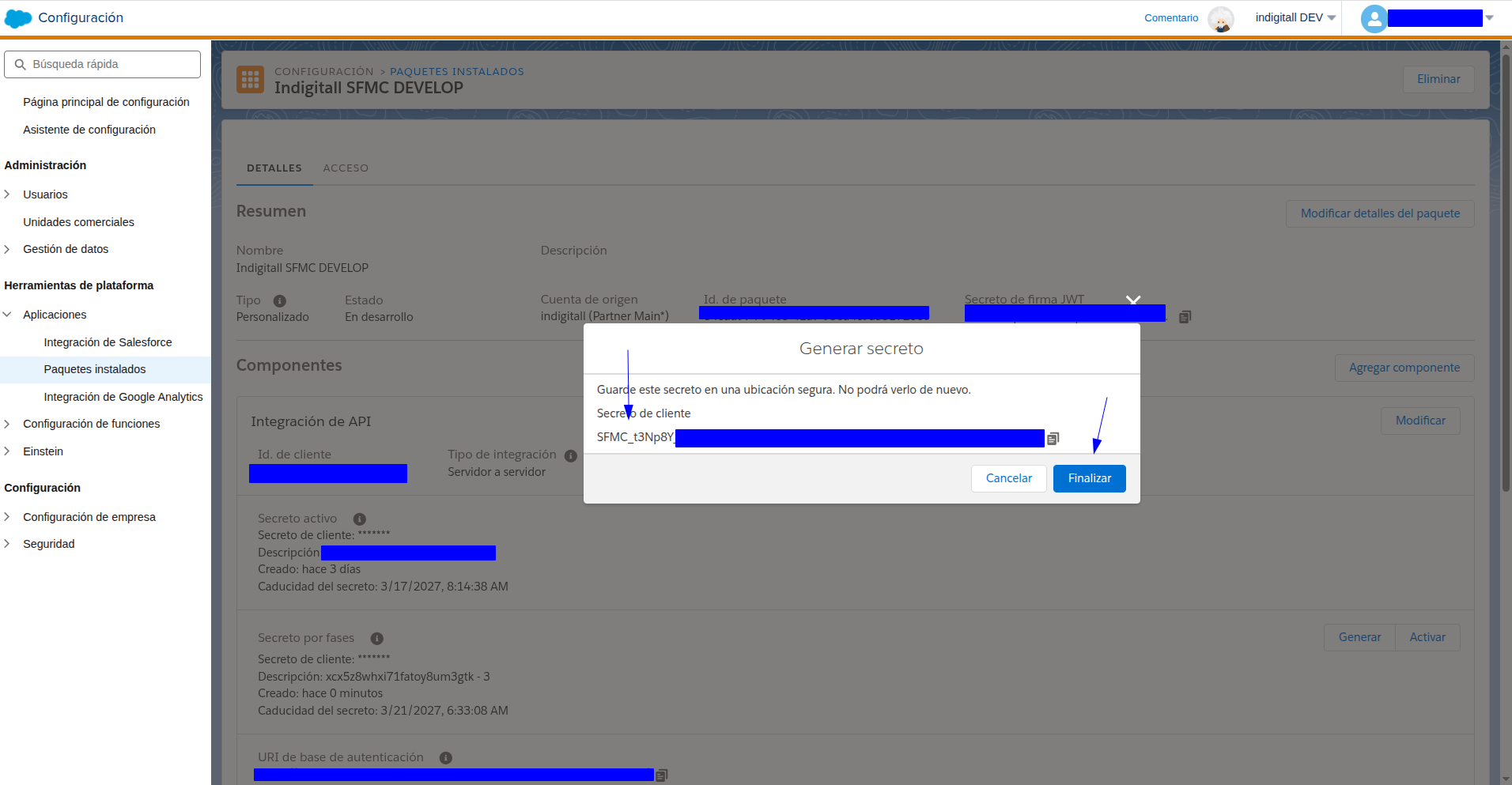
Step 2: Update the SFMC integration in the indigitall Console
-
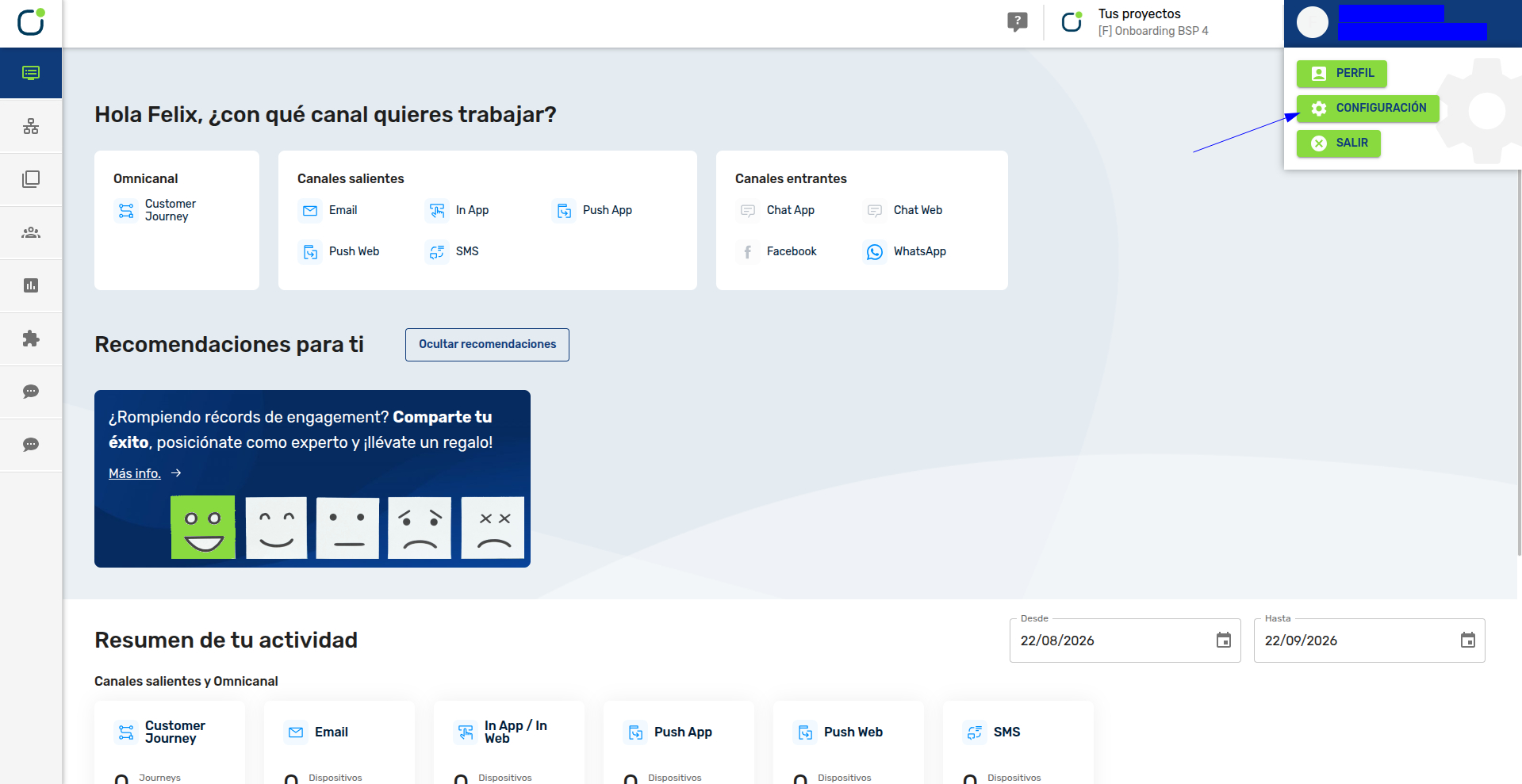
2.1 Log into the indigitall console and click on Configuration in the top right corner of the screen.
-
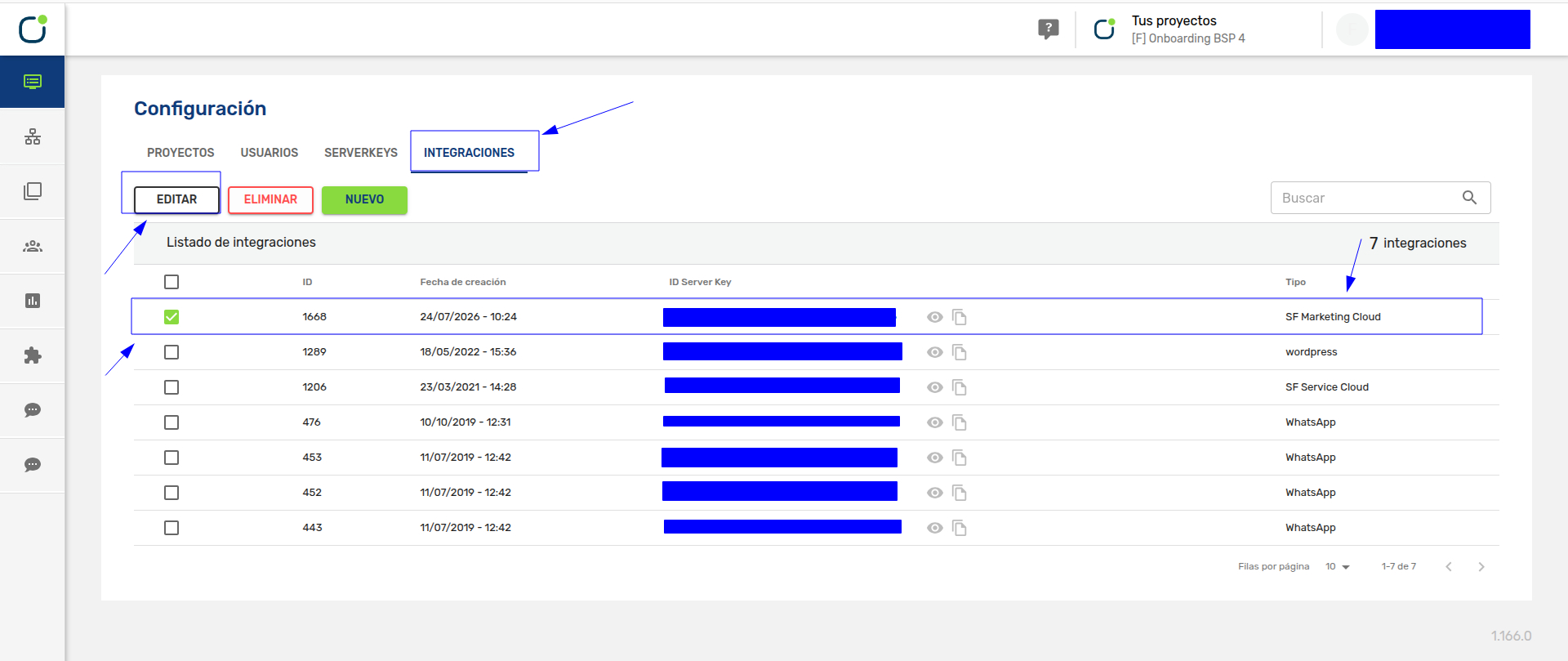
2.2 Select the Integrations tab, find your SFMC integration, check the box on the left-hand side, and click the "Edit" button.
-
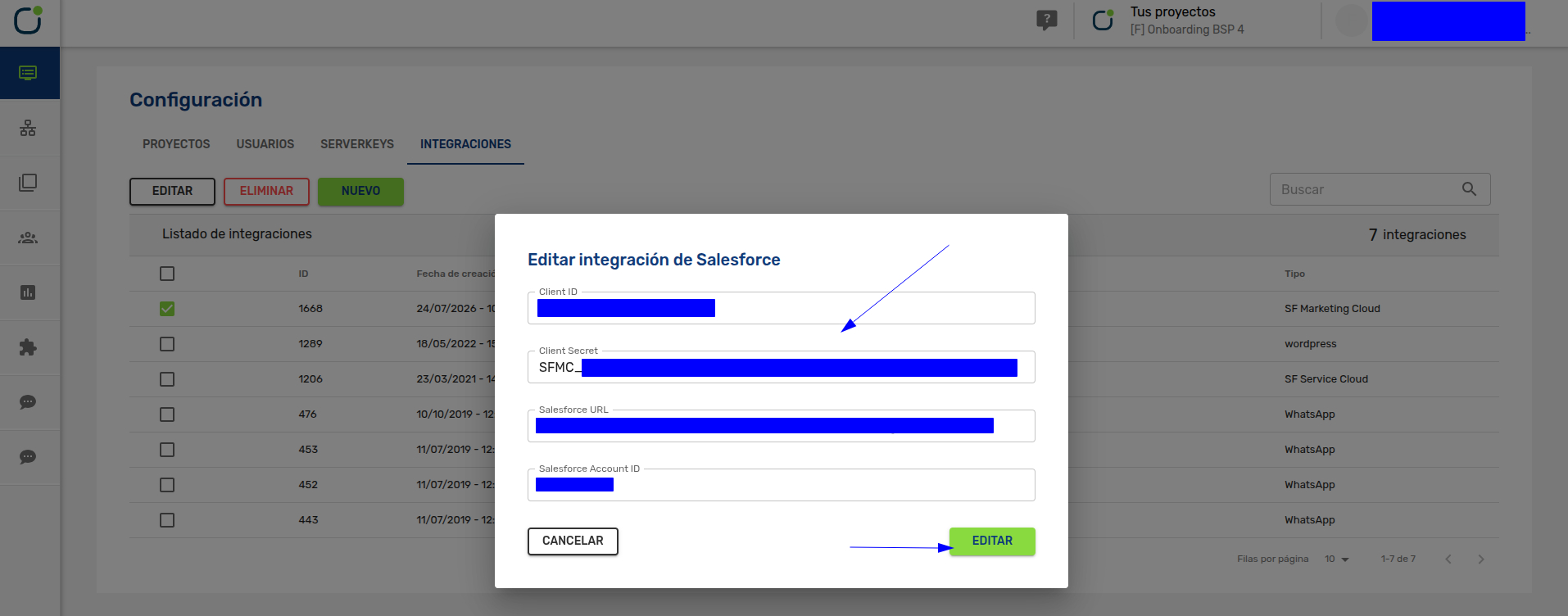
2.3 Replace the old Client Secret with the new one you just copied from SFMC, and click the "Edit" button to save your changes.
Step 3: Activate the new secret in SFMC
-
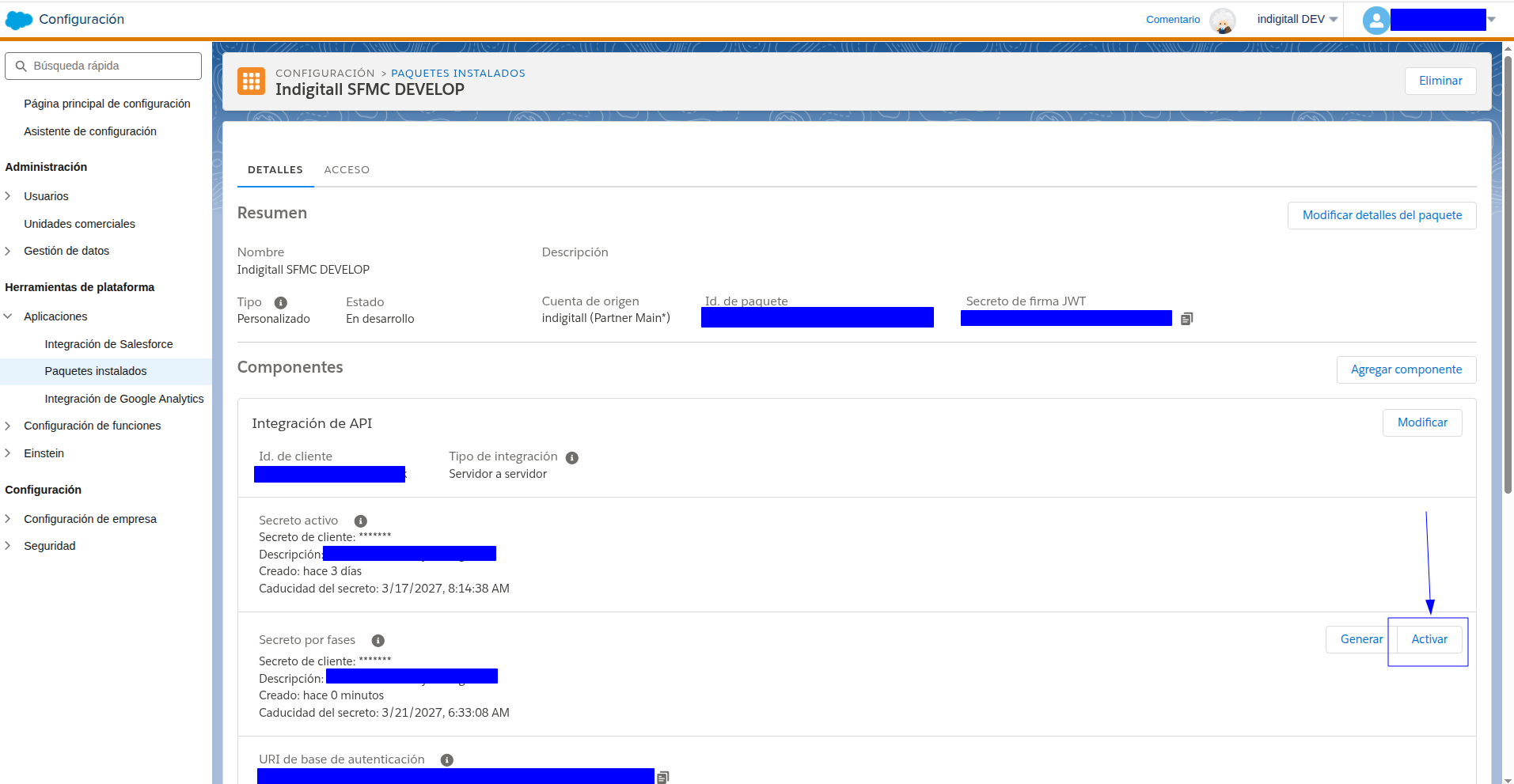
3.1 Go back to the SFMC page for the installed package you are updating and click the "Activate" button in the Staged Secrets section.
-
3.2 A confirmation modal will open, asking you to confirm the activation of the new secret and the permanent deletion of the old one. Click "I understand" to complete the process.
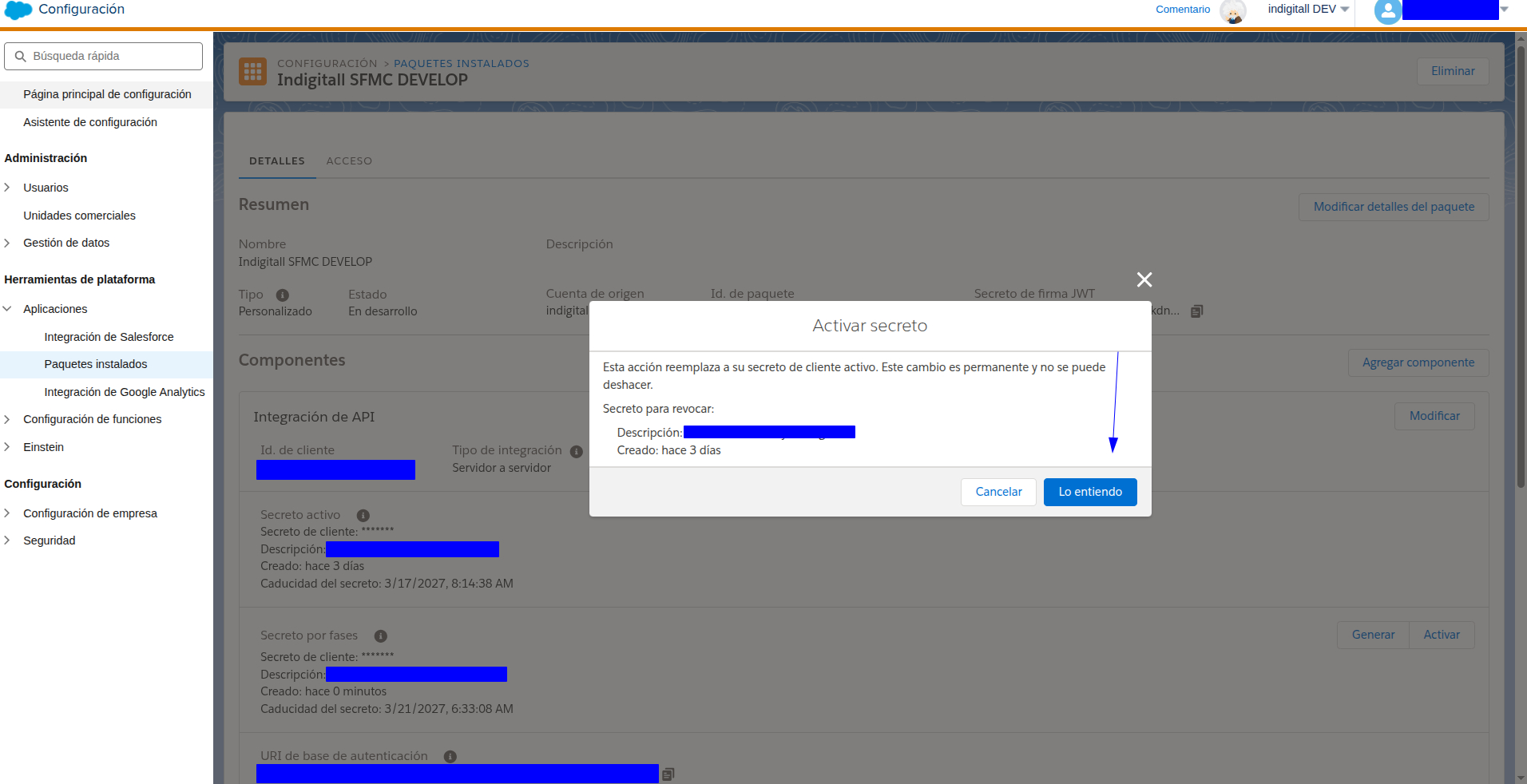
Statistics AvailabilityAfter updating the client secret, the connector's statistics section may take up to 24 hours to become available again while the credential update is processed.
Expiration warnings
When the client secret of an installed package is about to expire, Salesforce shows warnings in two places in Marketing Cloud:
- Main Marketing Cloud page: a banner says how many installed packages have OAuth secrets expiring within 30 days. It includes links to learn how to rotate secrets and to take action.

- Setup > Apps > Installed Packages: an orange banner says that secrets expire in less than 30 days and must be rotated. The Client Secret Expiration column shows how much time is left for each package.
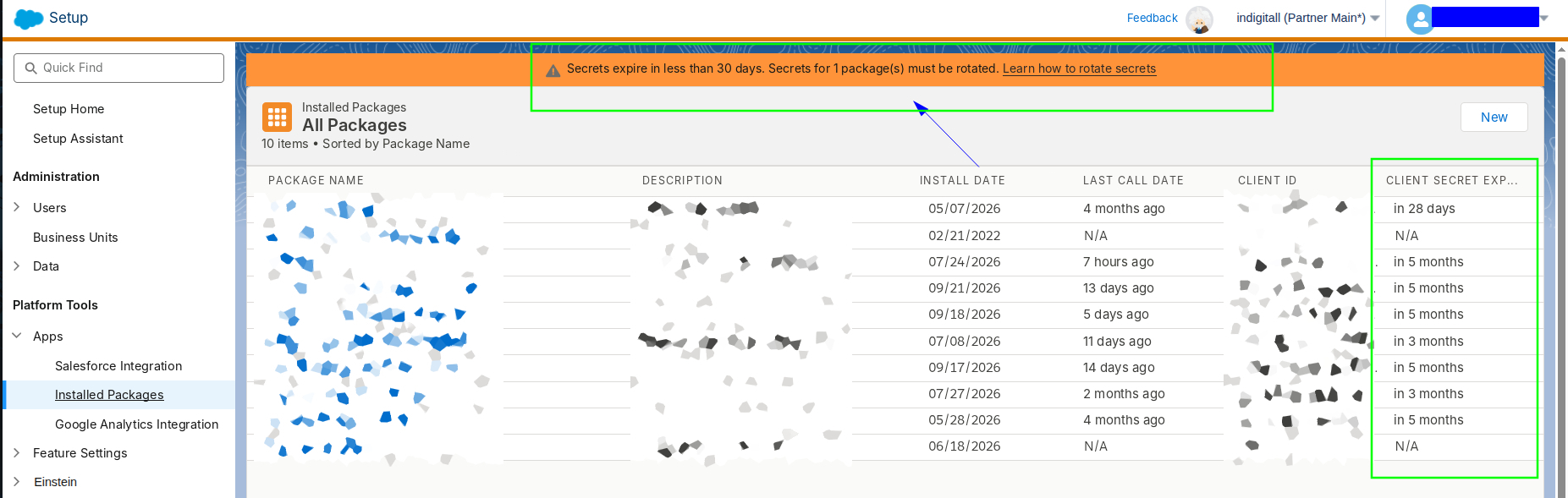
If you see either warning, rotate the client secret before it expires and update the new secret in indigitall. If you don't, the integration will stop working.
Client Secret expiration alerts in Journey Builder
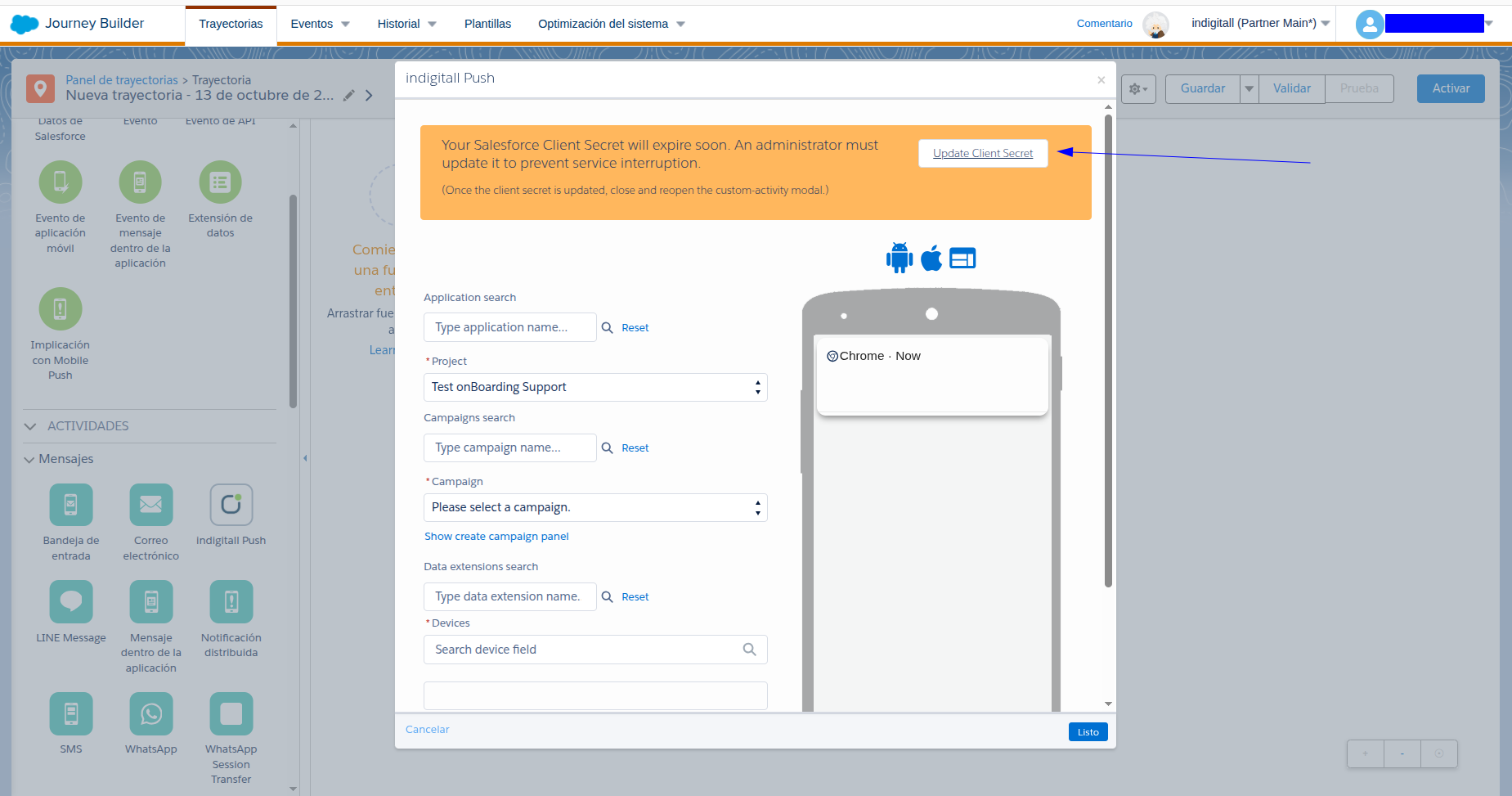
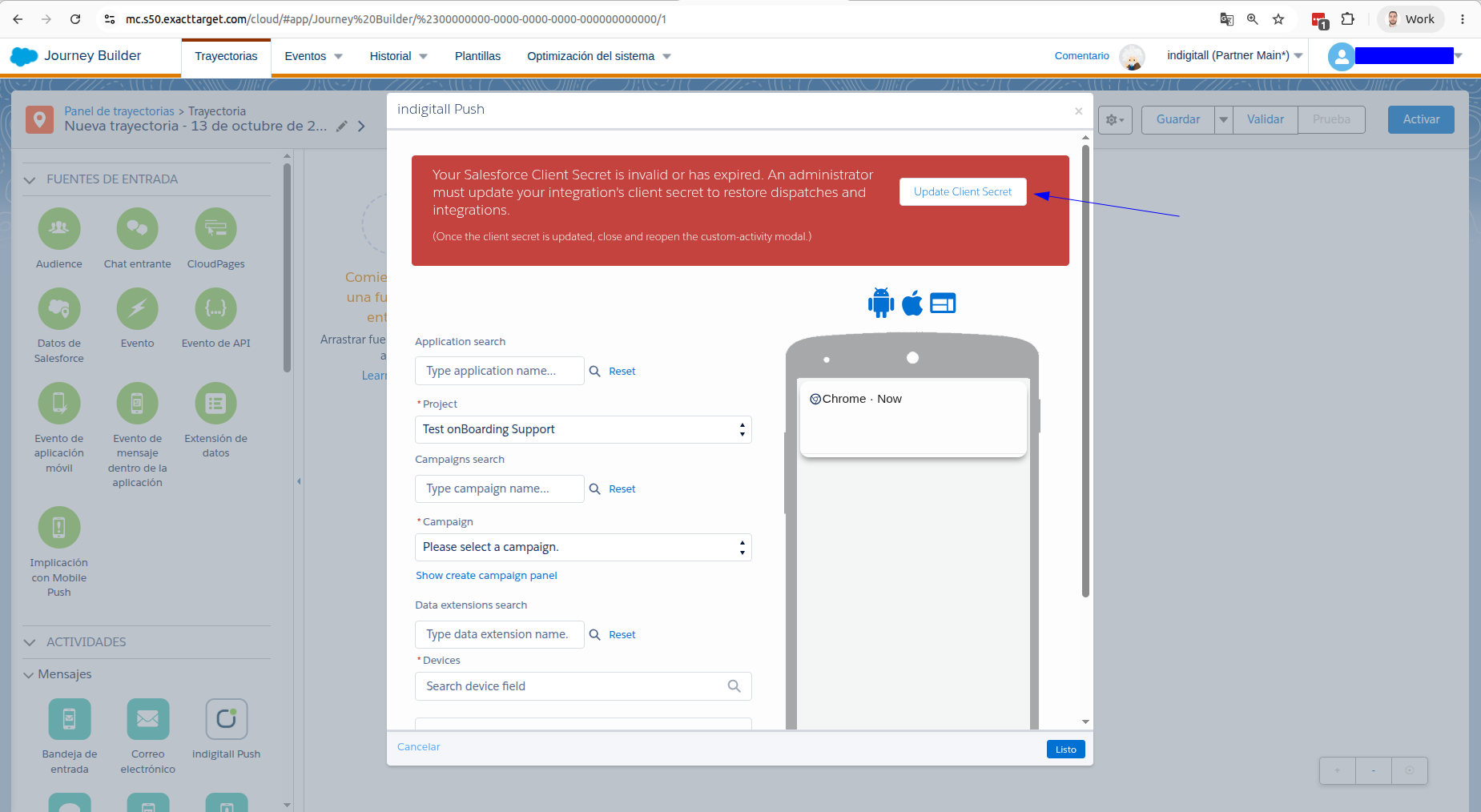
Along with the Salesforce warnings, indigitall also alerts you from inside Journey Builder. You’ll see a banner at the top of the activity whenever you open any indigitall custom activity under Journey Builder > Create Journey.
The banner’s color shows the status of your Client Secret:
| Banner | Meaning | What to do |
|---|---|---|
| 🟧 Orange: “Your Salesforce Client Secret will expire soon” | The Client Secret expires in less than 30 days. Sending still works. | An administrator should update the Client Secret before it expires to avoid service interruption. |
| 🟥 Red: “Your Salesforce Client Secret is invalid or has expired” | The Client Secret is no longer valid. Sends and integrations are stopped. | An administrator must update the Client Secret right away to restore sends. |
How to update the Client Secret from Journey Builder
- Click Update Client Secret in the banner.
- A new tab opens with step-by-step instructions. Follow them to generate a new Client Secret in Salesforce Marketing Cloud and send it to indigitall. You don’t need to log in to the indigitall Console.
- When you’re done, close the custom activity and open it again so the banner updates.
Updated 17 days ago