
WhatsApp Templates
WhatsApp templates are pre-approved messages used in chat campaigns and the Contact Center. While carousel templates are also available, this section focuses on single-message templates. Keep in mind that every template must be approved by Meta before you can use it.
Check out this video to see how to create WhatsApp templates:
Open the template editor
- In the left menu, go to Utilities.
- Select the Chat tab.
- Click WhatsApp templates.
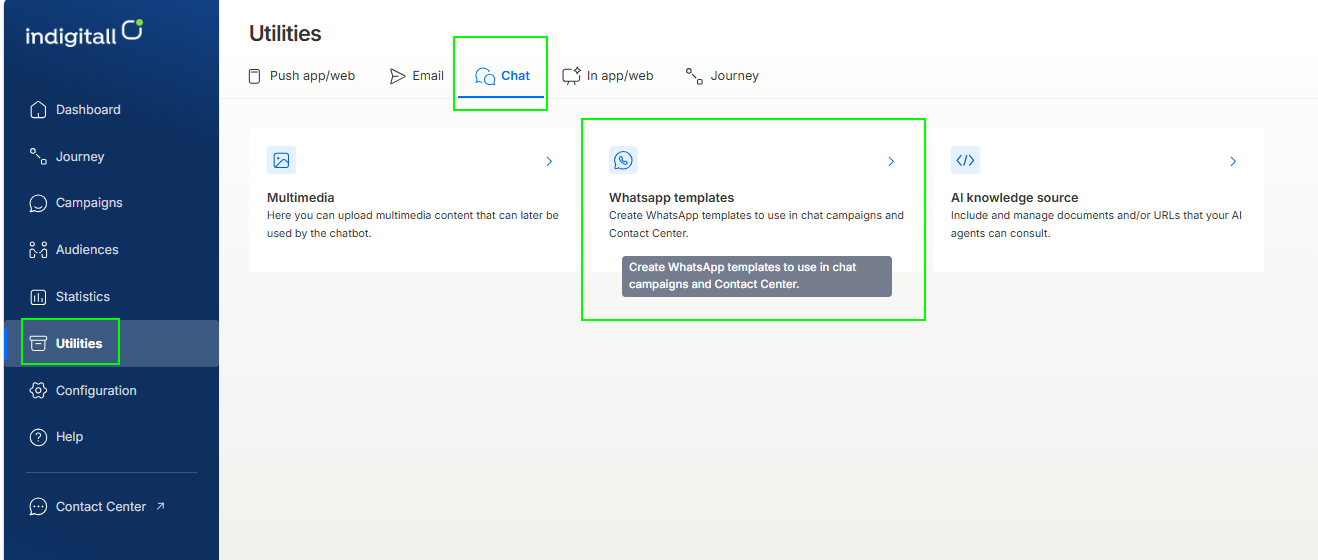
The WhatsApp Templates page lists all the templates in your project. The total number appears next to the page title.
Find a template
Search
Enter all or part of a template name in the Search box. The list shows only the templates that match.
Filter by status
Use the drop-down next to the search box to show only templates with a specific Meta review status:
- All: Shows every template, whatever its status. This is the default.
- Approved: Meta approved the template, and you can use it in campaigns and in Contact Center.
- In review: Meta is reviewing the template. You can't send it until it's approved.
- In appeal: Meta rejected the template and you appealed the decision. Meta is reviewing the appeal.
- Rejected: Meta didn't approve the template. Check the content against Meta's policies, then edit the template and send it for review again.
- Paused: Meta paused the template, usually because contacts gave it negative feedback or marked it as low quality. You can't send it while it's paused.
- Disabled: Meta disabled the template, usually after repeated quality issues. You can't send it anymore.
- Deleted: The template was deleted.
- Pending deletion: You asked to delete the template, and Meta is processing the request.
- Limit exceeded: Your WhatsApp Business Account has reached the maximum number of templates Meta allows.
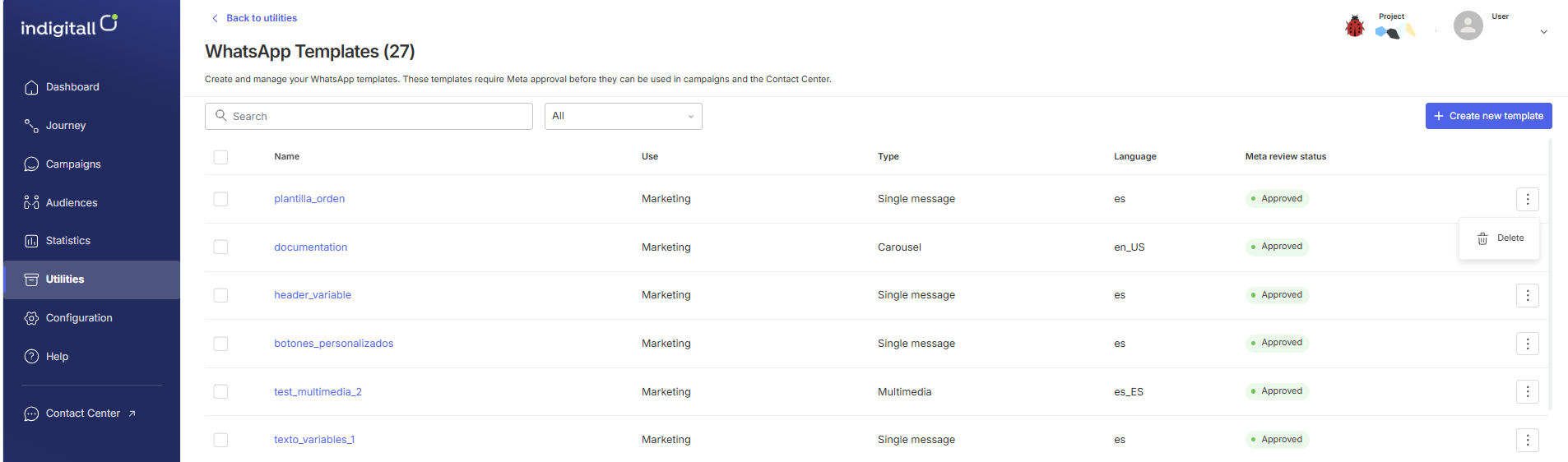
Template list
For each template, the list shows these columns:
- Name: The template name. Click it to open the template.
- Use: The category you selected when you created the template: Marketing or Utility.
- Type: The template structure, for example Single message, Carousel or Multimedia.
- Language: The language code of the template content, for example en_US for English (US), es_ES for Spanish (Spain) or es for Spanish.
- Meta review status: The template's current status in Meta, for example Approved.
Creating a template
After clicking Create new template (the blue button in the top-right corner), the New WhatsApp template page opens. The form is on the left and a live Preview is on the right, so you can see how the message will look on the contact's phone while you build it.
General info
- Template Name: Give your template a unique, internal name (e.g., promo_march_2026).
- Content Language: Select the specific language your message will be written in (e.g., English US).
- Use Type: Choose the category from the dropdown:
- Advertising (Marketing): For promotions, news, and engagement.
- Informational (Service): For transactional updates, like order confirmations or alerts.
Structure
Select Single message to create a standard message with an optional header, a message body, an optional footer and optional buttons.
To create a template with several scrollable cards, select Carousel. Carousel templates are covered in a separate guide.
Content
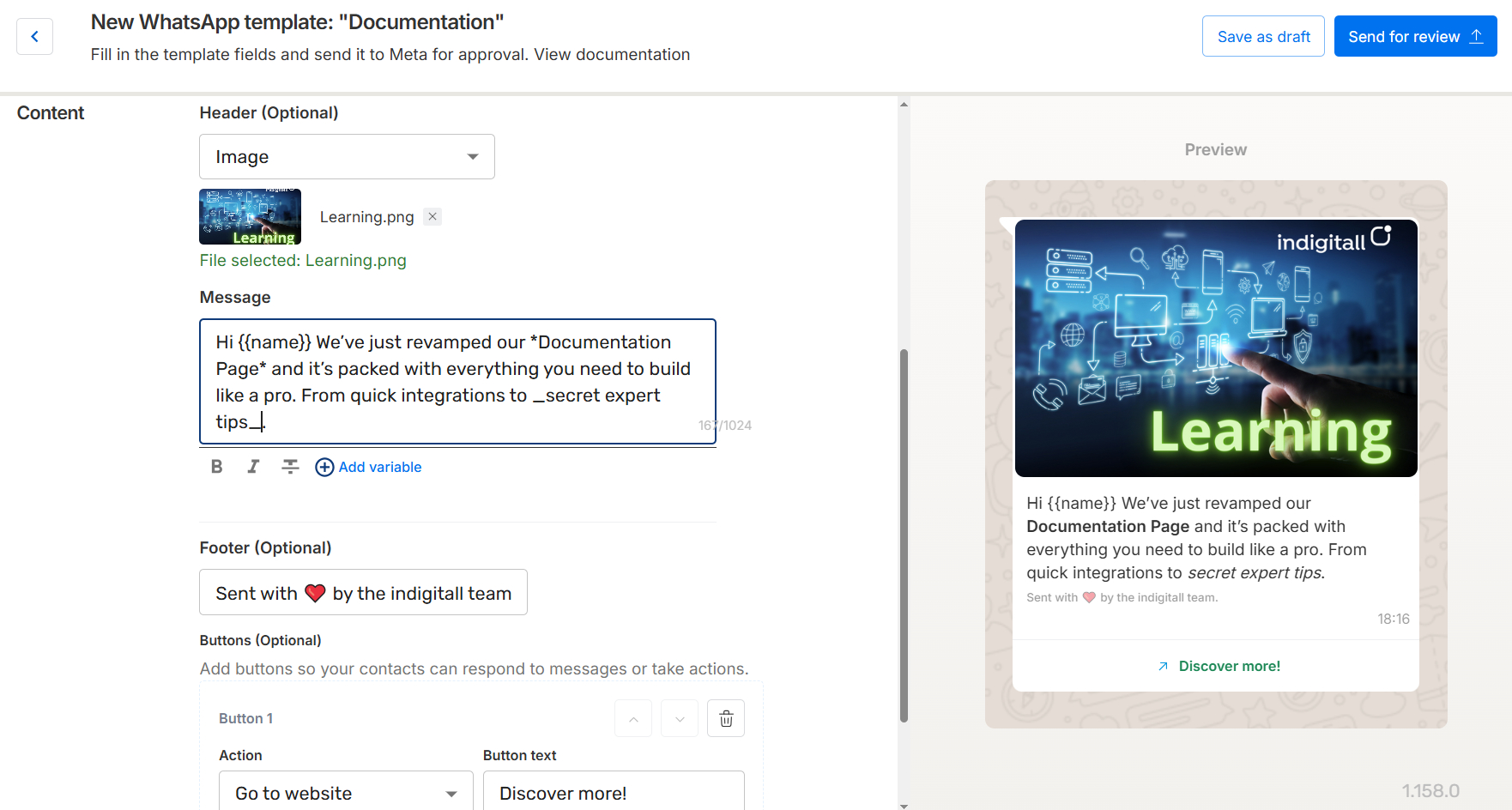
Header (Optional)
The header appears at the top of the message. Select one of these options:
- No content: The message has no header.
- Text: Enter a short title of up to 60 characters.
- Image: Click Select image and upload an image file from your computer.
- Video: Click Select video and upload a video file from your computer.
- Document: Click Select document and upload a file, such as a PDF.
When you upload a file, its name appears under the field with the message File selected. To remove it, click the x next to the file name.
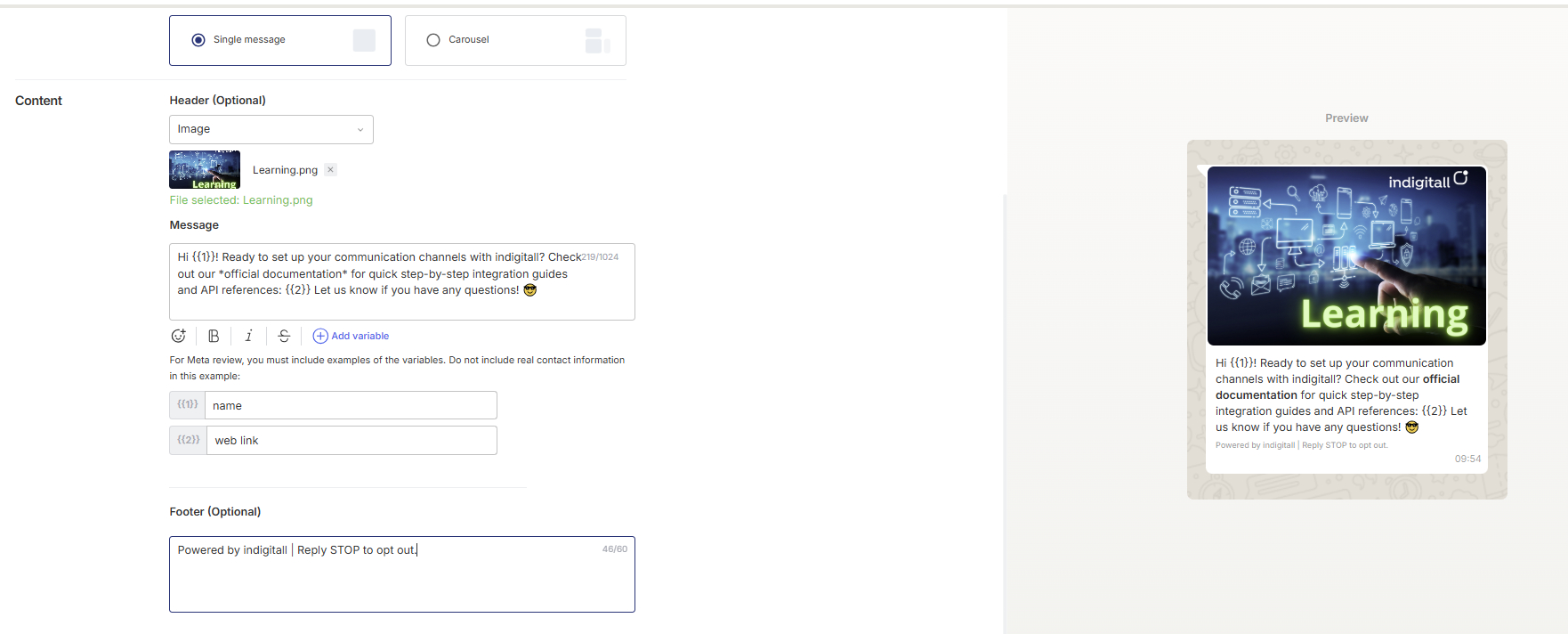
Message
Enter the main text of the message. The maximum length is 1,024 characters. This field is required.
Use the toolbar under the text box to format the message:
- Emoji: Insert an emoji.
- Bold (B): Wrap the selected text in asterisks, for example text.
- Italic (I): Wrap the selected text in underscores, for example text.
- Strikethrough (S): Wrap the selected text in tildes, for example
text. - Add variable: Insert a placeholder that's replaced with personalized content when the message is sent.
Variables
Each time you click Add variable, a numbered placeholder is added to the message: {{1}}, {{2}} and so on. For each variable, a field appears under the message where you must enter an example value, such as a name or a web link.
Meta requires these examples to review the template. Don't use real contact information in them.
Footer (Optional)
Enter a short line of text that appears at the bottom of the message in a smaller, lighter font, for example your company name or a legal notice. The maximum length is 60 characters.
Buttons (Optional)
Buttons let contacts reply to the message or take an action. Click Add button to add one. For each button, select an Action:
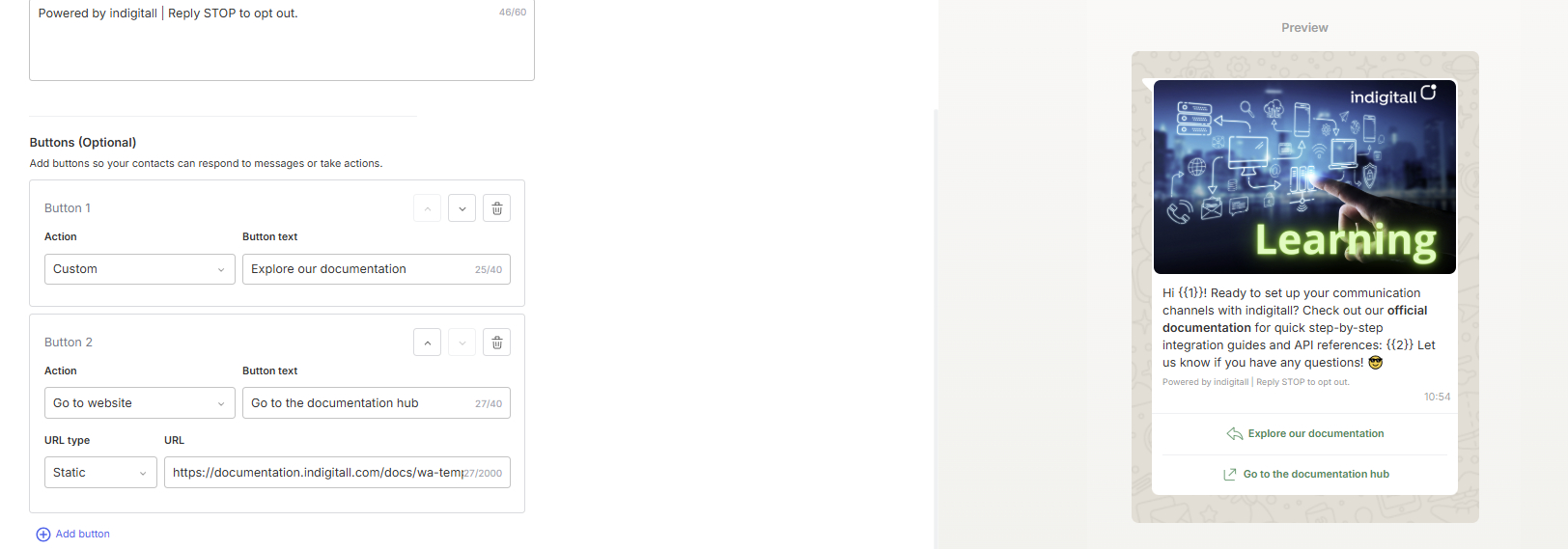
- Custom: A quick-reply button. Enter the Button text (up to 40 characters). When the contact taps it, the button text is sent back as a reply.
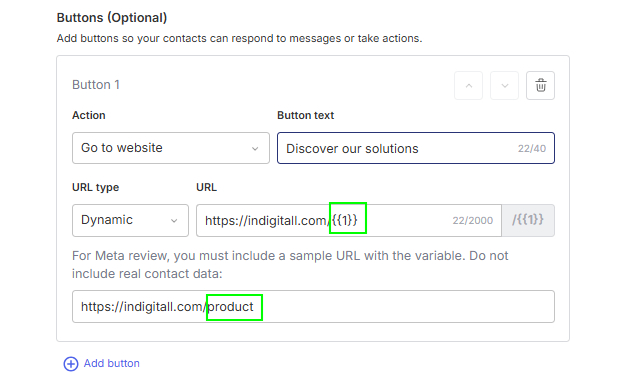
- Go to website: Opens a web page. Enter the Button text (up to 40 characters) and select a URL type:
- Static: The URL is the same for every contact. Enter the full URL (up to 2,000 characters).
- Dynamic: The URL ends with a variable, {{1}}, that's personalized for each contact. Enter the base URL, then enter a sample URL that includes the variable so Meta can review it, for example https://web.com/{{1}}. Don't use real contact data in the sample.
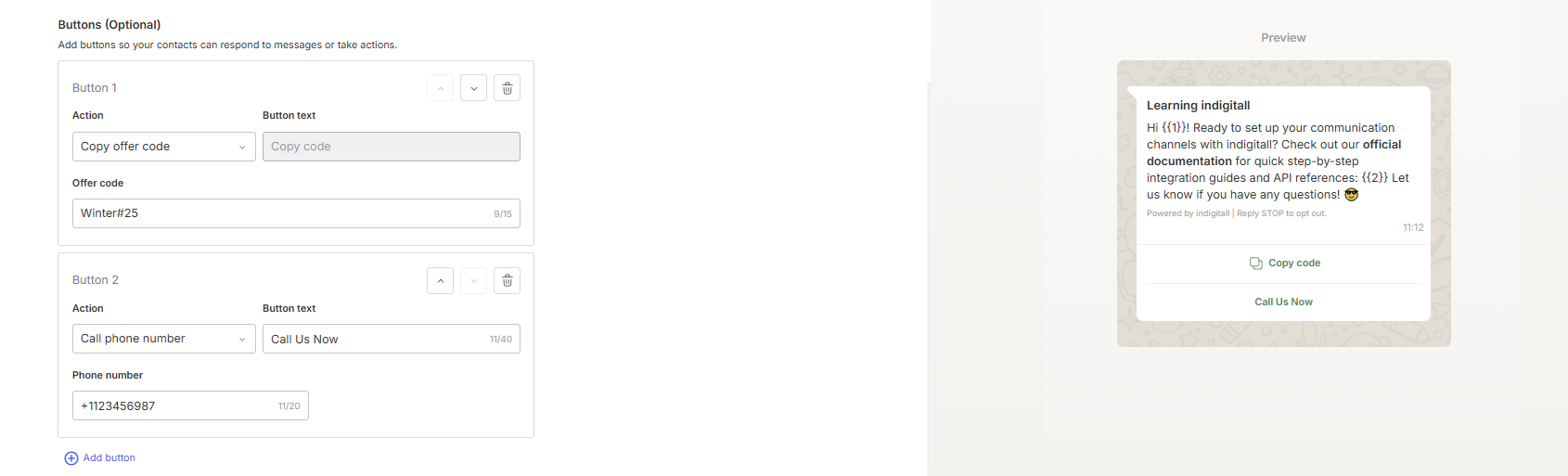
- Copy offer code: Shows a Copy code button that copies a promotional code to the contact's clipboard. The button text can't be changed. Enter the code in Offer code.
- Call phone number: Starts a phone call when the contact taps it. Enter the Button text (up to 40 characters) and the Phone number (up to 20 characters). You can add only one button of this type per template.
Warning: Editing an approved WhatsApp templateIf you edit a WhatsApp template that Meta has already approved, it goes back into Meta's review process. Reviews usually take less than an hour, but Meta says they can take up to 48 hours.
While the template is under review, it can't be sent. Any send attempt fails, and Meta returns this error:
(#132001) Template name does not exist in the translation
Meta can also reject the edited template after the review. If that happens, you have to wait 24 hours before you can edit it again.
Recommendation: Before you edit a template that's used in active campaigns or journeys, think about creating a new template instead. That way the current version keeps sending without interruption.
FAQ
What is the maximum file size I can attach to a template?
The maximum file upload size is 64 MB. This limit applies equally to any image, document, or video attached to the message, so we recommend compressing your files before uploading them.
How many buttons can a WhatsApp template have?
A template supports up to 10 buttons in total, combining different types. However, there are per-type limits (for example, a maximum of 3 Quick Reply buttons) and certain combinations that cannot be mixed. Because of this, reaching the maximum of 10 buttons is not always possible depending on the specific types you choose.
How long does Meta take to approve a template, and what are the most common rejection reasons?
In most cases, Meta's approval process is highly automated and extremely fast, often taking anywhere from a few minutes to a couple of hours. However, depending on the content or system volume, the review can occasionally take up to 24 hours.
When a template doesn't pass Meta’s review, it generally falls into one of these four categories:
- Syntax Errors in Parameters: Dynamic variables require strict formatting, and Meta's system is unforgiving with typos.
- For instance: Formatting a placeholder with standard brackets (e.g., [1]) or forgetting a curly brace will trigger an instant rejection. You must always use the standard double-brace structure: {{1}}.
- Category Mismatches: Meta actively verifies that the actual text of your message aligns with the template category you selected during setup.
- For instance: Trying to push a special offer, coupon, or sale through a "Utility" template instead of selecting "Marketing".
- Vague or "Floating" Variables: Reviewers need to understand exactly what kind of data will replace your placeholders to ensure it doesn't violate guidelines.
- For instance: Dropping a {{1}} at the extreme beginning or end of a sentence with no surrounding words makes the template's purpose unclear and will result in a denial.
- Non-Compliance with Meta Policies: The message content breaches WhatsApp’s strict Commerce or Business guidelines.
- For instance: Attempting to advertise forbidden goods (such as tobacco or alcoholic beverages) or explicitly asking customers to share highly sensitive personal identifiers directly in the chat thread.
Can I edit an approved template without going through approval again?
Whenever you alter the layout or text of an already approved template, Meta will automatically initiate a fresh review cycle. Even though minor updates are often green-lit almost immediately, they still must pass through the standard evaluation process.
Here is a breakdown of what happens when you make specific changes:
- Core Message Elements (Requires Re-approval): Any adjustments to the fundamental building blocks—including the header, main body text, footer, or interactive buttons—will reset the template's status and trigger a new review.
- Dynamic Variable Content (No Re-approval Needed): You are completely free to swap out the actual data populating your placeholders at runtime (for instance, changing the specific customer name that replaces {{1}} for each message). Just keep in mind that modifying the position or adding new placeholder tags within the template's draft will require a new review.
- Template Classification (Strictly Locked): Once approved, a template's designated category cannot be switched. If you realize your message needs a different category tag, you will have to build and submit a brand-new template from scratch.
Updated 28 days ago