
Multimedia
The Multimedia library stores the files you want to use in your chat communications, such as images, videos, audio files and documents. Once a file is uploaded, the chatbot can use it later.
How to access it
- In the left menu, go to Utilities.
- Open the Chat tab.
- Click Multimedia.
The Multimedia list
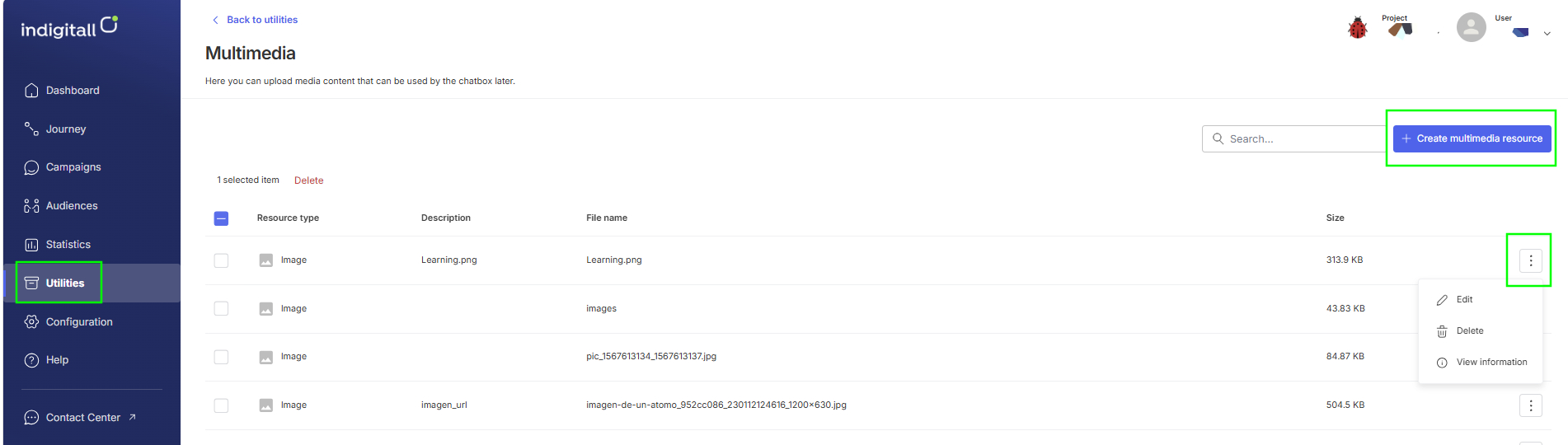
The main screen lists every resource you've uploaded, with these columns:
- Resource type: Document, Image, Audio or Video.
- Description: the name you gave the resource.
- File name: the name of the uploaded file.
- Size: the file size.
Use the Search bar to find a resource quickly.
Create a multimedia resource
- Click + Create multimedia resource.
- In Resource type, select Document, Image, Audio or Video.
- Enter a Description so you can find the resource easily later.
- Add the file in one of these two ways:
- Click Upload file and select it from your computer. The file name and size appear once it's uploaded.
- Or enter the file's public link in Resource URL.
- Click Create.
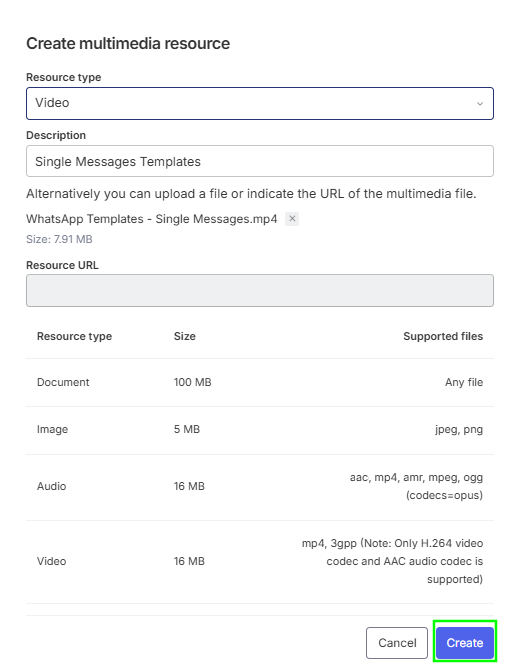
Supported files and size limits:
| Resource type | Max. size | Supported files |
|---|---|---|
| Document | 100 MB | Any file |
| Image | 5 MB | jpeg, png |
| Audio | 16 MB | aac, mp4, amr, mpeg, ogg (codecs=opus) |
| Video | 16 MB | mp4, 3gpp (only H.264 video codec and AAC audio codec are supported) |
Manage your resources
Click the ⋮ menu at the end of any row to see these options:
- Edit: change the description, or replace the file or its URL. The resource type can't be changed. Click Save to apply your changes.
- Delete: permanently removes the resource. Confirm in the Delete multimedia window. This action can't be undone.
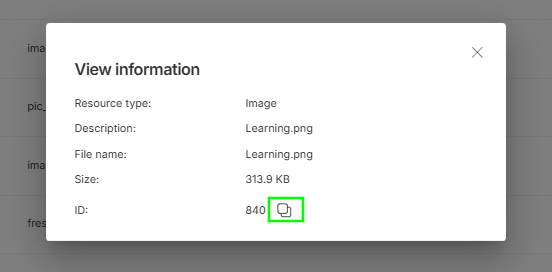
- View information: shows the resource type, description, file name, size and ID. Click the copy icon next to the ID to copy it.
Updated 24 days ago
Did this page help you?