
WhatsApp Best Practices
Maintaining a high-quality connection with your customers on WhatsApp requires a balance between engaging, personalized content and respecting user preferences. To help you manage this, we highly recommend incorporating Quick Reply buttons specifically for Marketing Opt-outs within your message templates.
Providing a frictionless way for customers to unsubscribe, without them having to resort to blocking your business profile, is one of the most effective ways to protect your Quality Score and increase your messaging volume limits.
Quick Reply Button
Quick Reply buttons are text-only options that allow users to respond instantly with a single tap. When a user clicks one, a predefined text string is sent back to your system, triggering an immediate action. A standard use case for this is the Marketing Opt-out button, which provides a seamless way for customers to manage their preferences.
Configuration & Grouping Rules: To ensure your templates are approved and function correctly, keep the following Meta requirements in mind:
- Quantity: You can include up to 10 quick reply buttons per template.
- Logical Grouping: If you mix Quick Replies with other button types (like "Call" or "Visit Website"), they must be grouped into distinct categories.
- Validation: You cannot "interleave" button types. Quick Replies must stay together, and static buttons (URL/Phone) must stay together.
- Here are examples of valid groupings:
- Quick Reply, Quick Reply
- Quick Reply, Quick Reply, URL, Phone
- URL, Phone, Quick Reply, Quick Reply
- Examples of invalid groupings:
- Quick Reply, URL, Quick Reply
- URL, Quick Reply, URL
- Here are examples of valid groupings:
Opt-Out Experience
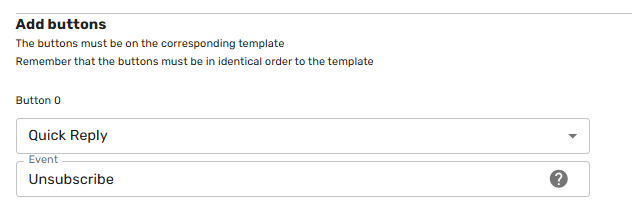
A transparent and frictionless opt-out process is vital for maintaining a positive brand image and protecting your WhatsApp sender reputation. By optimizing this experience, you turn a potential "block" into a respectful departure, keeping your quality score high.
You must ensure that marketing communications stop the moment a customer opts out. Continuing to message an unsubscribed user severely damages the customer experience and will negatively impact your block rate and quality score.
- Provide a confirmation message: When a user opts out, send a brief, helpful confirmation. This is a great opportunity to:
- Offer an "Opt-back-in" path: Make it easy for customers to rejoin if they clicked the button by mistake.
- Request feedback: Ask why they chose to leave or what content they would prefer. This data is invaluable for refining your targeting strategy.
- Strategic button placement: Including an opt-out button in every single message can feel repetitive and may inadvertently encourage users to leave. Instead, focus on high-impact moments:
- The Welcome Message: The very first time a customer hears from your business.
- The Re-engagement Message: The first message sent after a long period of inactivity.
- Unengaged Segments: Messages targeting users who haven't interacted with your brand recently.
Passthrough Clients
As a Passthrough Client, indigitall delivers the opt-out event to your systems, but you are responsible for processing that request and updating your database to ensure no further marketing messages are sent to that specific user.
How the Opt-Out Works
When you send a marketing template that includes an Opt-out button, the user sees a clear call to action (e.g., "Stop promotions").
- The User Action: The user clicks the button.
- The indigitall Role: We receive the webhook from Meta and immediately forward the event to your configured endpoint.
- Your Role: You must catch this event, identify the user's phone number, and mark them as "Unsubscribed" in your CRM or database.
Creating the Template in the indigitall Console
When creating your WhatsApp Marketing template, you must include the specific Marketing Opt-out button type.
- Button Type: Select Quick Reply.
- Button Sub-type: Choose Marketing Opt-out.
- Button Text: Use clear language like "Stop promotions," "Unsubscribe," or "Opt out."
Meta allows you to include a "Reconsideration" footer. If a user clicks the opt-out button, WhatsApp may show a confirmation message. This helps prevent accidental unsubscribes while remaining compliant.
Handling the Passthrough Event
Once the user clicks the button, your system will receive a payload via the indigitall webhook. Since you are in Passthrough mode, the user is not automatically blocked by indigitall’s internal lists; they are only blocked if you stop sending messages to them.
Your workflow should be:
- Receive Webhook: Listen for the button_click event.
- Identify Intent: Check if the button ID or text matches your "Opt-out" configuration.
- Update CRM: Immediately update the user's status to "Opted-out."
- Acknowledge (Optional): You may send a final automated confirmation message (e.g., "You have been unsubscribed from marketing updates") if your business logic requires it.
Sample Webhook Payload (Button Click)
{
  "event": "message",
  "type": "button_click",
  "timestamp": 1739265535,
  "data": {
    "from": "15551234567",
    "message_id": "wamid.HBgLMTU1NTEyMzQ1NjcVAgIAERgFM0VDNTY3ODk0REU1RTU0REExAA==",
    "button": {
      "text": "Stop promotions",
      "payload": "MARKETING_OPT_OUT"
    },
    "context": {
      "from": "15550009999",
      "id": "original_template_message_id"
    }
  },
  "customer_id": "your_indigitall_customer_id"
}- Filter by Payload: When creating your template, set a specific payload string for the opt-out button (like MARKETING_OPT_OUT). This is more reliable than filtering by the button text, which might change with translations.
- Duplicate Prevention: Ensure that if your system receives the same opt-out event twice, it handles it gracefully without errors.
- Latency: Meta expects your server to respond with a 200 OK status quickly. Process the database update asynchronously if possible so you can acknowledge the webhook immediately.
Content & Engagement Strategy
To maximize your impact, your messages must feel like a conversation, not a broadcast.
- Personalize at Scale: Always use variables for the customer’s name and specific product/collection interests. Example: "Hi Lead_name, based on your interest in product_category, we have something special for you."
- Be Human & Concise: Use a friendly, approachable tone. Explain the benefit or action in 1–2 lines.
- Clear Call to Action (CTA): Guide users with specific buttons like "View Promotion," "Book Now," or "Learn More."
- The Power of Visuals: Messages with high-quality images or videos see up to 60% higher interaction. Ensure media is complementary and not cluttered with text.
- Value-First Approach: Mix promotional content with useful updates, tips, or early access to keep users subscribed.
Sending, Segmentation & Data Hygiene
Efficiency is driven by data quality and timing.
- Smart Segmentation: Group your audience (e.g., Active, New, Inactive) to ensure the message is relevant.
- Database Hygiene (Cleaning): Regularly validate your lists (every 1–2 months). Ensure users still want to receive communications on this channel.
- Error Debugging: Periodically review logs for frequent delivery errors to identify and remove invalid numbers.
- A/B Testing: Experiment with different copy versions or media types to see what resonates best with your audience.
- Monitor Performance: Track Delivery Rate, Read Rate, and Click-Through Rate (CTR) to refine your strategy.
Operational Guardrails & Policy
Protect your Quality Rating and avoid account restrictions.
- Optimal Timing: Schedule sends between 9:00 AM and 7:00 PM. Avoid early morning or late-night messages that may lead to "Spam" reports.
- Volume Management (Slicing): For high-volume campaigns, follow the slicing recommendations provided by your CSM team to avoid saturating the API.
- Window Management: If you have an hourly limit configured (e.g., 8 AM – 6 PM), avoid sending close to the deadline to ensure all messages are processed within the allowed window.
- Prohibited Content: Strictly avoid language related to sexual content, gambling, drugs, or violence. Meta's filters are aggressive and can lead to permanent bans.
- Interactivity Tracking: Use Quick Reply buttons if you need to track specific user clicks and intent.
- Ready to Respond: If a customer replies, ensure you have agents or chatbots ready to continue the conversation immediately.
Recommended Message Structure
Here is a brief breakdown of the Optimal Message Structure, designed to drive conversions while maintaining a high quality rating:
- Friendly Greeting & Personalization: Use the customer’s name immediately to establish a one-to-one connection.
- Context (The "Why"): Briefly explain why they are receiving the message (e.g., "Based on your last purchase" or "As a loyal member"). This prevents users from marking the message as spam.
- The Hook (The Value): State the main benefit or news in one clear, punchy sentence.
- Scannable Details: Use bullet points or emojis to highlight dates, prices, or key info. Use white space to avoid "walls of text."
- Clear Call to Action (CTA): Use an interactive button or a direct link. Tell the user exactly what to do next (e.g., "Shop Now" or "Claim Offer").
- Opt-out: Provide a clear way to unsubscribe (e.g., "Reply STOP to opt out"). This protects your account’s health by reducing spam reports.
Example in Practice
👋 Hi Lead_name!
Because you’ve shopped with us before, we’re giving you early access to our Season Sale! 🛍️
Get Discount% OFF on all items until Friday.
👇 Tap below to shop:
[Button: Shop the Sale]
Reply STOP to unsubscribe.
- Why it works:
- Contextual: Explains why the user is getting the message.
- Visual Hierarchy: Uses emojis and white space for easy scanning.
- Interactive: Uses a clean button instead of a messy link.
- Safe: Includes an opt-out to protect your sender reputation.
WhatsApp Best Practices Checklist
Use this checklist to ensure your account remains in good standing and your campaigns deliver the highest ROI.
Technical & Compliance (The Basics)
- Correct Button Grouping: Quick replies are grouped together to avoid API errors.
- Active Opt-In: You only message users who have explicitly consented to hear from you on WhatsApp.
- Database Integrity: Opt-out requests are synced across all your WhatsApp phone numbers to prevent "accidental" spamming.
Strategic Engagement
- Optimal Timing: Messages are generally scheduled for delivery during the user’s local daylight hours (9 AM – 8 PM). However, keep in mind that "ideal" hours may vary slightly depending on the target country’s cultural habits and local regulations
- Value First: Your messaging mix includes more utility (orders, updates) than pure promotions.
- Smart Personalization: Templates use variables (name, last purchase) to feel like a 1:1 conversation rather than a mass broadcast.
- Strategic Placement: You include the opt-out button primarily in the first message or after long periods of inactivity, rather than in every single interaction.
To ensure your campaign is ready for success, use this quick checklist to verify its suitability:
- Is my Database updated and cleaned?
- Am I sending within the 9 AM - 8 PM window?
- Does my message include a Personalized Variable?
- Is my Call to Action clear?
- Do I have a Bot/Agent ready for replies?
BSUID
indigitall has implemented the BSUID (Business-Scoped User ID) to ensure that all your campaigns continue to function smoothly. With WhatsApp's privacy updates allowing users to hide their phone numbers, the BSUID serves as a secure, unique identifier for each contact. This implementation guarantees that the platform can still accurately deliver messages and manage your audiences, even without access to the user's actual phone number.
Updated 7 months ago