
Roles and permissions
The Roles and permissions panel provides a centralized view of all access levels within your Contact Center.
Complete Flexibility for Your Business
To help you get started quickly, the platform includes three predefined standard roles:
- Agent: Standard access for handling incoming conversations.
- Supervisor: Elevated access to oversee team performance and manage escalations.
- Auditor: Read-only access to review conversations for quality assurance.
Viewing current permissions
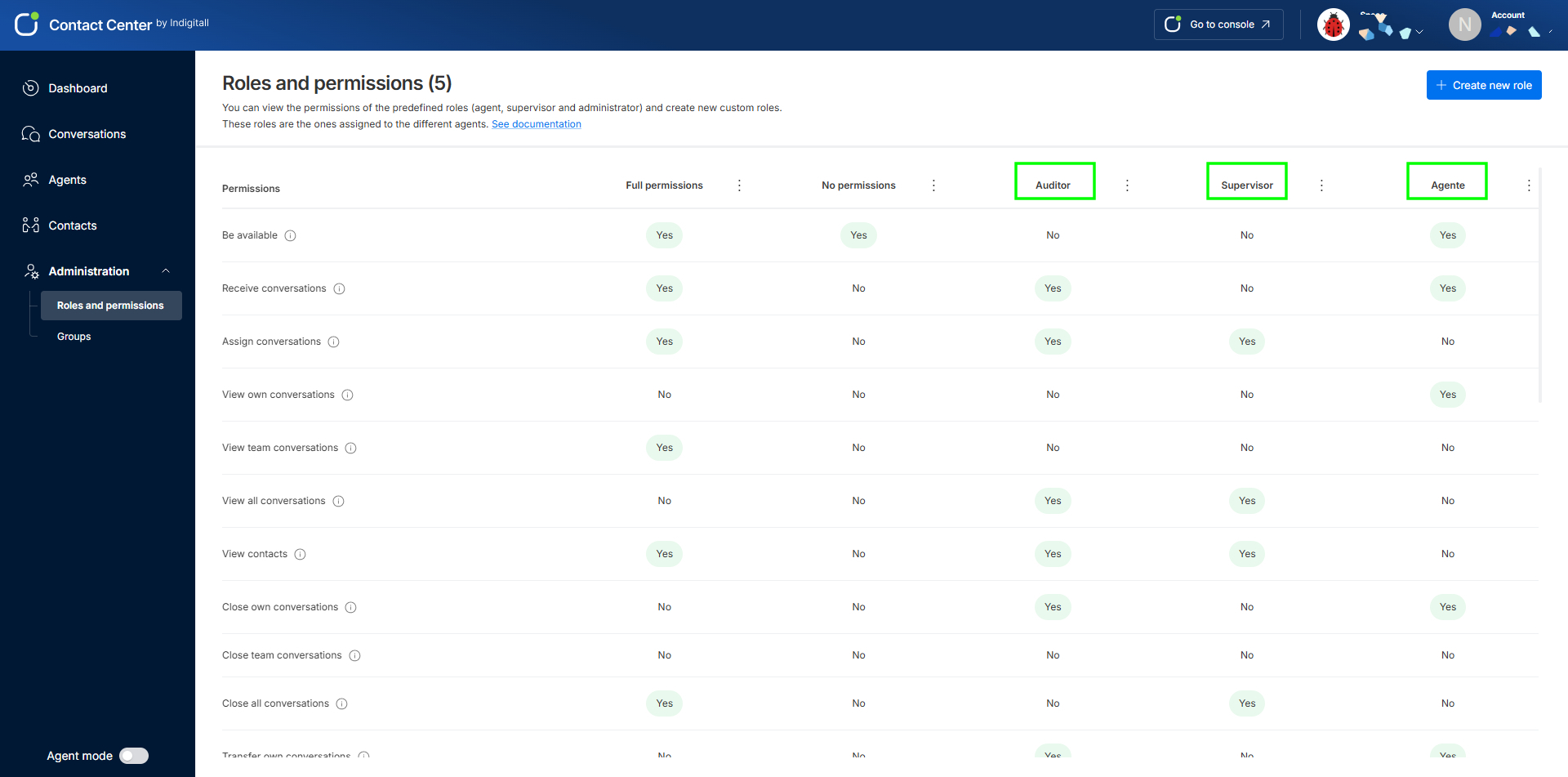
When you open the Roles and permissions tab, you will see a matrix. The rows represent specific actions (e.g., "Receive conversations", "View team conversations", "Close all conversations"), and the columns represent your current roles. This grid allows you to easily compare what each role is allowed to do at a glance.
Editing roles
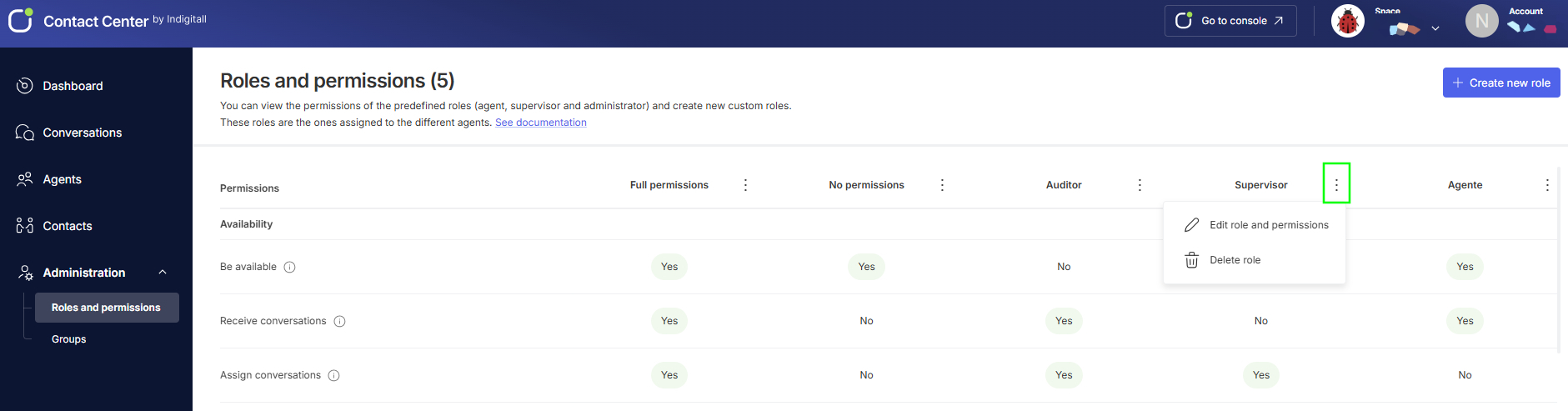
Contact Center ships with a set of predefined roles, each created by indigitall with a fixed, determined combination of the permissions described in this reference. Companies are not locked into these defaults, though: any role's permissions can be customized at any time by opening the three-dot menu (⋮) next to that role's name on the Roles and Permissions screen and selecting Edit role and permissions.
How to create a custom role
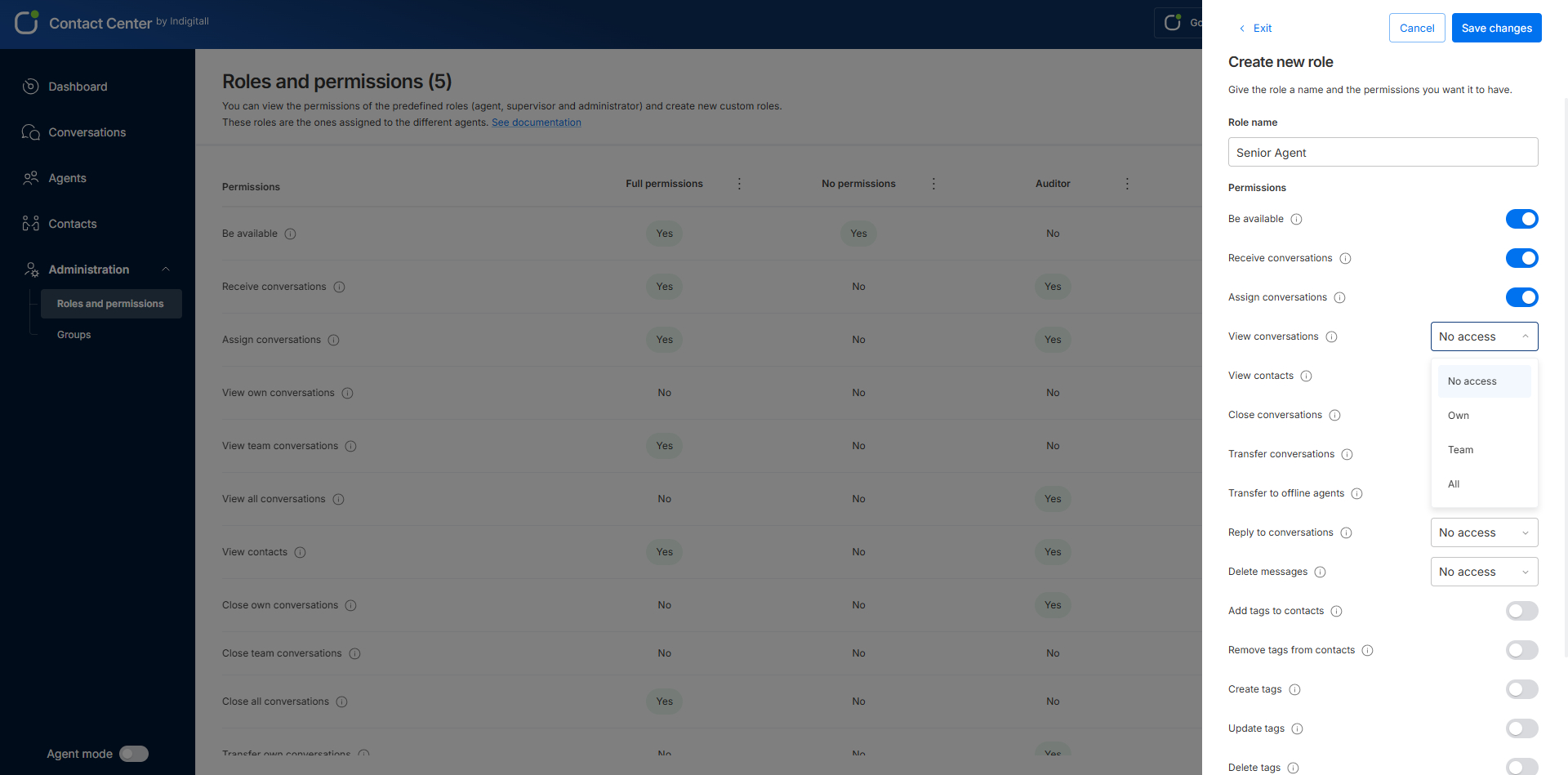
If you need a specific configuration (for example, a "Senior Agent" who can view team conversations but cannot delete tags), you can easily build it:
-
Click the blue + Create new role button in the top right corner.
-
A side panel will slide out.
-
Enter a Role name (e.g., Senior Agent).
-
Go through the Permissions list. Use the toggles to enable/disable basic permissions, and use the dropdown menus to set the scope of access (e.g., setting "View conversations" to Own, Team, or All).
-
Click Save changes. You can now assign this newly created role to your agents.
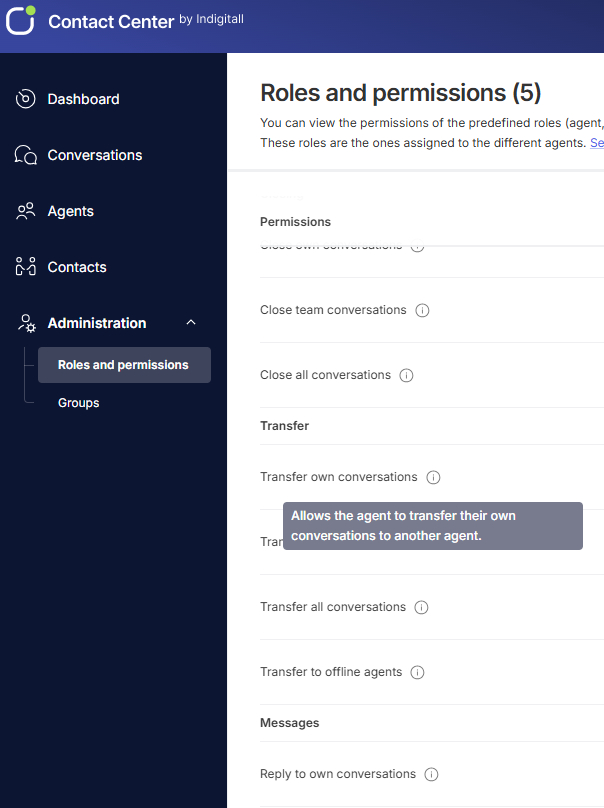
Permissions within this section are organized into functional categories: Availability, Visibility, Closing, Transfer, Messages, Tags, and Administration. To clarify specific configuration settings, each permission features an information icon (ℹ) next to its title. Hovering your cursor over any icon displays an interactive tooltip with a detailed explanation of what that specific permission allows and controls.
Permissions Reference
Availability
Controls whether an agent can go online and be assigned new conversations.
- Be available: Allows the agent to connect and appear as available to receive conversations.
- Receive conversations: Allows conversations to be assigned to this agent.
- Assign conversations: Allows the agent to assign a conversation to themselves or to another agent.
Visibility
Controls which conversations and contacts an agent can see in the interface.
- View own conversations: Allows the agent to view their own conversations.
- View team conversations: Allows the agent to view conversations of agents in their group.
- View all conversations: Allows the agent to view all conversations in the application.
- View contacts: Allows the agent to view contacts.
Closing
Controls which conversations an agent is allowed to mark as closed.
- Close own conversations: Allows the agent to close their own conversations.
- Close team conversations: Allows the agent to close conversations of agents in their group.
- Close all conversations: Allows the agent to close all conversations in the application.
Transfer
Controls which conversations an agent can hand off to another agent, and whether that agent can receive transfers while offline.
- Transfer own conversations: Allows the agent to transfer their own conversations to another agent.
- Transfer team conversations: Allows the agent to transfer conversations of agents in their group to another agent.
- Transfer all conversations: Allows the agent to transfer any conversation in the application to another agent.
- Transfer to offline agents: Allows the agent to transfer conversations to an offline agent.
Messages
Controls whether an agent can send messages in conversations, and whether they can delete messages that were already sent.
- Reply to own conversations: Allows the agent to send messages in their own conversations.
- Reply to team conversations: Allows the agent to send messages in conversations of agents in their group.
- Reply to all conversations: Allows the agent to send messages in all conversations in the application.
- Delete messages in own conversations: Allows the agent to delete messages in their own conversations.
- Delete messages in team conversations: Allows the agent to delete messages in conversations of agents in their group.
- Delete messages in all conversations: Allows the agent to delete messages in all conversations in the application.
Tags
Controls whether an agent can label contacts with tags, and whether they can manage the tags available across the account.
- Add tags to contacts: Allows the agent to assign tags to contacts.
- Remove tags from contacts: Allows the agent to remove tags from contacts.
- Create tags: Allows the agent to create new tags.
- Update tags: Allows the agent to update existing tags.
- Delete tags: Allows the agent to delete tags.
Administration
Controls higher-level management capabilities over agents, contacts, and conversations across the account. These permissions are typically reserved for supervisor and administrator roles.
- Manage agents: Allows the agent to manage other agents.
- Manage contacts: Allows the agent to manage contacts.
- Manage conversations: Allows the agent to manage conversations.
Default Permissions by Role
The table below shows which permissions each predefined role has by default, as configured out of the box by indigitall. Remember that any company can adjust these defaults per role from the three-dot menu (⋮) next to the role's name.
| Section | Permission | Agent | Auditor | Supervisor |
|---|---|---|---|---|
| Availability | Be available | Yes | No | No |
| Availability | Receive conversations | Yes | Yes | No |
| Availability | Assign conversations | No | Yes | Yes |
| Visibility | View own conversations | Yes | No | No |
| Visibility | View team conversations | No | No | No |
| Visibility | View all conversations | No | Yes | Yes |
| Visibility | View contacts | No | Yes | Yes |
| Closing | Close own conversations | Yes | Yes | No |
| Closing | Close team conversations | No | No | No |
| Closing | Close all conversations | No | No | Yes |
| Transfer | Transfer own conversations | Yes | Yes | No |
| Transfer | Transfer team conversations | No | No | No |
| Transfer | Transfer all conversations | No | No | Yes |
| Transfer | Transfer to offline agents | No | No | Yes |
| Messages | Reply to own conversations | Yes | Yes | No |
| Messages | Reply to team conversations | No | No | No |
| Messages | Reply to all conversations | No | No | Yes |
| Messages | Delete messages in own conversations | No | No | No |
| Messages | Delete messages in team conversations | No | No | No |
| Messages | Delete messages in all conversations | No | No | No |
| Tags | Add tags to contacts | Yes | Yes | Yes |
| Tags | Remove tags from contacts | Yes | Yes | Yes |
| Tags | Create tags | No | Yes | Yes |
| Tags | Update tags | No | Yes | Yes |
| Tags | Delete tags | No | Yes | Yes |
| Administration | Manage agents | No | No | Yes |
| Administration | Manage contacts | No | Yes | Yes |
| Administration | Manage conversations | No | Yes | Yes |
Updated about 1 month ago