
Auditor Role
The Auditor role is designed specifically for quality assurance and compliance. It grants read-only access to review conversations and contact activity, allowing your team to monitor how agents handle customer interactions, ensure service standards are met, and identify potential issues, all without the ability to alter or interfere with live chats. This role is ideal for QA reviewers and compliance staff who require observation-only access.
Check out the default role permissions (note that these can always be edited).
Main Menu & Navigation
The left sidebar contains the navigation menu, providing access to three main sections:
- Dashboard: Overview of key metrics and recent activity.
- Agents: List, monitor, and filter team agents.
- Contacts: Manage and filter registered contacts and their conversations.
- Agent mode: The Agent mode toggle is located in the bottom-left corner. For exclusive auditing and supervisory functions, this mode remains disabled.
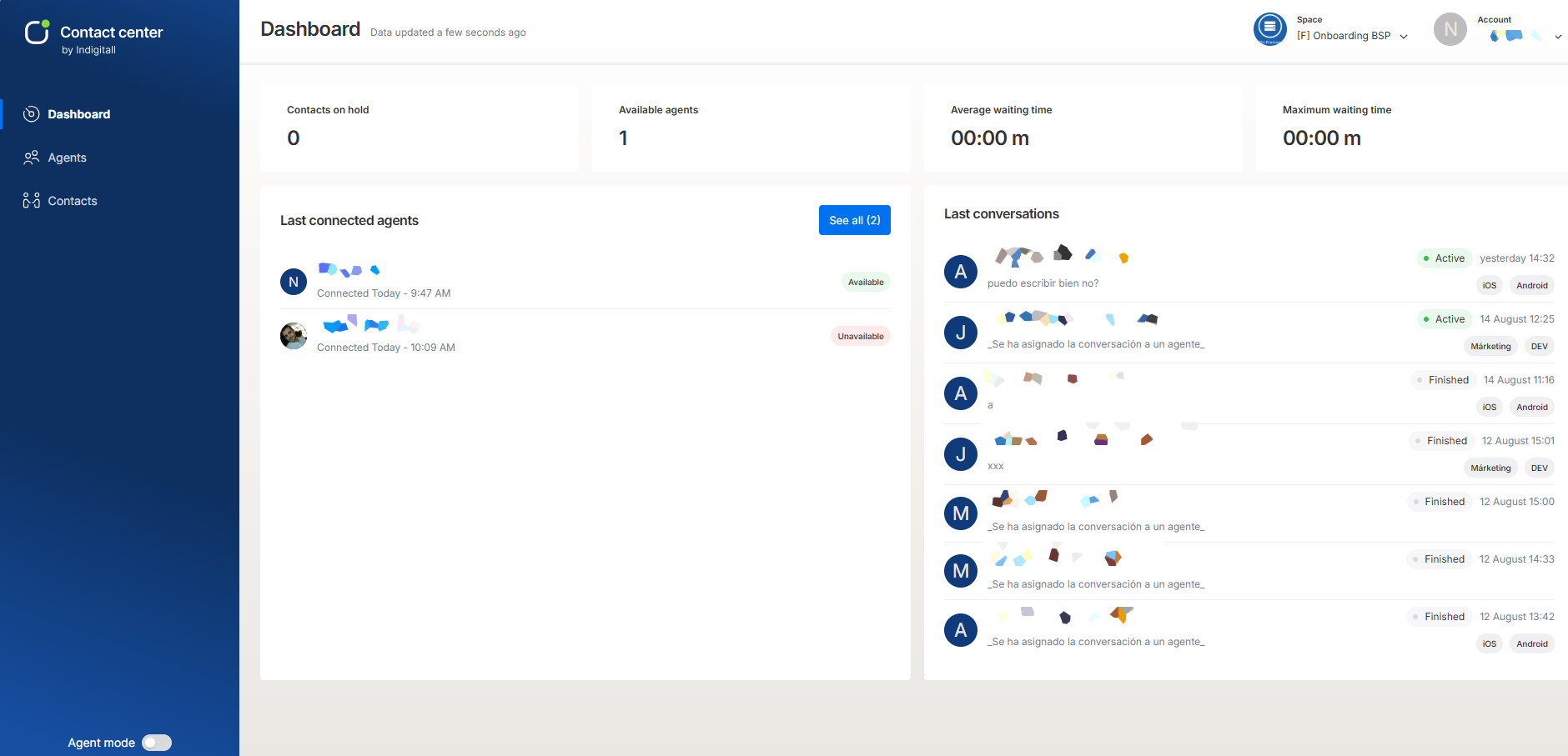
Dashboard
The Dashboard provides a real-time snapshot of the overall Contact Center operations.
Key Metrics
Four key indicators are displayed at the top:
- Contacts on hold: Number of contacts waiting to be assisted by an agent.
- Available agents: Number of agents currently available to receive conversations.
- Average waiting time: The average time customers wait before being assigned to an agent.
- Maximum waiting time: The highest recorded waiting time currently in the queue.
Monitoring Panels
1) Last connected agents:
- Displays the agent's name, connection time, and current availability status (Available in green, Unavailable in red).
- Includes a See all button to access the full agent list directly.
2) Last conversations:
- An interactive log of the most recent messages.
- Displays the conversation status (Active or Finished), date/time of the last event, a message preview, and channel/platform identifiers or tags (e.g., WhatsApp, iOS, Android, DEV, Marketing).
Agent Management
In the Agents menu, the auditor can oversee the workload and availability of the entire support team.
- Status Summary: Displays top-level counts for total registered agents, broken down by connected, disconnected, and available states.
- Filters: Search by agent name or filter using the status drop-down (Connected, Disconnected, Available, Unavailable).
- Table Metrics: The table shows the following information for each agent:
- Agent: The agent’s name and profile picture.
- Role: The role assigned to the agent, such as Full permissions, Supervisor, or Agent.
- Status: Whether the agent is Connected or Disconnected.
- Last connection: The date and time the agent last connected.
- Availability: Whether the agent can receive conversations (Available or Unavailable).
- Active conv.: The number of conversations the agent is currently handling.
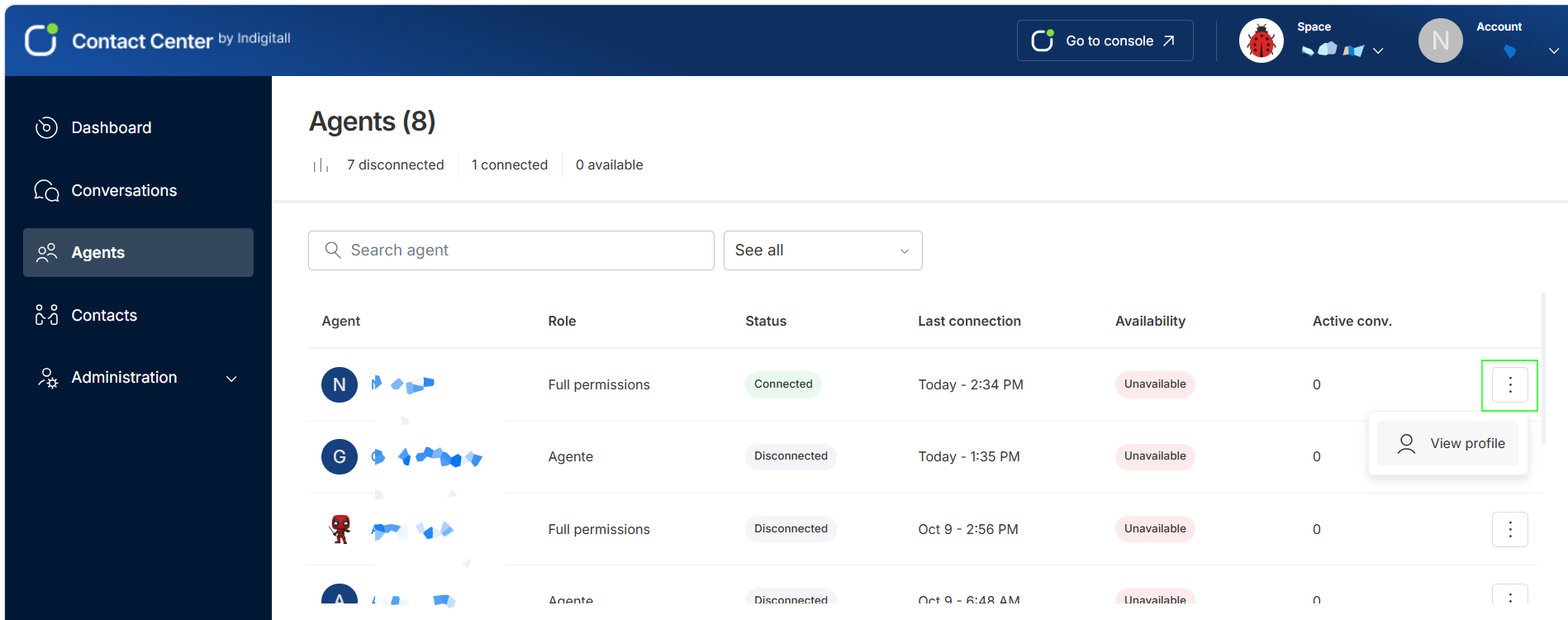
View an agent’s profile
To see more details about an agent, click the options menu (⋮) at the end of their row and select View profile.
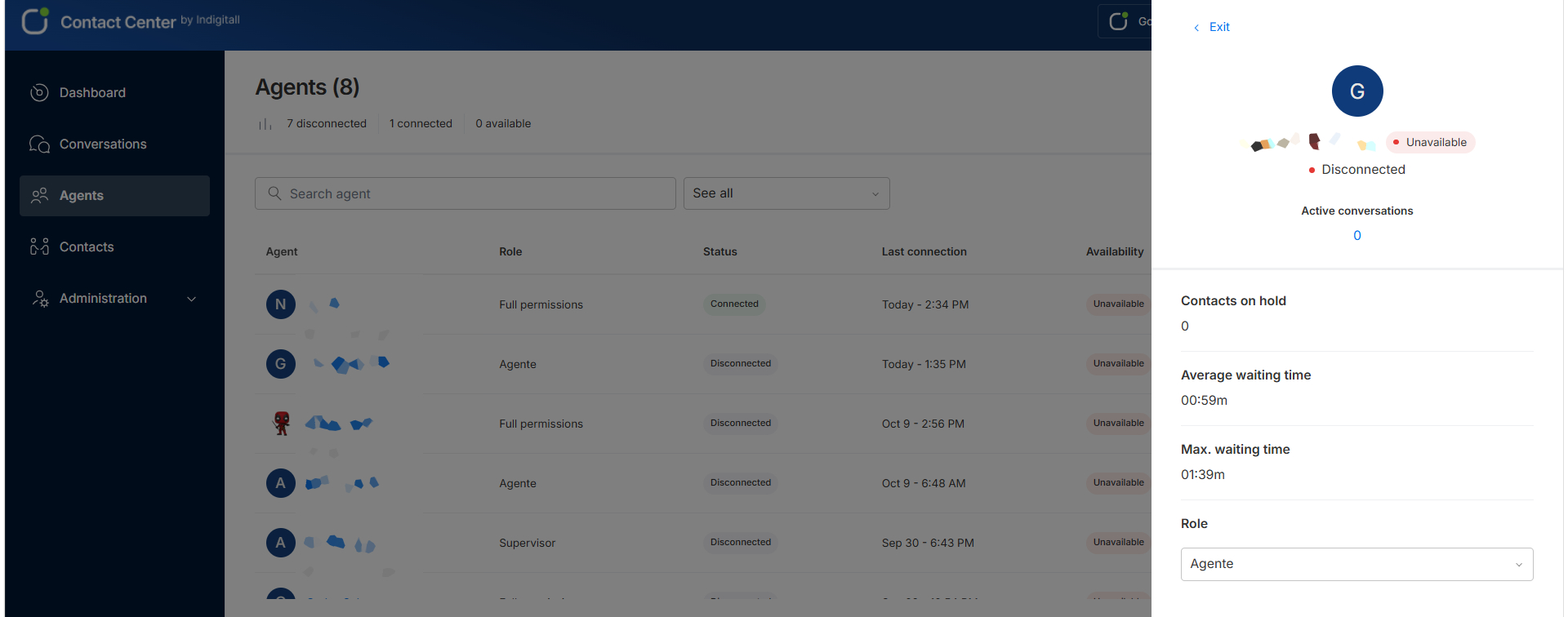
The agent’s profile opens in a side panel and shows:
- Availability and status: The agent’s availability (for example, Unavailable) and connection status (for example, Disconnected).
- Active conversations: The number of conversations the agent is currently handling.
- Contacts on hold: The number of contacts waiting to be attended.
- Average waiting time: The average time contacts wait before they’re attended.
- Max. waiting time: The longest time a contact has been waiting.
- Role: The role assigned to the agent.
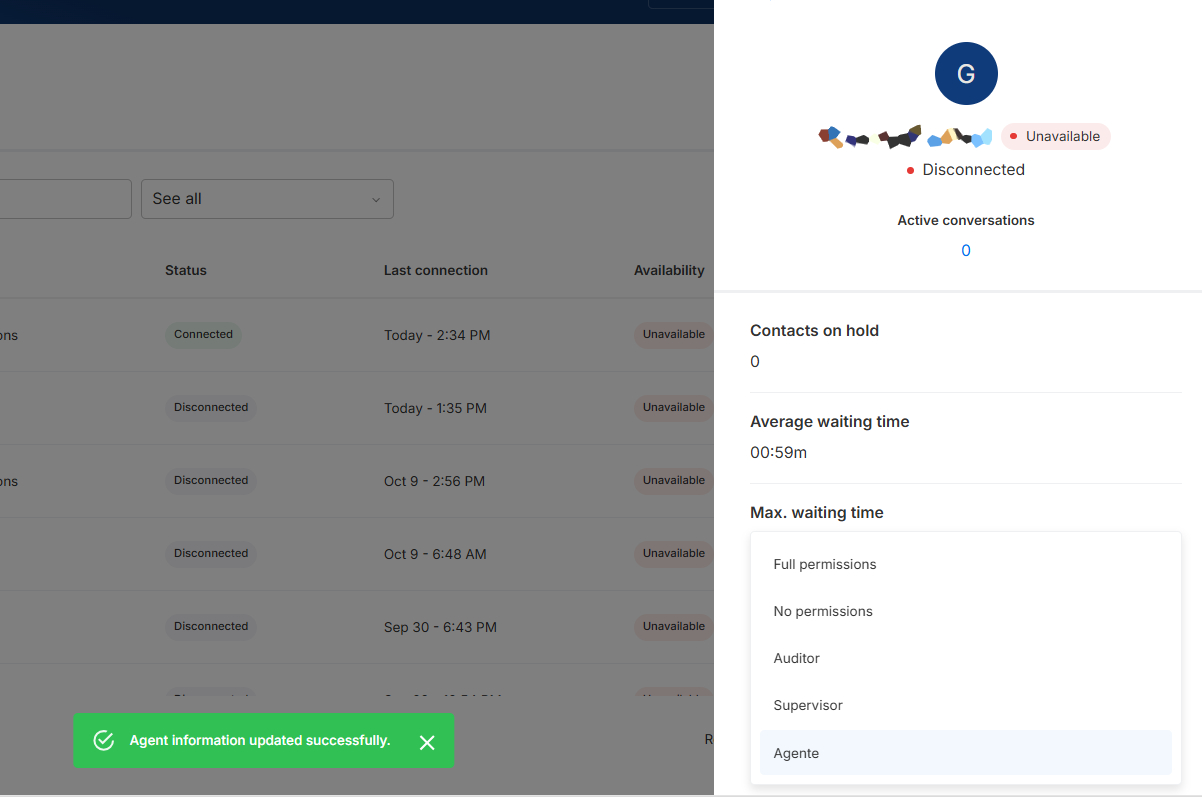
Change an agent’s role
In the agent’s profile, click the Role dropdown. Select the new role. The available roles are:
- Full permissions
- No permissions
- Auditor
- Supervisor
- Agent
The change is applied right away, and the confirmation message Agent information updated successfully appears.
To close the profile, click Exit.
Contact Management
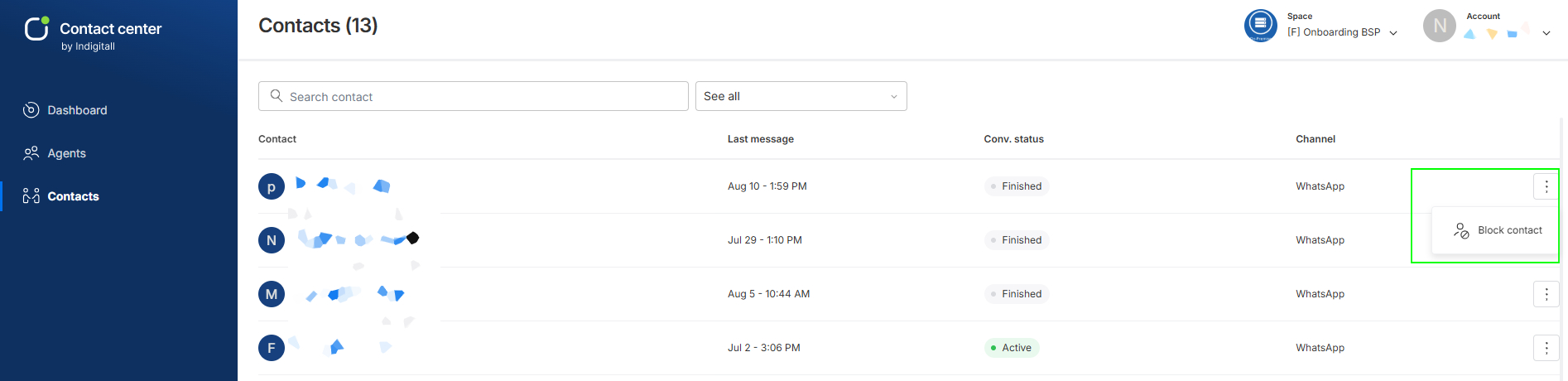
The Contacts section provides visibility into all users who have interacted with the platform.
Search & Advanced Filters
The auditor can look up specific users using the Search contact bar, or filter the list based on conversation status using the central dropdown menu:
- See all: Displays the entire directory of contacts.
- Active conversation: Filters users with ongoing chats.
- Finished conversation: Shows contacts with concluded chats.
- Blocked: Shows users who have been blocked.
- Unblocked: Shows users who are not blocked.
Contact Information Table
- Contact: Customer/contact identifier or name.
- Last message: Date and time the last message was sent or received.
- Conv. status: Interaction status tag (Active in green, Finished in gray).
- Channel: Communication channel used by the contact (e.g., WhatsApp).
- Actions (⋮): Contextual dropdown menu at the end of the row.
Auditor Actions on Contacts
By clicking the three-dot icon (⋮) on the right side of any contact row, the auditor can perform control actions:
- Block contact / Unblock contact: Allows the auditor to block or unblock a user, which prevents or restores their ability to send new messages into the system.
Updated 5 days ago