
Managing Chat Campaigns
The Chat Campaigns page is where you find, review, and manage every conversational campaign in your project. From here you can create new campaigns, check the status of the ones you've already set up, edit drafts, view results, and duplicate or delete campaigns.
Accessing Chat Campaigns
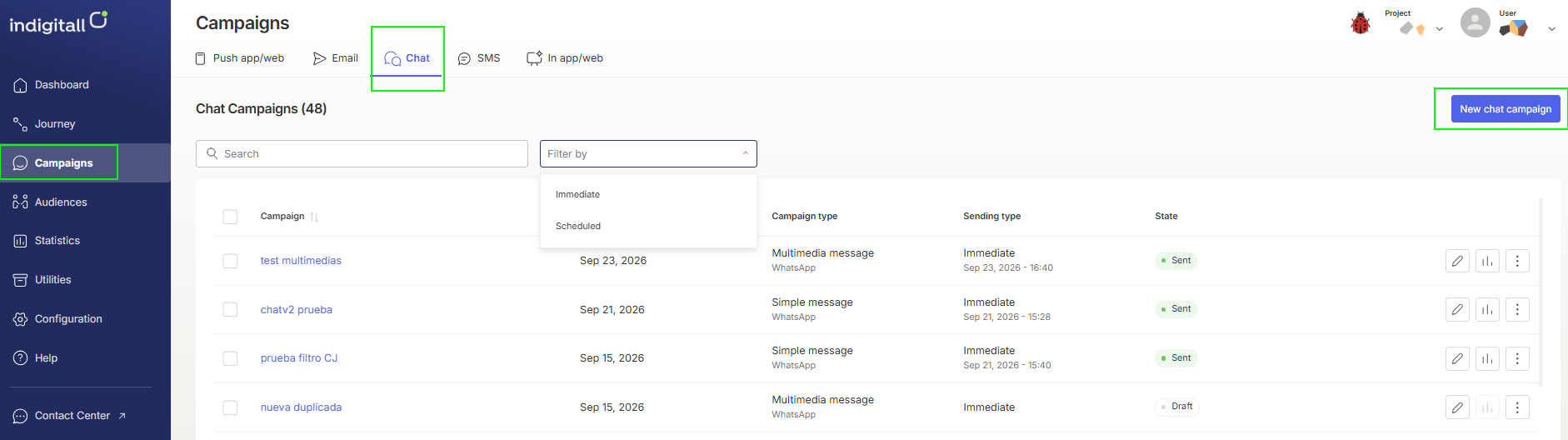
- In the left-hand menu of the console, click Campaigns.
- Select the Chat tab.
The page title shows the total number of chat campaigns in your project. To create a new campaign, click New chat campaign in the top-right corner. See Creating a New Chat Campaign.
Finding a campaign
Use the tools above the list to find a campaign quickly:
- Search: type all or part of the campaign name.
- Filter by: show only the campaigns with a specific sending type:
- Immediate: campaigns sent as soon as they were launched.
- Scheduled: campaigns set to be sent at a later date and time.
You can also sort the list by clicking the ↑↓ icon next to the Campaign or Creation column headers.
Understanding the campaign list
Each row in the list is one campaign, with the following information:
| Field | What it shows |
|---|---|
| Campaign | The campaign name. Click it to open the campaign. |
| Creation | The date the campaign was created, for example Sep 23, 2026. |
| Campaign type | The message format, such as Simple message or Multimedia message, with the channel used (for example, WhatsApp) shown below it. |
| Sending type | Immediate or Scheduled. For campaigns that have already gone out, the send date and time appear below it, for example Sep 23, 2026 - 16:40. |
| State | The current status of the campaign. Sent (green): The campaign has been delivered to its audience. Draft (grey): The campaign has been saved but not sent yet. You can keep editing it and send it whenever you're ready. |
Campaign actions
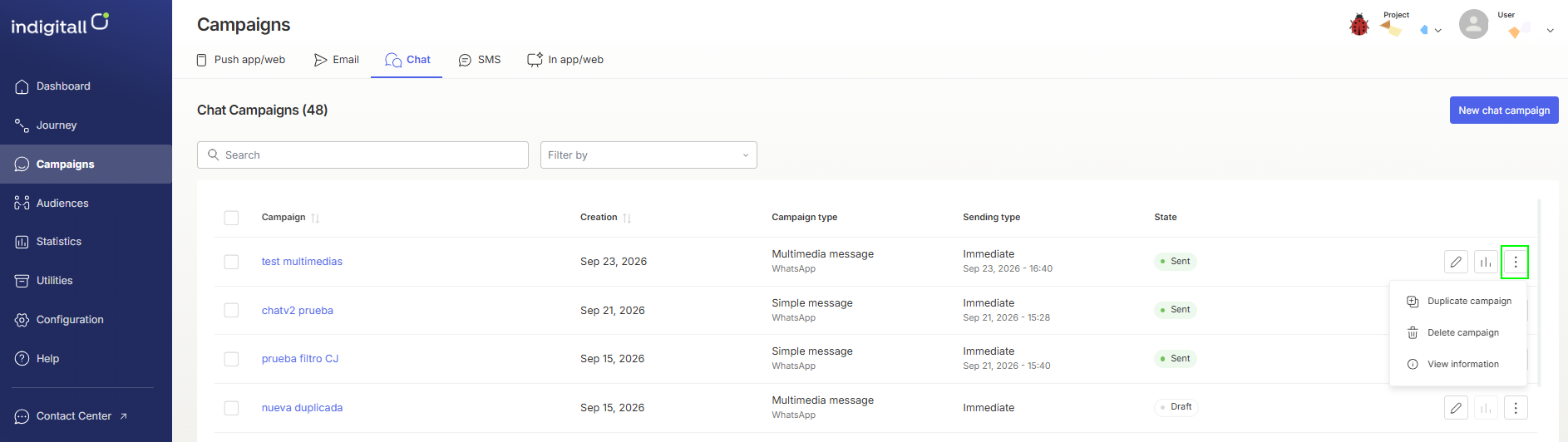
Each campaign row has action icons on its right-hand side:
| Icon | Action | Description |
|---|---|---|
| ✏️ Pencil | Edit | Opens the campaign so you can review or change its content and settings. |
| 📊 Chart | Statistics | Opens the campaign's performance metrics. This icon is only active for campaigns that have been sent. It is disabled for drafts because there is no data yet. |
| ⋮ More options | More actions | Opens a menu with the options below. |
More options (⋮) menu:
- Duplicate campaign: creates a copy of the campaign with the same content and settings. This is useful for reusing a campaign that worked well or for building a new version without starting from scratch. The copy is saved as a new campaign that you can edit before sending.
- Delete campaign: permanently removes the campaign from the list.
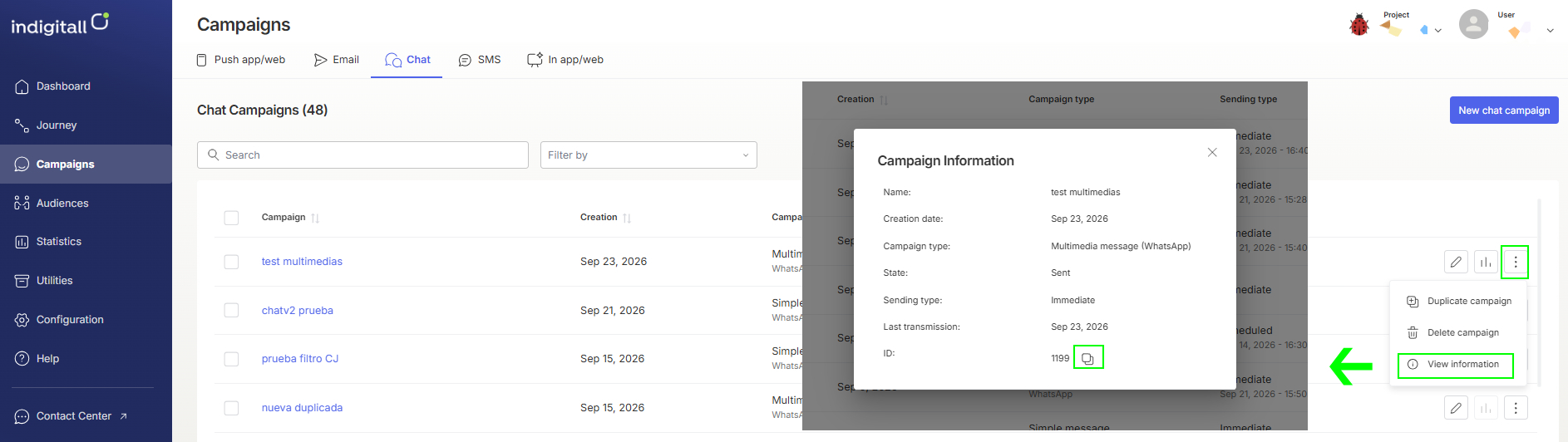
- View information: shows the campaign's details, including its campaign ID, which you can copy (for example, to share with the indigitall support team or to use in integrations).
Updated 24 days ago
Did this page help you?