
CDP / Customer
This dashboard is designed to provide a 360-degree view of your users, allowing you to manage identities, track behaviors, and refine data fields in real-time. Go to the Audiences > Customer.
Console RefreshStarting October 14, you can find your CDP customers in the Audiences section of the side menu. Click Audiences, select the Journey tab, then click View journey contacts in the top-right corner of the page.
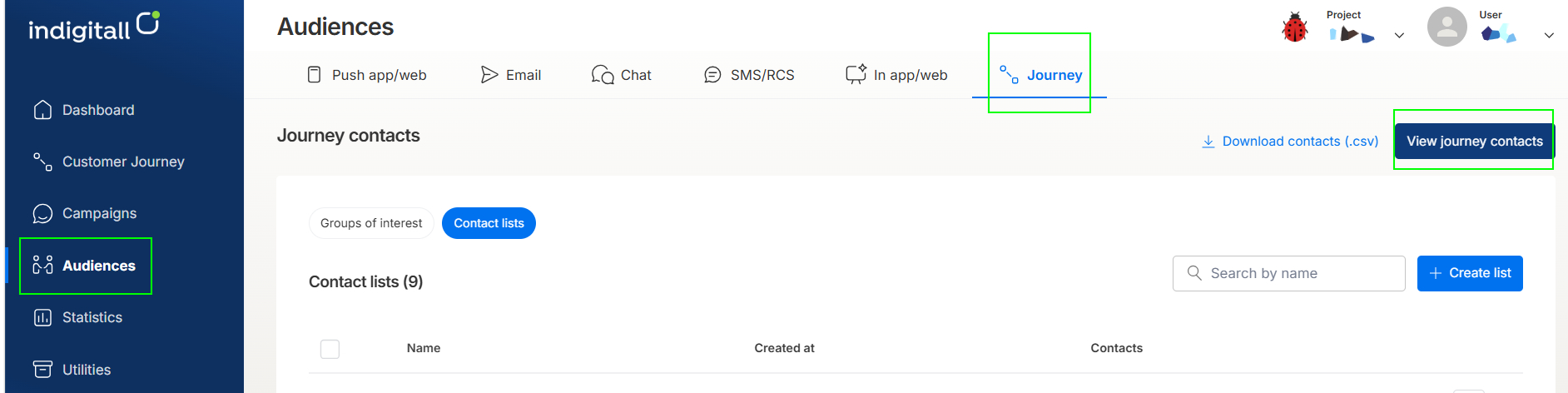
By combining real-time event tracking (what they do) with field management (who they are), marketing teams can create highly personalized journeys and ensure data hygiene across the entire audience.
Customer Journey Contacts
The primary screen serves as the central repository for all identified users.
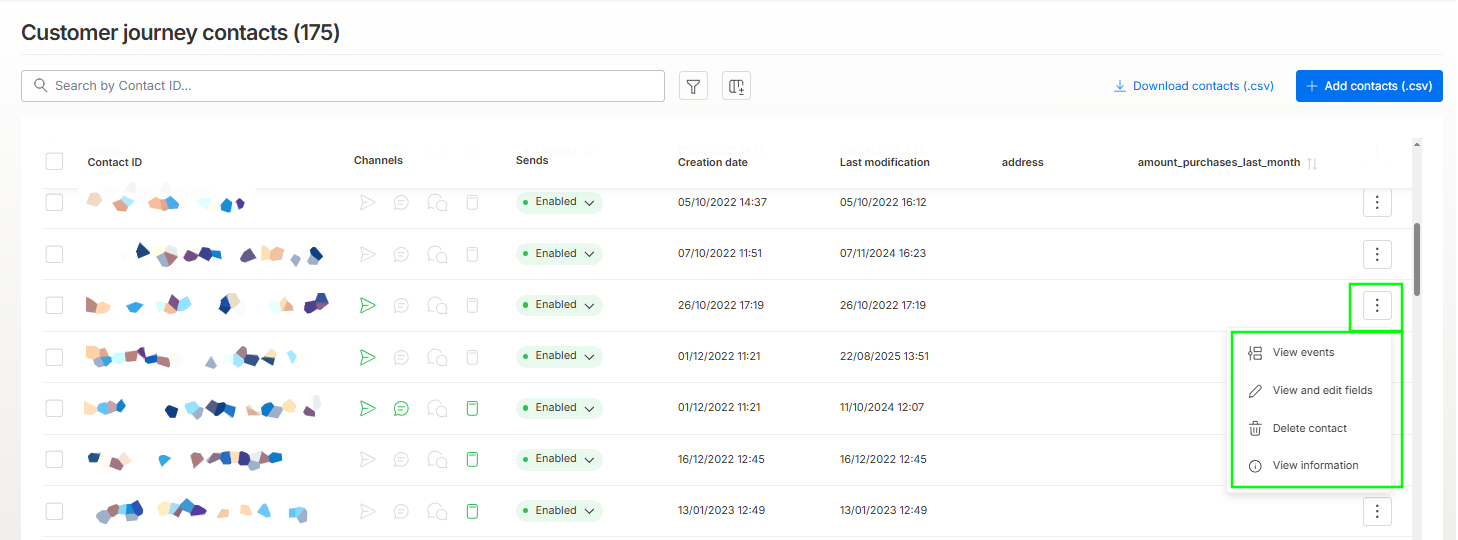
- Search & Filter: You can search for specific users by their Contact ID. The interface includes a filter icon and a column management tool.
- Contact Overview: The table displays high-level data including:
- Channels: Shows which communication methods (Email, SMS, Push, etc.) are active for the user.
- Sends Status: Indicates if the user is "Enabled" to receive communications.
- Activity Dates: Tracks the "Creation date" and the "Last modification."
- Bulk Actions: You can download the contact list as a .csv or manually add new contacts via the blue button in the top right.
- The Three Main Tabs: The "three-dot" menu on the main dashboard gives you instant shortcuts to:
- View events
- View and edit fields
- Delete contact
- View information
Event Management
The Events tab is the behavioral core of the Customer Data Platform, providing a real-time chronological log of every interaction a contact has with your brand. This section is designed to transform raw activity data into actionable insights for your team.
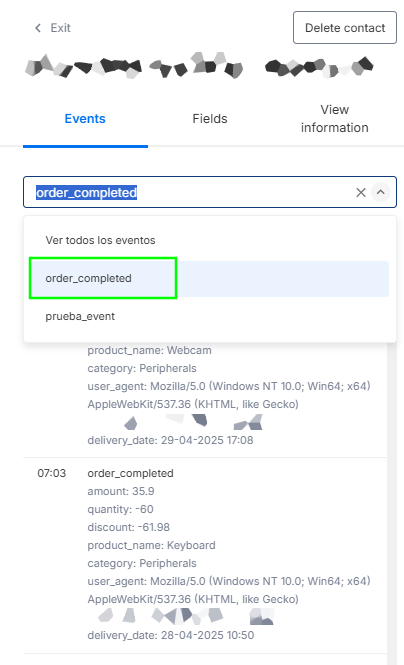
- Behavioral Tracking: Monitor specific actions such as order_completed, sign-ups, or custom events. Each entry provides a deep dive into the transaction, including product names, categories, and purchase amounts.
- Granular Metadata: Beyond the basic action, you can inspect technical and logistical details of each event.
- Targeted Filtering: Use the event search bar to isolate specific behaviors. The dynamic filter allows you to navigate thousands of interactions instantly.
By leveraging this detailed event history, you can build a precise understanding of the customer journey, enabling highly personalized engagement based on actual user behavior.
The "three-dot" menu
- Fields Tab: This section manages the Attributes (static data) of the customer.
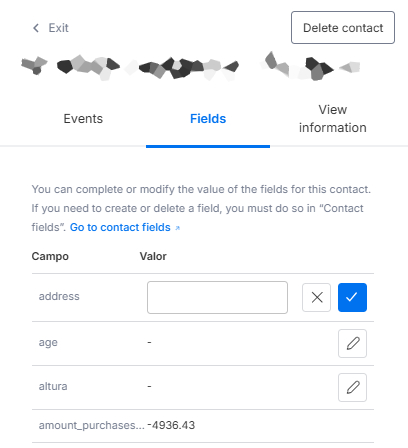
- Dynamic Editing: You can modify values directly (e.g., updating an address).
- Custom Attributes: It displays standard and custom fields like age, and calculated metrics like amount_purchases_last_month.
- Delete contact: To permanently remove the user and their associated data.
- View Information Tab: This provides the technical "System of Record" for the contact.
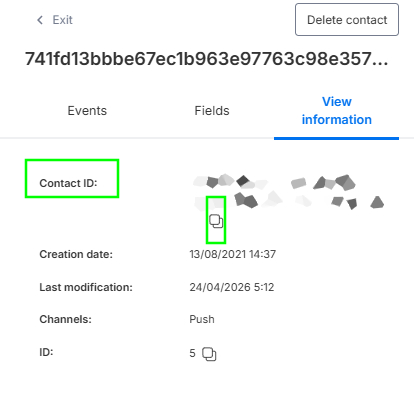
- Unique Identifiers: Displays the full Contact ID string and a shorter internal ID with the option to copy them.
- Audit Trail: Clearly shows the original creation date (e.g., 2021) versus the most recent modification (e.g., 2026).
- Channels: Identifies the channels for the user.
Filters & Customization
Advanced Filtering Capabilities
To narrow down your contact list and find specific segments, click on the Filter icon located next to the search bar. This opens the "Filter by contact fields" menu, which allows for highly specific data segmentation using logic.

- Custom Criteria: You can choose any contact field (e.g., Buy, Newsletter) and set specific conditions such as "Is set," "equals," "contains," and more.
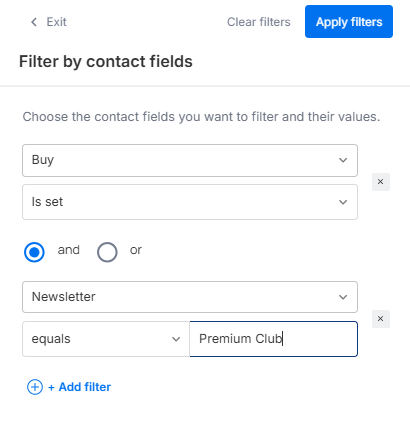
- Boolean Logic (AND/OR): You have the flexibility to combine multiple conditions to refine your search:
AND: Use this when you want the results to meet all selected criteria simultaneously (e.g., users who have bought a product and are part of the Premium Club).
OR: Use this when you want results that meet at least one of the criteria.
- Dynamic Addition: Simply click Add filter to layer as many conditions as needed to reach your target audience.
Once your criteria are set, click Apply filters to update the table, or use Clear filters to reset your view. This powerful tool ensures you can isolate the most relevant user data for your analysis or campaigns in seconds.
Column Management
You can fully customize your main table view by checking or unchecking fields to display only the data you need. Reordering columns is now easier than ever: simply hover your mouse over any column header at the top of the table to reveal the six-dot drag handle. Click and drag the column to the left or right to reorder it as you prefer, allowing you to keep your most relevant KPIs front and center.

Updated 16 days ago