
WABA Setup
Before starting the Business Verification process, you must ensure you have a WhatsApp Business Account (WABA) created. This is the container for your phone numbers and messaging settings.
How to Create a WABA
If you don't have a WABA ID yet, follow these steps in your Meta Business Suite:
- Navigate to Accounts: In Business Settings, go to Accounts > WhatsApp Accounts.
- Add Account: Click the Add button and select Create a new WhatsApp Business Account.
- Basic Info: Enter your Business display name, category, and business description.
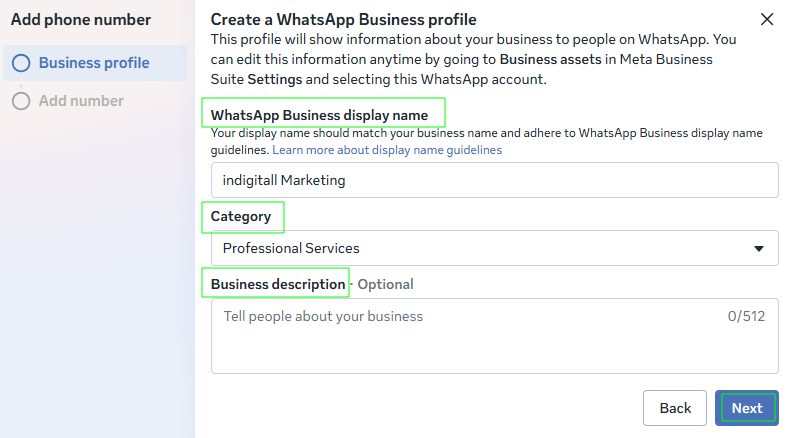
- Instant ID: As soon as you finish the setup, your WABA ID will be displayed in the WhatsApp Accounts dashboard.
indigitall console
You can use this ID to start your integration with indigitall immediately, even if your Business Verification is still Pending.
Meta Support
In the event of a technical issue regarding your WABA, please follow this guide to contact Meta Support: How to Open Meta Support Tickets for Your WABA.
How to find your WABA ID
-
Access Business Settings
Go to business.facebook.com/settings. Ensure you have selected the correct Business Portfolio (Business Account) from the dropdown menu in the top left corner.
-
Locate WhatsApp Accounts
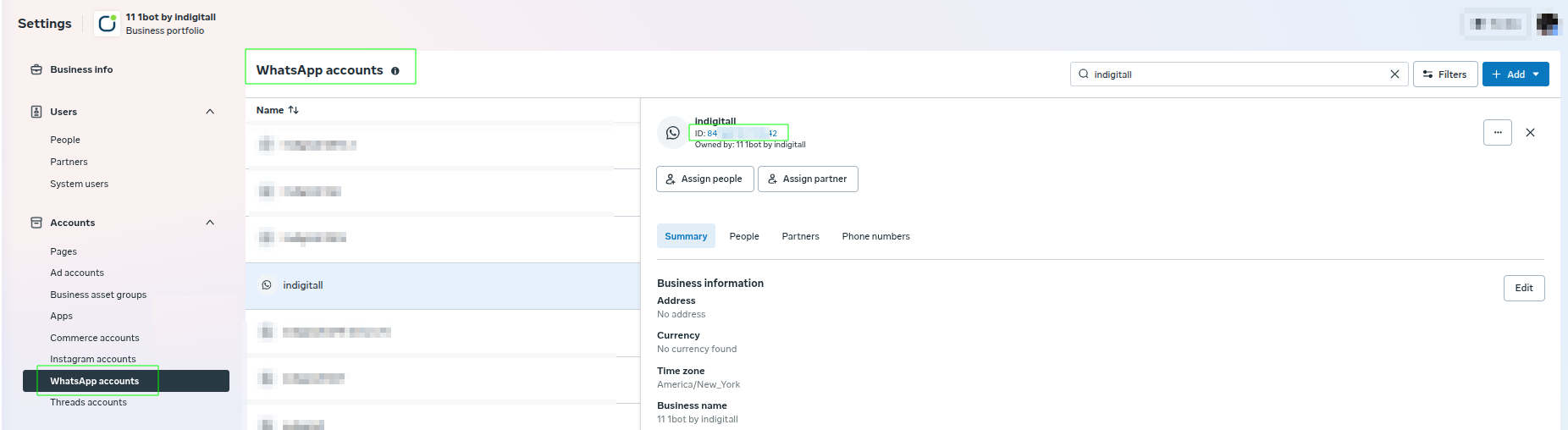
On the left-hand sidebar menu, find the Accounts section. Click to expand it and select WhatsApp Accounts.
-
Select your Account
In the middle column, you will see a list of linked WhatsApp accounts. Click on the specific account name you wish to connect to the indigitall platform.
-
Copy the WABA ID
Once selected, the account details will appear in the main right-hand pane. Look for the label: WhatsApp Business Account ID: [15-digit number]
You can find this number directly under the account name at the top of the page. Simply click the ID number to copy it to your clipboard.
Identification Tip
In the Meta ecosystem, there are different IDs. Ensure you are providing the correct one to avoid integration errors:
- WhatsApp Business Account ID (WABA ID): Found under Accounts > WhatsApp Accounts.
- Business Portfolio ID: Found under Business Info. (Used for general Meta identification).
- Phone Number ID: Found under the WhatsApp > API Setup (only if using the Cloud API directly).
Note: If no accounts appear under WhatsApp Accounts, verify that you have admin permissions for the Business Portfolio or that the onboarding process was completed under this specific business entity.
WhatsApp Business Number Verification
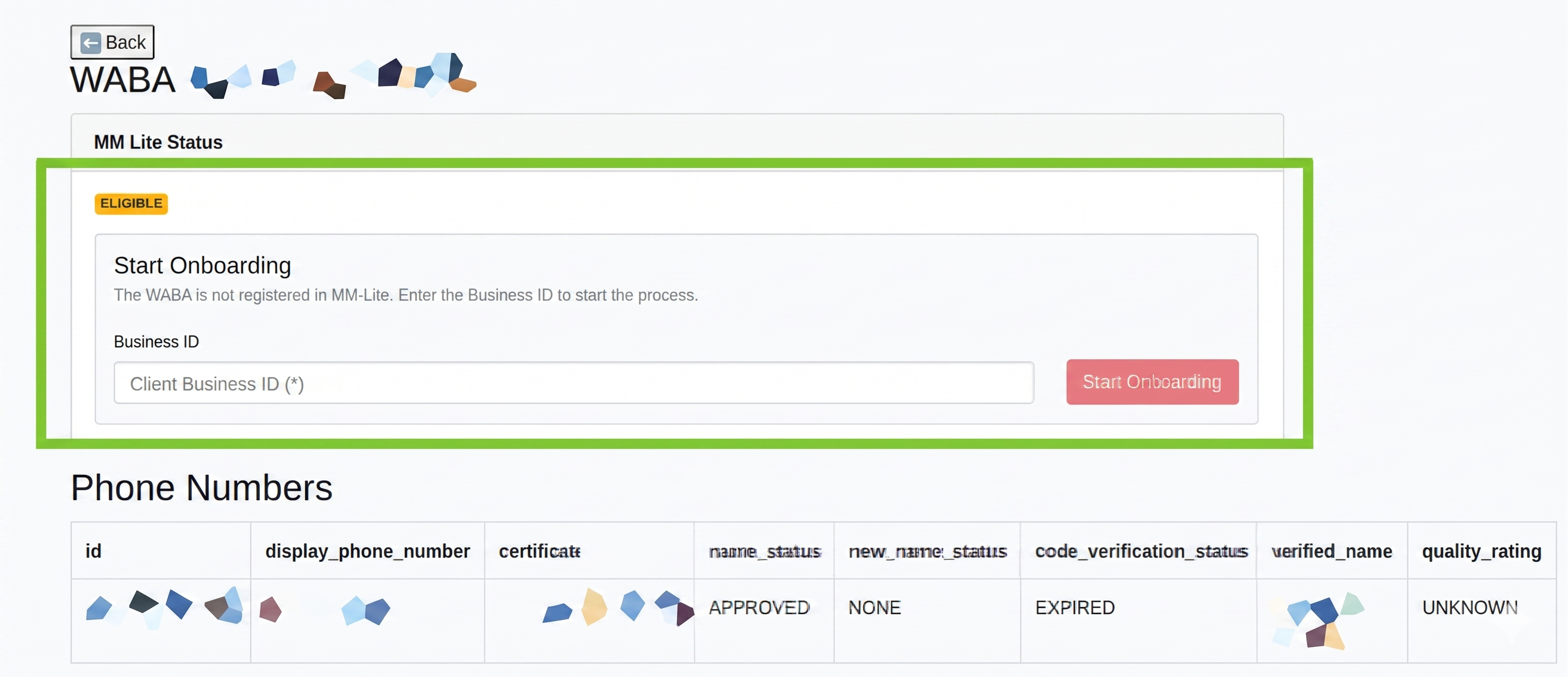
When onboarding your WhatsApp Business Account (WABA), your phone numbers must maintain an active verification status to send messages successfully. If the setup process is left incomplete or a code expires, the platform will flag the number as Expired.
Warning: If 14 to 30 days pass without completing the verification process, your verification code status will expire. To resolve this, you must re-verify your phone number within the WhatsApp Business Manager by requesting and entering a One-Time Password (OTP) delivered via SMS or voice call.
How to Re-verify Your Number
- Go to your WhatsApp Business Manager.
- Locate the phone number showing the Expired status and Start Onboarding.
- Click on the Send verification code link.

- Select your preferred verification method: SMS or Voice Call.
- Input the OTP code received on your device to successfully activate the number.
Updated 5 months ago