
Statistics
The Chat Statistics section provides a visual and data-driven overview of your campaign performance and channel usage. This dashboard is essential for monitoring engagement levels and understanding billing categories.
Date Range Selector: At the top of the dashboard, you can filter data using the From and To date pickers. To ensure optimal performance and granular reporting, the system allows for custom date selections, typically recommended for periods of 90 days or less.
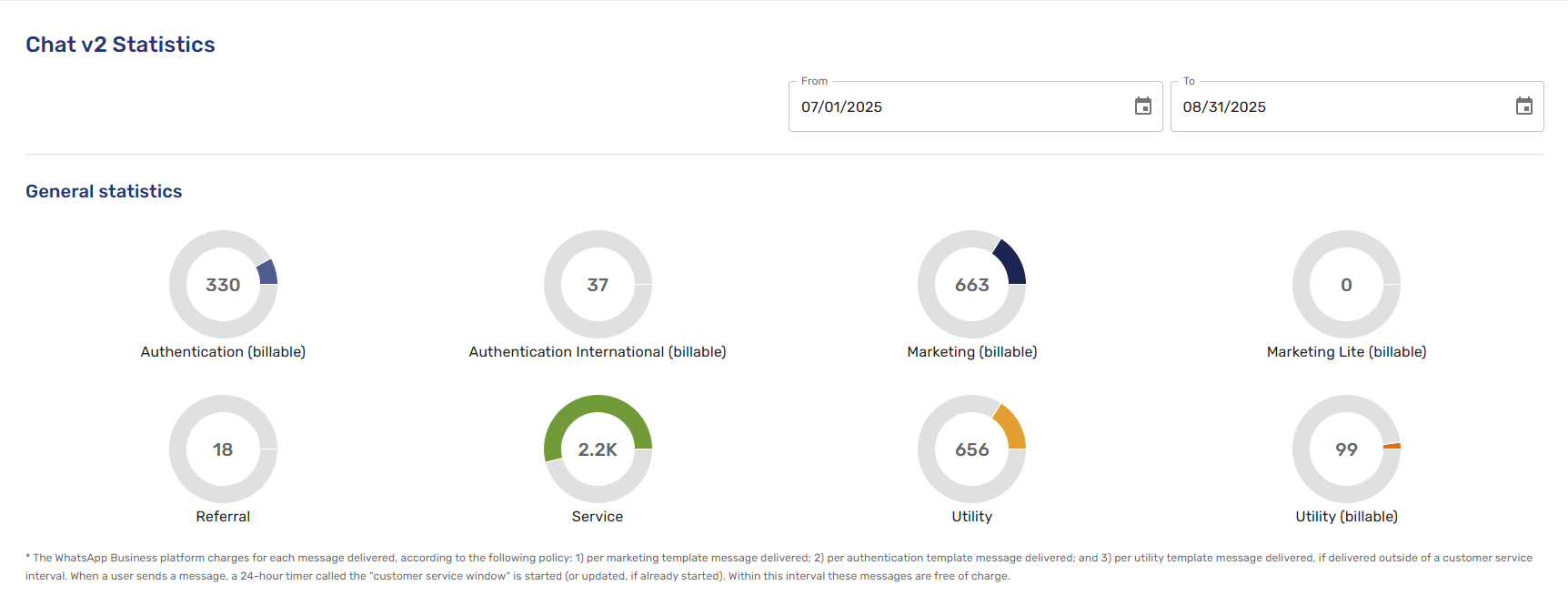
Visual Performance Indicators: Below the filters, the General statistics section displays the total volume of messages delivered, categorized by their specific purpose and billing impact. Each category is represented by a highly visual circular progress chart:
- Authentication & International: Monitors security-related messages, such as OTPs or login verifications.
- Marketing & Marketing Lite: Tracks promotional and high-value customer engagement campaigns.
- Referral: Captures interactions initiated through referral entries.
- Service & Utility: Displays operational communications and customer support interactions.
Billing Transparency: Categories marked as billable provide direct insight into your platform usage costs according to the WhatsApp Business policy.
Notifications received per day
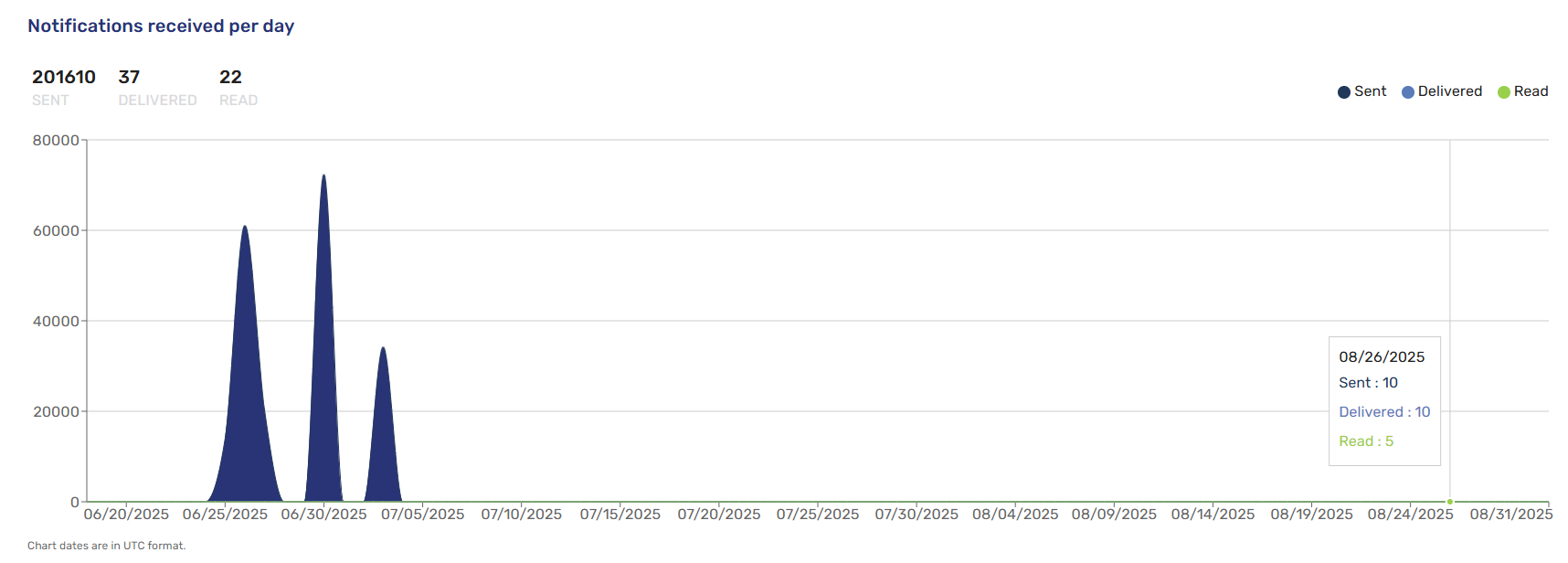
This graph tracks the lifecycle of your notifications by measuring Sent, Delivered, and Read statuses. It allows you to monitor engagement trends and identify the peak times when your audience is most active.
Sending history
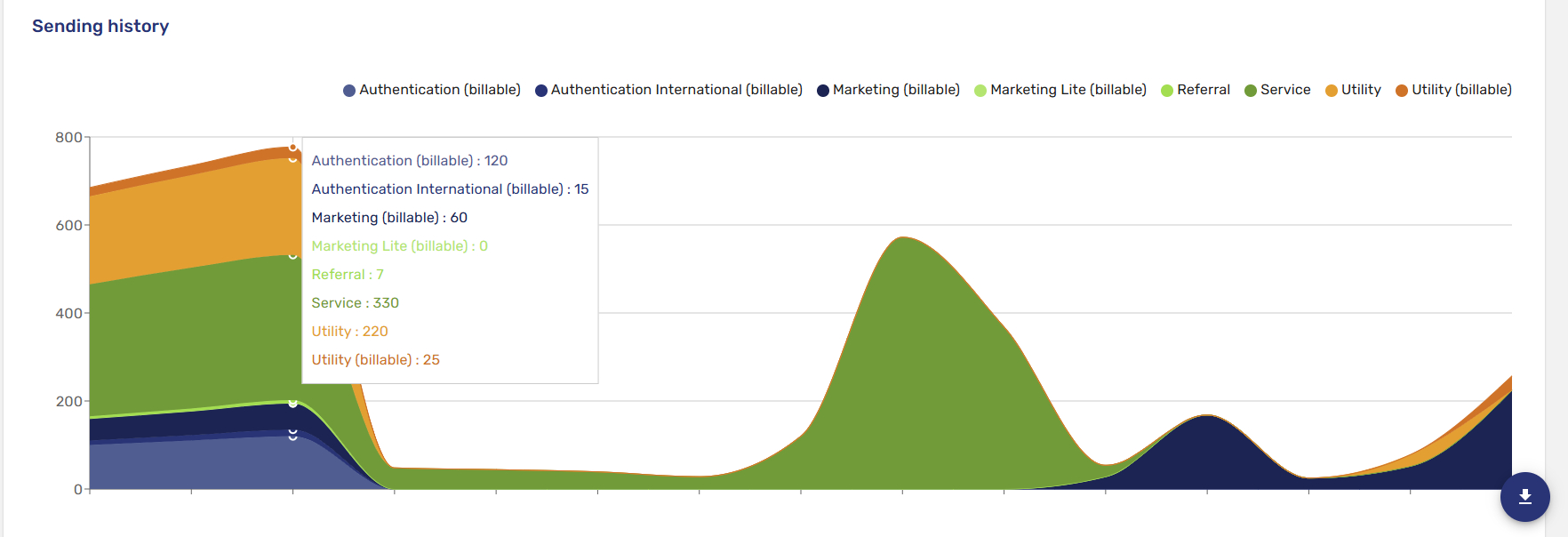
This stacked area chart provides a chronological view of your message volume. You can hover over any point on the timeline to see a detailed breakdown of message categories, such as Marketing, Service, or Utility, for that specific date.
Sending Logs
For a detailed audit of your activity, the Sending history table lists every interaction with the following data points:
- IDs: Includes both the unique Sending ID and the associated Campaign ID.
- Channel Confirmation: Displays the specific platform used, such as the WhatsApp icon.
- Metrics: Tracks the exact number of messages Sent, Delivered, and Read, while flagging any Errors for immediate troubleshooting.

Data Export
You can download comprehensive reports by clicking the Download icon (blue circle with a downward arrow) located at the bottom right of the charts.

New Chat Field Mapping
The new Chat introduces an updated data export structure designed to simplify message direction tracking and align data reporting across all communication channels. The table below details the updated schema and value mappings between Chat v1 and New Chat for BigQuery eventChat exports:
| Chat v1 Field (eventChat) | New Chat Field | Description |
|---|---|---|
| message.id | channelMessageId | Unique channel message identifier. |
| cs.instance_id | applicationId | Identifier of the application instance. |
| message.send_type | sendType | Replaces generic input/output values with specific message directions: incoming (user messages), proactive (campaigns), or reactive (bot/agent replies). |
| cs.id / conversation_session_id | contactId | Internal system identifier for the contact. |
| cs.channel | channelType | Delivery channel used. |
| cs.contact_id | contactCode | External contact identifier. |
| message.error | error | Details or payload for delivery errors. |
| message.integration | integrationType | Service handling the dispatch. |
| message.processed_at / cs.created_at | createdAt | Unified event creation timestamp. |
Export Data Dictionary
Here is an explanation of the fields included in the downloaded reports:
- messageId: Unique numerical identifier for the message record.
- campaignId: Identifier of the associated chat campaign (blank for non-campaign messages).
- sendingId: Dispatch batch ID for scheduled or bulk send operations.
- contactId: Internal system ID assigned to the contact.
- contactCode: External identifier for the user (e.g., phone number, email, or custom user ID).
- channelType: Delivery channel used for the message (e.g., web_chat, cloud_api).
- content: JSON payload containing the message body, template variables, interactive buttons, or media links.
- sendType: Directional classification of the interaction (input for user-initiated, output for platform/agent-initiated).
- contentType: Format of the message payload (template, text, location, multimedia, redirection).
- integrationType: Originating service handling the dispatch (sending for campaigns, pathbot for decision flows, auto_reply for automated triggers).
- messageDate: Timestamp indicating when the message was recorded in the database (UTC).
- scheduled: Target execution timestamp for deferred dispatches.
- profileName: Name of the agent, profile, or virtual assistant handling the message.
- sent: Timestamp indicating when the message left the gateway (UTC).
- delivered: Timestamp confirming delivery to the end user's device (UTC).
- read: Timestamp indicating when the contact opened/read the message (UTC).
- error_at: Timestamp recording when a dispatch failure occurred (UTC).
- error_type: JSON object containing error codes and diagnostic details if delivery failed.
CSV Report Field Mapping for WhatsApp Flows
When downloading message reports as .csv files for WhatsApp Flows and chat campaign statistics, use the following mapping table to align legacy Chat v1 export fields with the new Chat schema:
| Chat v1 Field (Legacy) | New Chat Field | Behavioral Status |
|---|---|---|
messageId | messageId | Unchanged. |
messageDate | messageDate | Unchanged. |
sendType | sendType | Unchanged. |
contentType | contentType | Unchanged. |
status | sent, delivered, read, error_type | Restructured: Replaced by explicit lifecycle milestone columns. |
statusAt | sent, delivered, read, error_at | Restructured: Individual stage timestamps replace the single updating timestamp. |
channelExternalId | (Removed) | Deprecated in Chat v2. |
error | error_type | Renamed for clarity. |
content | content | Unchanged. |
scheduleAt | scheduled | Renamed for clarity. |
integration | integrationType | Renamed for clarity. |
channel | channelType | Renamed for clarity. |
profileName | profileName | Unchanged. |
contactId | contactId | Unchanged. |
dfIntentId | (Deprecated) | Removed in Chat v2. |
dfIntentName | (Deprecated) | Removed in Chat v2. |
isFallback | (Deprecated) | Removed in Chat v2. |
sendingId | sendingId | Unchanged. |
Updated about 1 month ago