
Segments
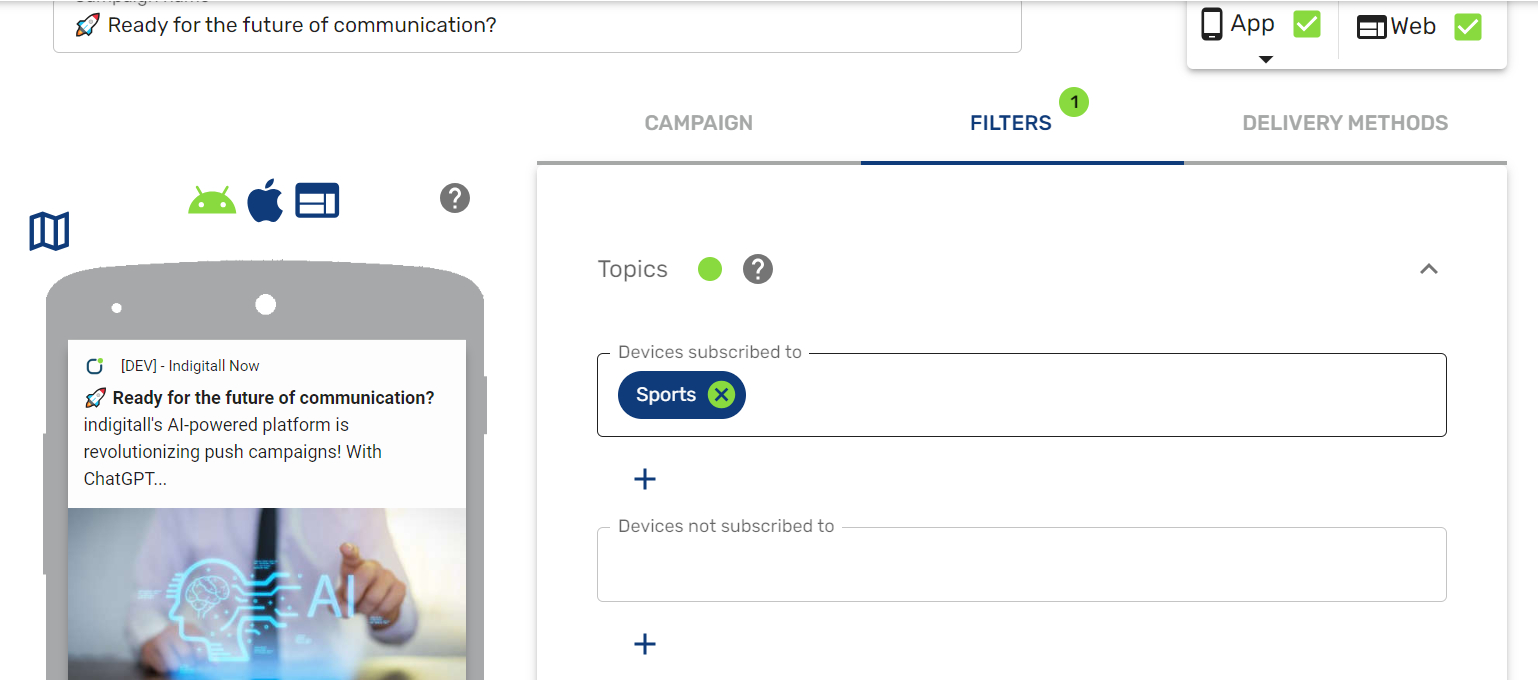
The segments or interest groups are used to group and classify your users. When you send a campaign you can choose to only impact users subscribed to a certain group.
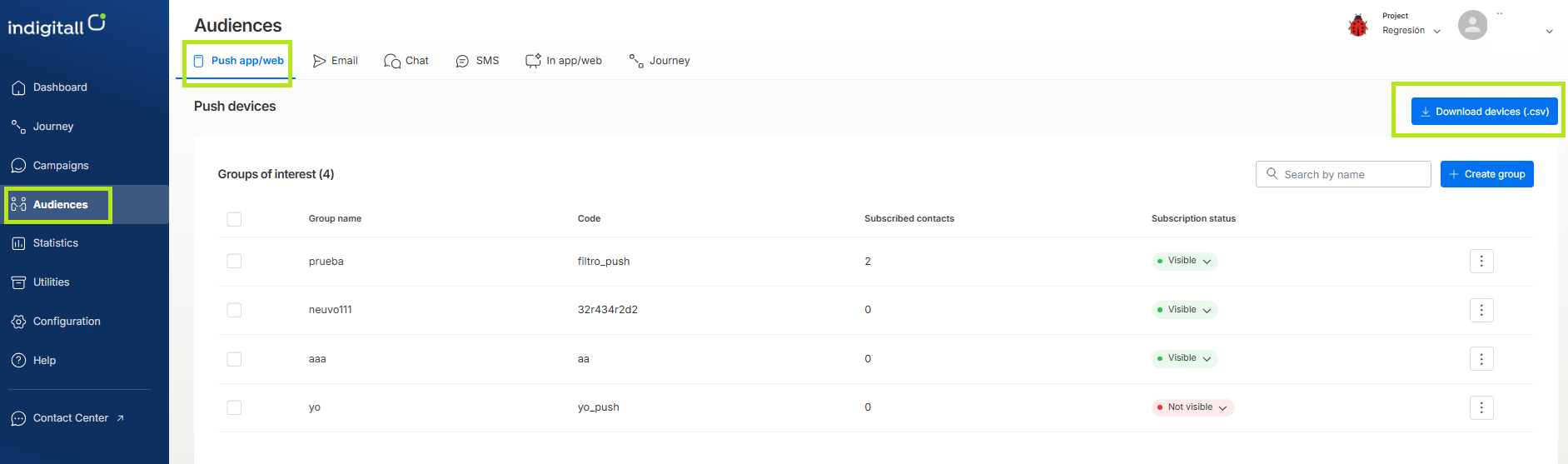
You can manage your groups from the indigitall console, selecting Audiences / Push app/web. In this screen you can create, edit and delete the groups of any of your projects.
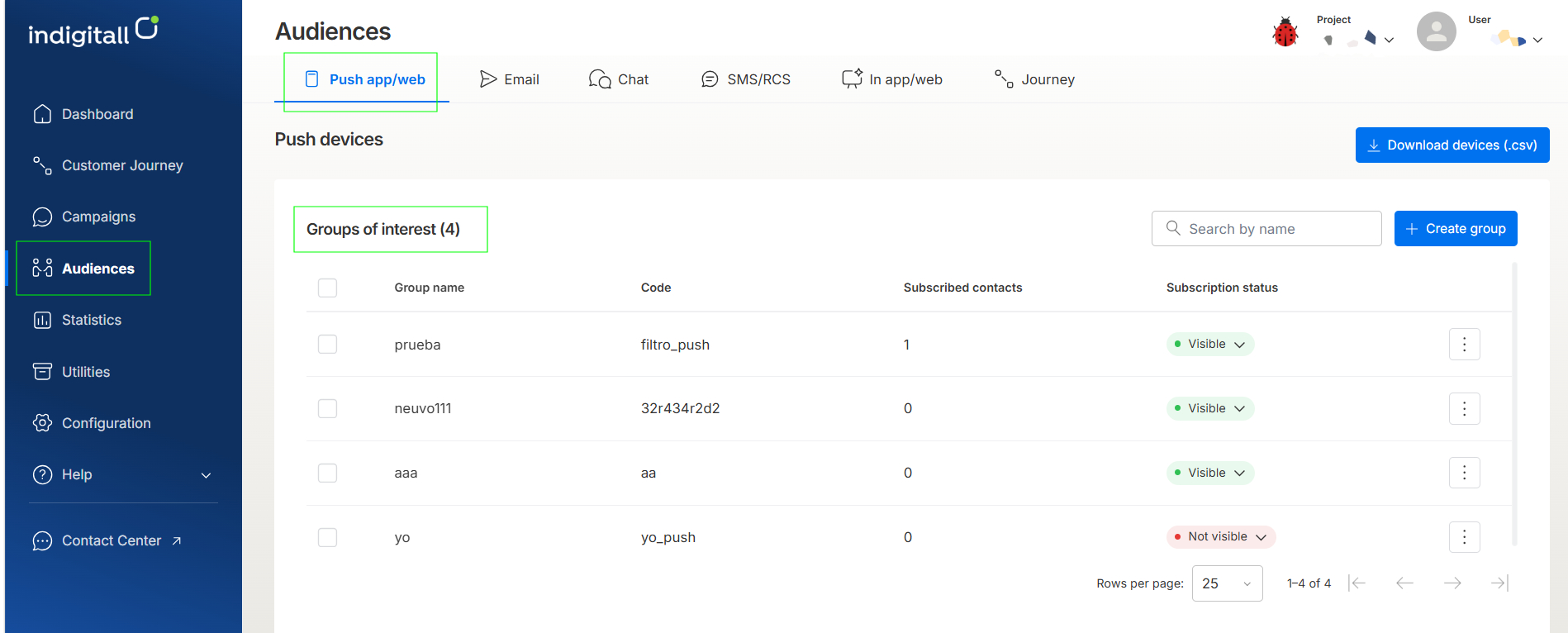
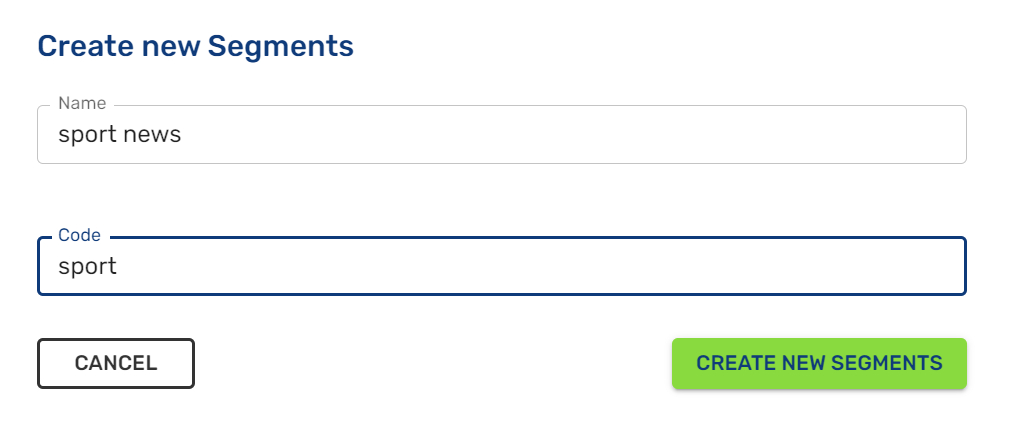
When you select to create a new group, a form will open with the name and code fields. You can put the code you prefer, but it is important since it must be used to integrate the SDK in the app and / or web.
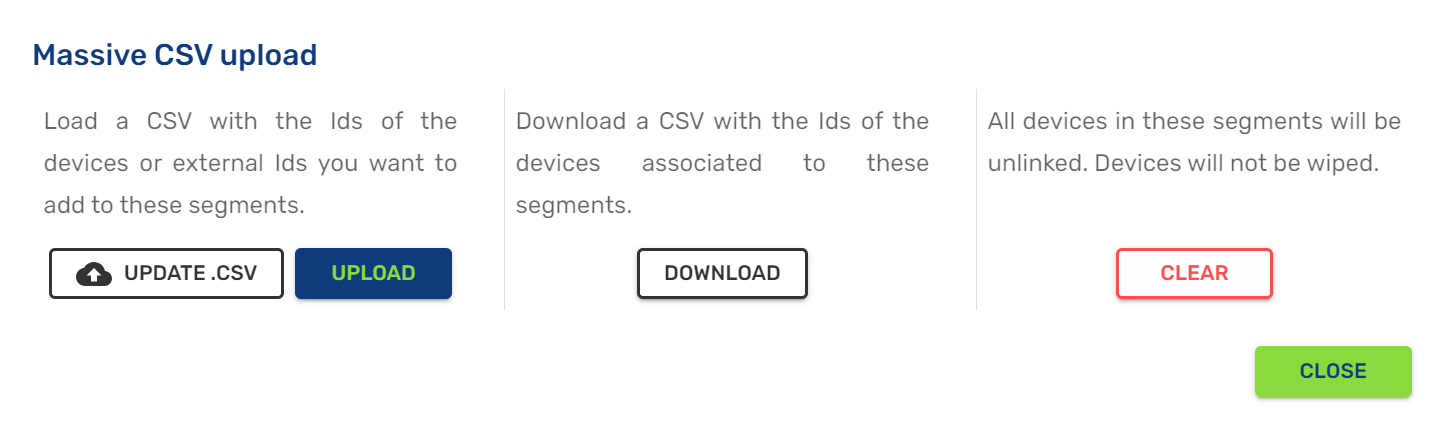
It is possible to upload a .CSV file with the contacts for each group if you click on the three vertical points icon.
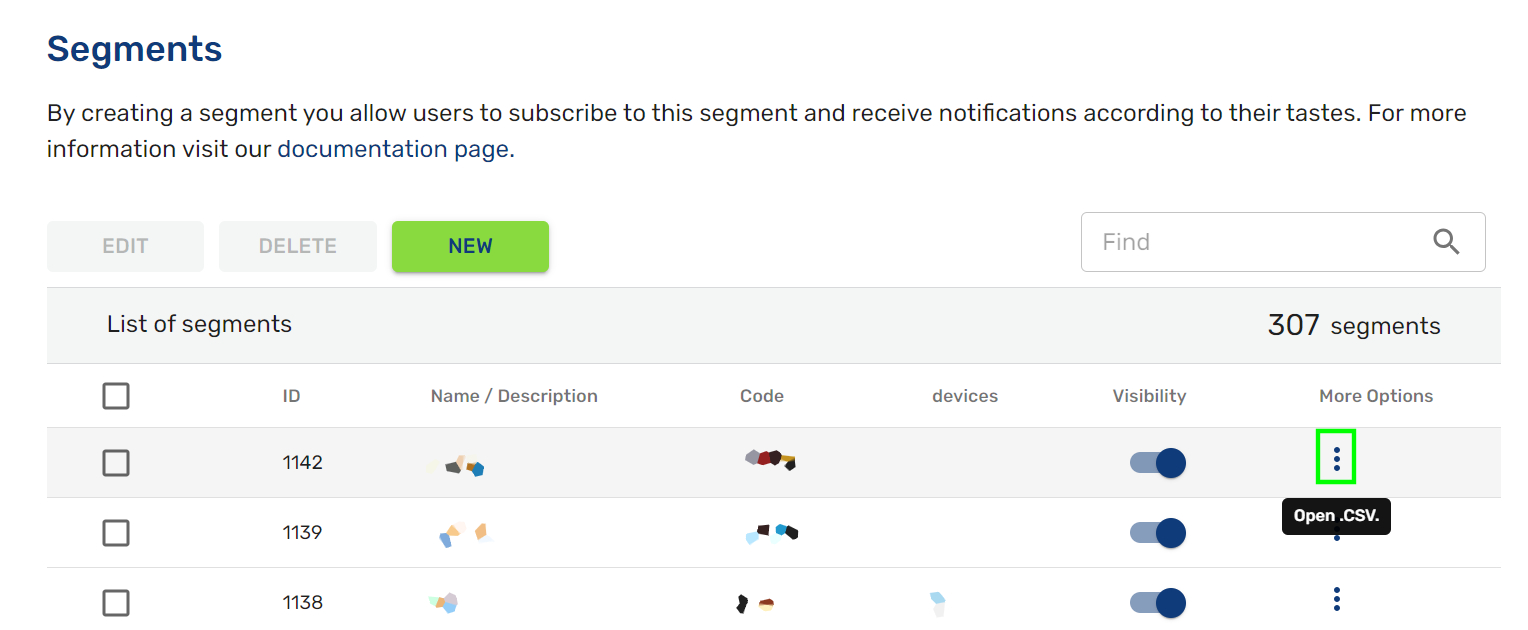
Then you can upload a .CSV file or download it or clear all contacts of this segment.
Filters
Once you have created the segment, you can use it as we have explained on the segment section.
Groups of interest
The Groups of interest section enables you to categorize your audience based on specific topics or user preferences (such as sports, news, or special promotions). Segmenting subscribers into groups allows you to send highly targeted Push App/Web notifications.
Navigation Path
To navigate to this section in the Indigitall console:
- Click Audiences in the left sidebar menu.
- Select the Push app/web tab from the top channels menu.
- Under the Push devices main view, you will find the Groups of interest table.
Top Actions
- Download devices (.csv): Located at the top-right corner, this button exports the device database into a CSV file.
- Search by name: A text input field to filter the listed interest groups by name.
- + Create group: Opens the configuration menu to create a new group of interest.
Data Table Columns
- Group name: The descriptive identifier assigned to the interest group.
- Code: The unique technical code or alias used for SDK or API integrations.
- Subscribed contacts: Displays the total number of devices or contacts currently subscribed to the group.
- Subscription status: A dropdown selector managing group visibility:
- Visible (Green badge): The group is active and available for subscription.
- Not visible (Red badge): The group is inactive or hidden.
- Action Menu (...): Contextual icon located on the far right of each row providing options to manage, edit, or delete the group.
Updated 4 days ago