
Official Business Account (OBA)
As an eligible Meta Solution Provider, indigitall can streamline the application for the WhatsApp Official Business Account (OBA) on behalf of your business.
Please Note: A 30-Day Waiting Period AppliesThe WABA (WhatsApp Business Account) must have been created and active for at least 30 days. The requirement applies regardless of which Business Solution Provider (BSP) is managing the WABA.
>> Steps for Clients Working with indigitall
- Ensure Prerequisites are Met
Your business must satisfy all of the following requirements before indigitall can submit your OBA application:
- The business must comply with the WhatsApp Business Messaging Policy.
- The business must be notable, well-known, and frequently searched-for.
- The Business Portfolio that owns the number must be Business Verified.
- The phone number must have two-step verification enabled.
- The phone number's Display Name must be approved.
-
Contact indigitall
Reach out to your dedicated indigitall contact to initiate the OBA request. -
indigitall Submits Application
indigitall will manage the application process by working directly with their Meta Point of Contact (PoC) to submit the OBA request for your business.
Important Note for Indigitall Clients: As a Solution Provider, indigitall is limited to submitting a maximum of five OBA applications each week across all our clients.
>> Alternative Direct Application Paths
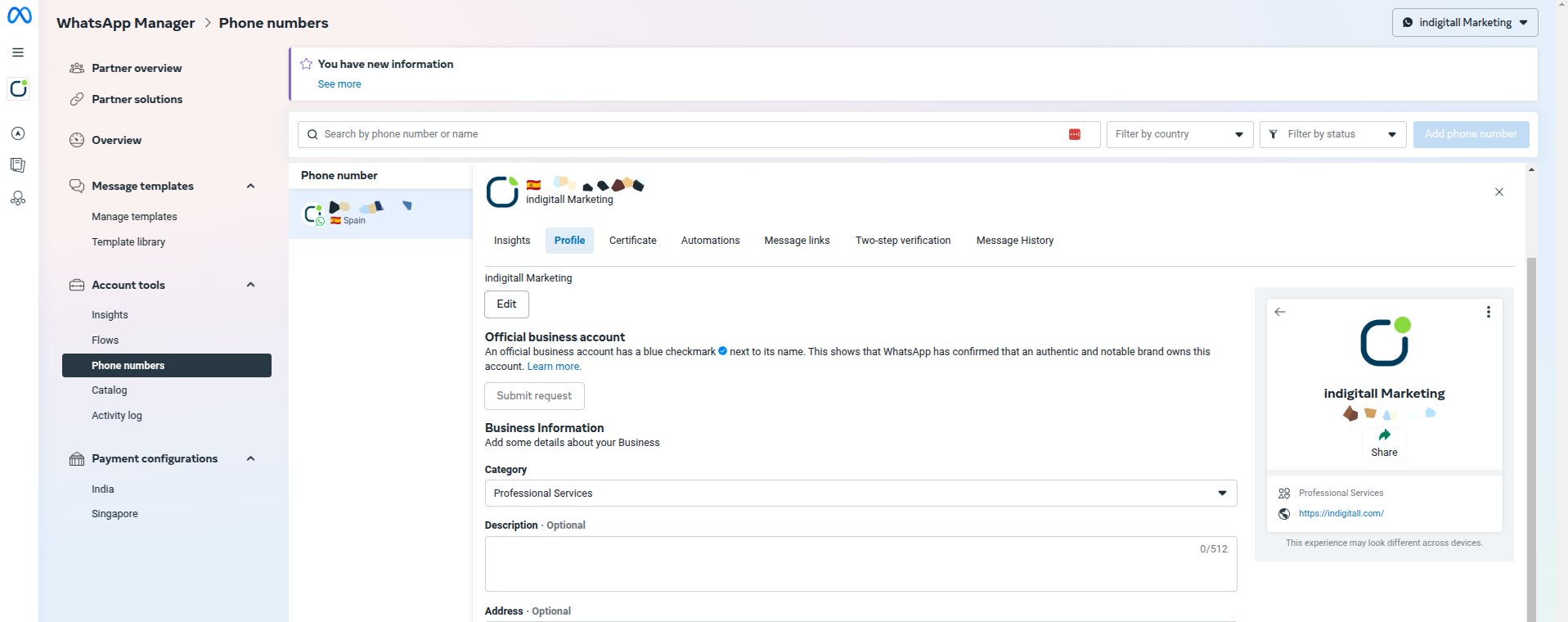
If your business is a Government Account or a Large Advertiser with a long-standing relationship with Meta, you may be eligible to apply directly for an OBA via the WhatsApp Manager tool. Eligible accounts will see this application option available within the manager interface.
Where to Apply: Go to WhatsApp Manager > Phone Numbers > Profile
- Submitting a Request for Business Verification
To initiate the verification process, click Submit Request and provide the required information. You may include up to five supporting links to demonstrate the business's notability. Carefully select these links, as resubmission is only possible after 30 days if the request is denied.
Key Considerations to Strengthen Your Application: Before submitting your request, ensure that your business meets the following criteria to improve the chances of approval:
- Your website must contain clear and comprehensive information about your products and services, including the display name, physical address, and contact details.
- The display name should match the name used on your official website.
- Provide at least five external media coverage links from reputable sources such as newspapers and magazines. Links from your own website, social media pages, or articles older than 12 months are not accepted.
- Avoid submitting irrelevant or low-quality news articles that do not directly relate to the business.
- All submitted links must be published within the last 12 months to be considered valid.
- Sponsored or paid content is not accepted by Meta, as its review team continuously refines verification criteria to maintain authenticity.
- Social media links are not considered valid supporting sources by Meta and should not be included.
- A high number of Facebook page likes can serve as an additional indicator of business relevance.
- Including the number of employees and financial performance metrics may further support your business’s credibility.
By adhering to these guidelines, you can strengthen your application and increase the likelihood of approval.
Identity Verification
After your business is approved for verification, you may be required to verify your identity.
If identity verification is needed, the WhatsApp Manager > Overview > Limits panel will display the following notification: Identity verification required.
In addition, an account_alerts webhook (see examples) with alert_type set to INCREASED_CAPABILITIES_ELIGIBILITY_NEED_MORE_INFO will be triggered.
If you successfully complete identity verification and your identity is confirmed, Meta will approve an increase in your messaging limit. However, if your identity cannot be confirmed, the request will be denied, and the WhatsApp Manager > Overview > Limits panel will display one of the following notifications: Identity verification has failed. Your business can continue sending messages to unlock your limits or limits cannot be increased at this time.
How to Appeal a WhatsApp Display Name Rejection
If you encounter an issue with a Display Name Rejection, you can resolve it by submitting an official appeal directly to Meta. At indigitall, we are committed to your success and aim to make this process as seamless as possible by guiding you through the Meta support ticketing system.
Follow these steps to open a support ticket and appeal the decision:
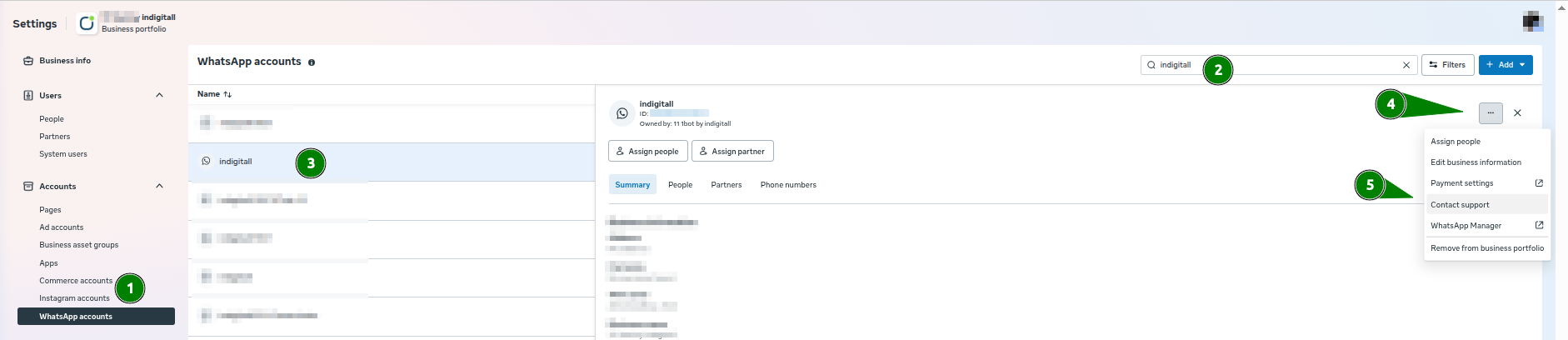
Step 1: Accessing Meta Support Navigate to your Meta Business Suite settings to reach the support section:
- Go to WhatsApp accounts in the left-hand sidebar.
- Locate your Account: Use the search bar in the top-right corner to find your account by name.
- Select the specific account you wish to manage
- Click the three-dot menu (...) in the top right corner.
- Select Contact support from the dropdown menu.
Step 2: Creating the Ticket Once the support section opens, you will need to categorize your request. Choose the following category:
- Category: Dev: Phone Number & Registration
Next, you must select the specific Request Type:
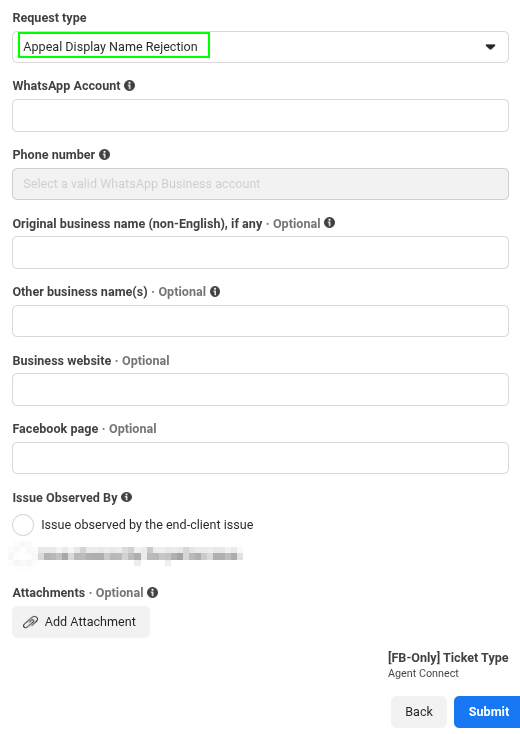
- Select Appeal Display Name Rejection from the list of options.
Step 3: Filling in Case Information Provide the specific details of your appeal. You do not need to worry about the WhatsApp Account ID, as it is a dropdown menu that will automatically list your account.
Complete the following fields as shown in the form:
Title and Description: Briefly explain why you are appealing the rejection.
Information for Change: Provide the required details regarding your Business Name, website, or Facebook page.
Phone number: Select the affected number from your account.
Language & Alternative Names: If your business name is not in English or you use other names, fill in the optional fields provided.
Links & Attachments: Add your Business Website and Facebook Page URLs, and attach any supporting documents (like registration papers) to strengthen your case.
Troubleshooting
When a WhatsApp Display Name is rejected, you must open a support ticket within Meta Direct Support to request a manual review. However, a common issue arises where the correct category, Appeal Display Name Rejection, is hidden or does not appear in the initial list.
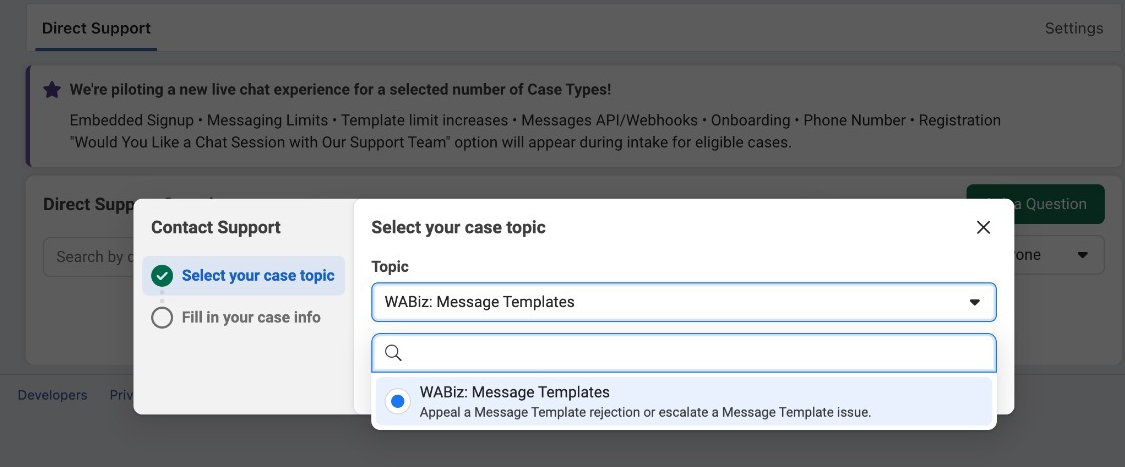
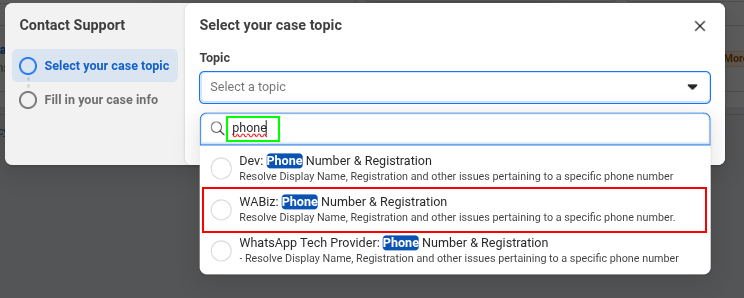
The issue might be that you are filtering by a specific keyword, such as 'phone' as shown in the image above. Please make sure to clear any filter keywords so that all available options are displayed, and then select the correct one: Appeal Display Name Rejection.
Updated 4 months ago