
WhatsApp Templates
Setting up a new WhatsApp template is the first step toward launching high-impact campaigns. Here is how to navigate the creation process within the indigitall console.
At the top of the interface, you will find the general management fields:
- Name: Unique identifier for your internal use.
- Creation Date: Automatically tracks when the template was drafted.
- Use Type: Marketing (for promotions, offers) and Service (for transaction updates, alerts, or account info.)
- Language: Choose the specific language for your content (e.g., English US).
- Meta Review Status: Tracks the approval progress from Meta (Pending, Approved, or Rejected).
Creating a template
General info
- Template Name: Give your template a unique, internal name (e.g., promo_march_2026).
- Content Language: Select the specific language your message will be written in (e.g., English US).
- Use Type: Choose the category from the dropdown:
- Advertising (Marketing): For promotions, news, and engagement.
- Informational (Service): For transactional updates, like order confirmations or alerts.
Content
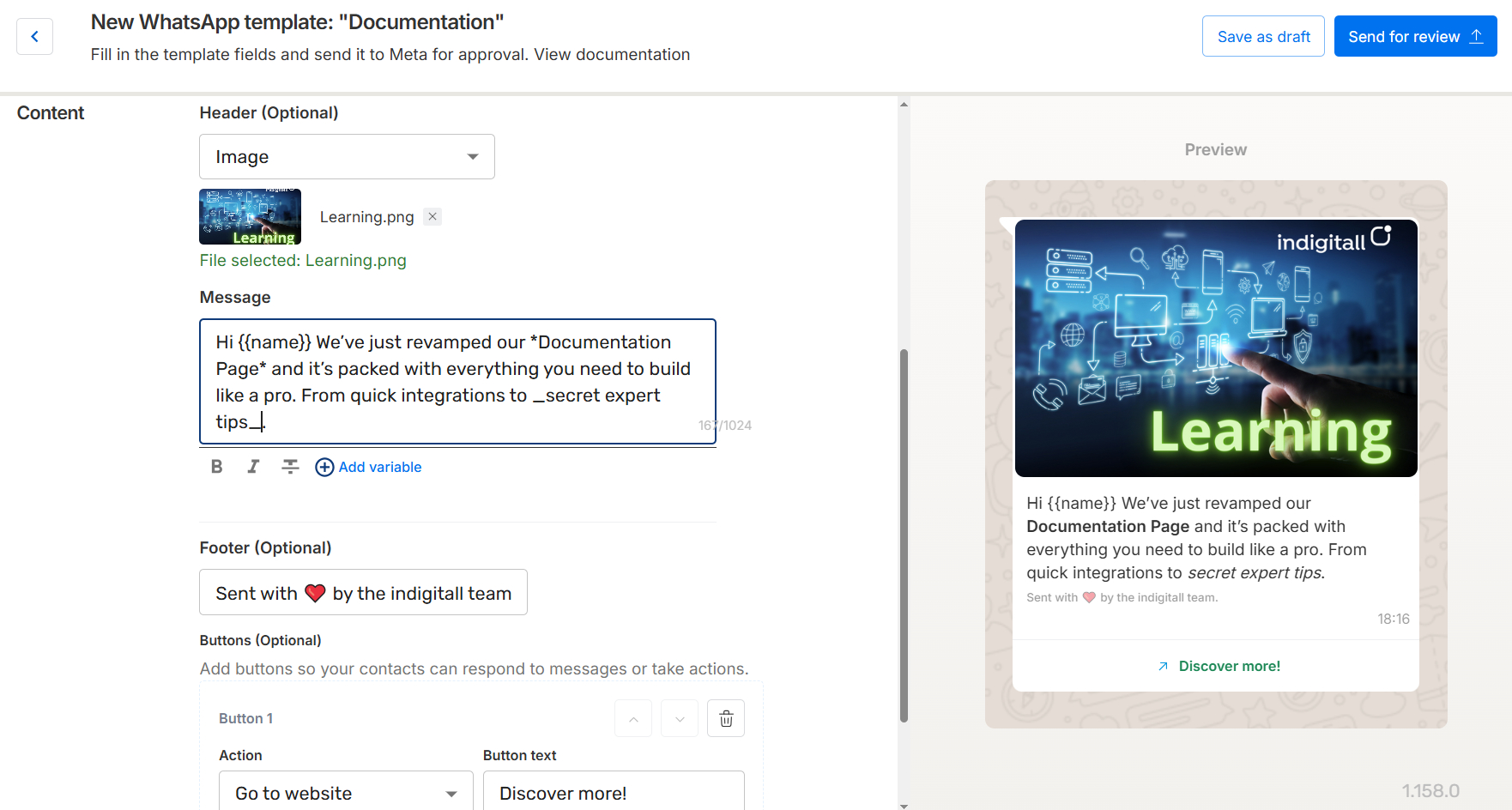
Header Options
The header is the first thing your users see. You can choose:
- No content: Just text starting immediately.
- Image / Video: Visual assets to catch the eye.
- Document: Perfect for sending PDFs or guides.
- Location: Useful for sharing office or store coordinates.
The Message Body
This is where your story live. You can style your text to make it stand out:
- Bold: Emphasize key words to make them stand out.
- Italics: Add a subtle touch to your text.
- Add Variables: Personalize your message by adding placeholders. Use this format to insert dynamic data like the customer’s name or order number.
Footer
You also have the option to include a footer to add a brief, secondary message at the end of your template.
Adding Interaction (Buttons)
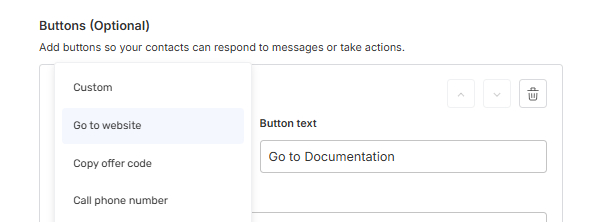
Finish your template with a clear Call to Action (CTA). You can customize buttons for:
- Go to Website: Direct users to a specific URL.
- Copy Offer Code: Allows users to copy a promo code with one tap.
- Call Phone Number: Connects the user directly to your support or sales line.
Updated 27 days ago
Did this page help you?