
In this section you will find a series of more advanced functionalities that require a more complex development. We recommend that a developer be in charge of this configuration.
Activate geolocated notifications
The indigitall SDK can manage the user's location. This allows you to use the location filters on the send push campaign screen ( Campaigns> Push> New push campaign > Filters> Geographical Filters)
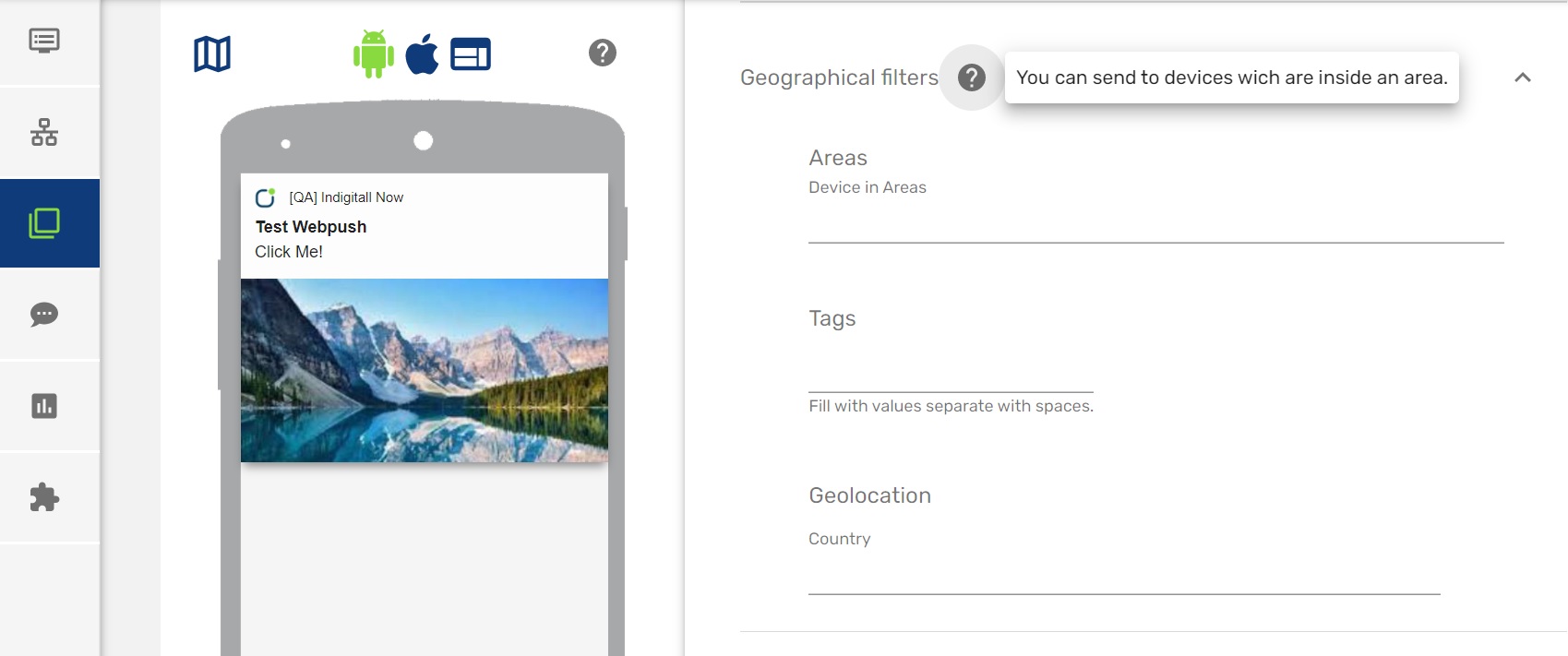
Once we have enabled this functionality, the end user will have to give their consent to the location permission and enable the location services of their smartphone, so that the application can obtain the exact location of the user.
Android
Add localization permissions by including this line in the AndroidManifest.xml file.
<uses-permission android:name="android.permission.ACCESS_FINE_LOCATION" />
    <uses-permission android:name="android.permission.ACCESS_COARSE_LOCATION" />
    <uses-permission android:name="android.permission.ACCESS_BACKGROUND_LOCATION"/>
In Android there is a class where the status of the permissions is received after the user has changed them through the configuration. The following piece of code should be added to capture the status of the permissions:
 //In the class you use to receive the results of asking for the permissions
@Override
public void onRequestPermissionsResult(int requestCode, @NonNull String[] permissions, @NonNull int[] grantResults) {
    Indigitall.onRequestPermissionsResult(this, requestCode, permissions, grantResults);
}
Request background location: Android 11 and higher
When a feature in your app requests background location on a device that runs Android 10 (API level 29), the system permissions dialog includes an option named Allow all the time. If the user selects this option, the feature in your app gains background location access.
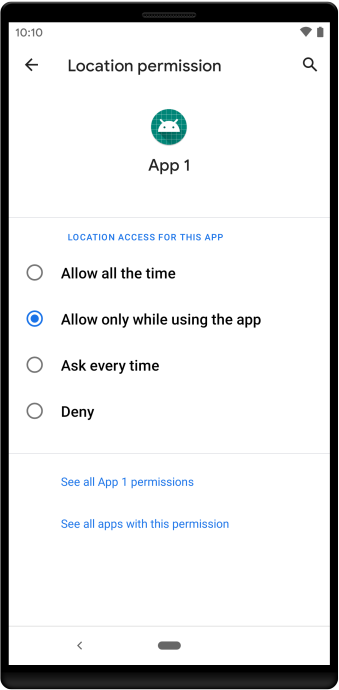
On Android 11 (API level 30) and higher, however, the system dialog doesn't include the Allow all the time option. Instead, users must enable background location on a settings page, as shown in following figure.
To handle background location updates reliably on Android, the SDK uses WorkManager, the official Android library for scheduling deferred and persistent background tasks.
The dependency:
implementation("androidx.work:work-runtime-ktx:2.9.0")Provides:
- Kotlin-friendly APIs using coroutines.
- Reliable Workers that can run even if the app is closed or the device restarts.
- Full compatibility across all Android versions and background execution restrictions.
- Automatic retries and constraints, ensuring tasks complete under system limitations.
The SDK requires this library to schedule and execute background location tasks in a consistent and system-compliant way.
App targets Android 11 or higher
If your app hasn't been granted the ACCESS_BACKGROUND_LOCATION permission, and shouldShowRequestPermissionRationale() returns true, show an educational UI to users that includes the following:
- A clear explanation of why your app's feature needs access to background location.
- The user-visible label of the settings option that grants background location (for example, Allow all the time in previous figure). You can call getBackgroundPermissionOptionLabel() to get this label. The return value of this method is localized to the user's device language preference.
- An option for users to decline the permission. If users decline background location access, they should be able to continue using your app.
iOS
Add the following keys to the application's Info.plist file.
<key>NSLocationAlwaysAndWhenInUseUsageDescription</key>
<string>Can we always use your location?</string>

<key>NSLocationAlwaysUsageDescription</key>
<string>Can we always use your location?</string>

<key>NSLocationWhenInUseUsageDescription</key>
<string>Can we use your location when using the apps?</string>
The NSLocationAlwaysUsageDescription, NSLocationWhenInUseUsageDescription, and NSLocationAlwaysAndWhenInUseUsageDescription keys can be customized by editing the content of the tag.
Location Request
Include the requestLocation parameter to your initialization.
...

Indigitall.init({
  appKey: "<YOUR_APP_KEY>",
  senderId: "<YOUR_SENDER_ID>",
  requestLocation: true });

...